Google Cloud Platform Integration Guide
This guide will walk you through the process of integrating Google Cloud Platform with the OneClickComply platform.
In order to integrate the OneClickComply platform with your Google Cloud Platform environment, we require four values (client_id, client_secret, refresh_token, and quota_project_id). You can obtain these values manually, or use CLI commands to retrieve them automatically.
This support article has been created to guide you through the process of obtaining these required credentials, and integrating your Google Cloud Platform environment with the OneClickComply platform.
Note: Please ensure you follow the instructions provided in this guide carefully, as providing incorrect information will result in an unsuccessful integration.
Manually obtaining the necessary GCP credentials
Sign into console.cloud.google.com
Navigate to your desired project.
Click on the cloud shell option found at the top right of the screen, or by pressing G and then S on your keyboard.
Navigate to your home directory by typing "cd $HOME" and pressing 'Enter.'
Type "gcloud init" then press 'Enter.'
Select all relevant options here. Ensure that you use an account with the least privileges possible in your project. This will likely be the 'reader' account type.
Run the following command: “gcloud auth application-default login”.
If prompted, click the provided link and sign in.
Copy the authorisation code snippet, paste it into the cloud shell, and press Enter.
You will see a message similar to "Credentials saved to file: [/xxxxxx/application_default_credentials.json]".
Copy the entire file path within the square brackets.
Type "cat" into the terminal, press 'spacebar', then paste the file location. The full command should look like this: cat /xxxxxx/application_default_credentials.json
Press 'Enter', then make a secure copy of the following credentials:
client_id
client_secret
quota_project_id
refresh_token
Once the above steps are complete, you can now begin the process of integrating your Google Cloud environment to the OneClickComply platform and move onto the second part of this support article.
Retrieving GCP credentials through CLI commands
If you would prefer a less manual method, we have provided several CLI commands that you can use to obtain the values required for integration.
Replace
<your-gcp-project-id>with the id of your chosen project
# Set your desired project
PROJECT_ID="<your-gcp-project-id>"
gcloud config set project "$PROJECT_ID"

# Run the standard initialisation (equivalent to the UI steps)
gcloud init
This ensures gcloud is configured against the project you want to connect, just like the manual console steps.
Perform application-default login non-interactively
From a machine where a browser is available:
gcloud auth application-default loginAfter completion, Google writes the application default credentials JSON, which contains client_id, client_secret, quota_project_id and refresh_token.
Locate and print the credentials file
# Find the ADC file path
ADC_PATH=$(gcloud auth application-default print-access-token 2>&1 \
| sed -n 's/.*credentials saved to file: \[\(.*application_default_credentials.json\)\]

# Fallback if the above does not capture it
if [ -z "$ADC_PATH" ]; then
ADC_PATH="$HOME/.config/gcloud/application_default_credentials.json"
fi

echo "ADC file: $ADC_PATH"

# Show the JSON so you can copy the fields
cat "$ADC_PATH"
Copy these four fields from the JSON and store them securely, as they are required for integration with the OneClickComply platform.
If jq is available, you can retrieve all four values in a single command
jq '{client_id, client_secret, quota_project_id, refresh_token}' "$ADC_PATH"As outlined previously, ensure that these four credentials are stored securely, and that you can access them when integrating your Google Cloud Platform environment.
Integrating your Google Cloud environment with OneClickComply
Please follow the steps outlined below to connect your Google Cloud Platform environment to the OneClickComply platform.
Select Integrations from the main navigation bar.
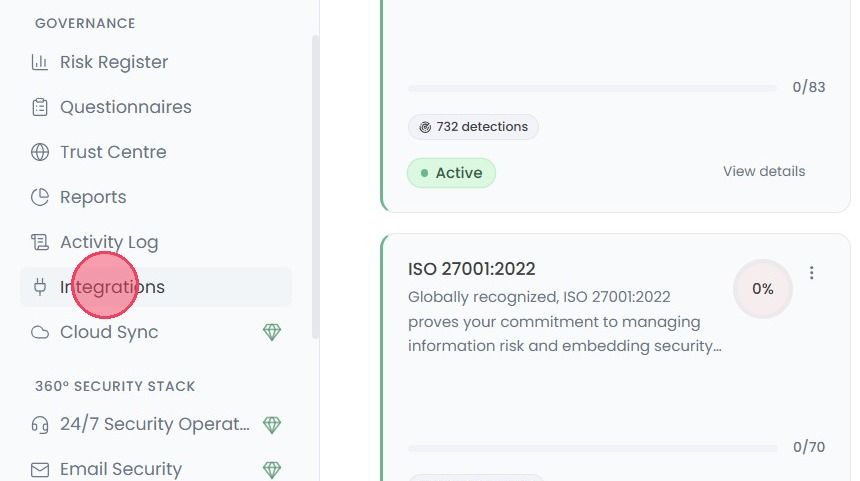
Once on the Integrations page, you will be shown a list of all integrations currently available on the OneClickComply platform. You can use the search bar at the top of the page to filter for the Google Cloud Platform integration.
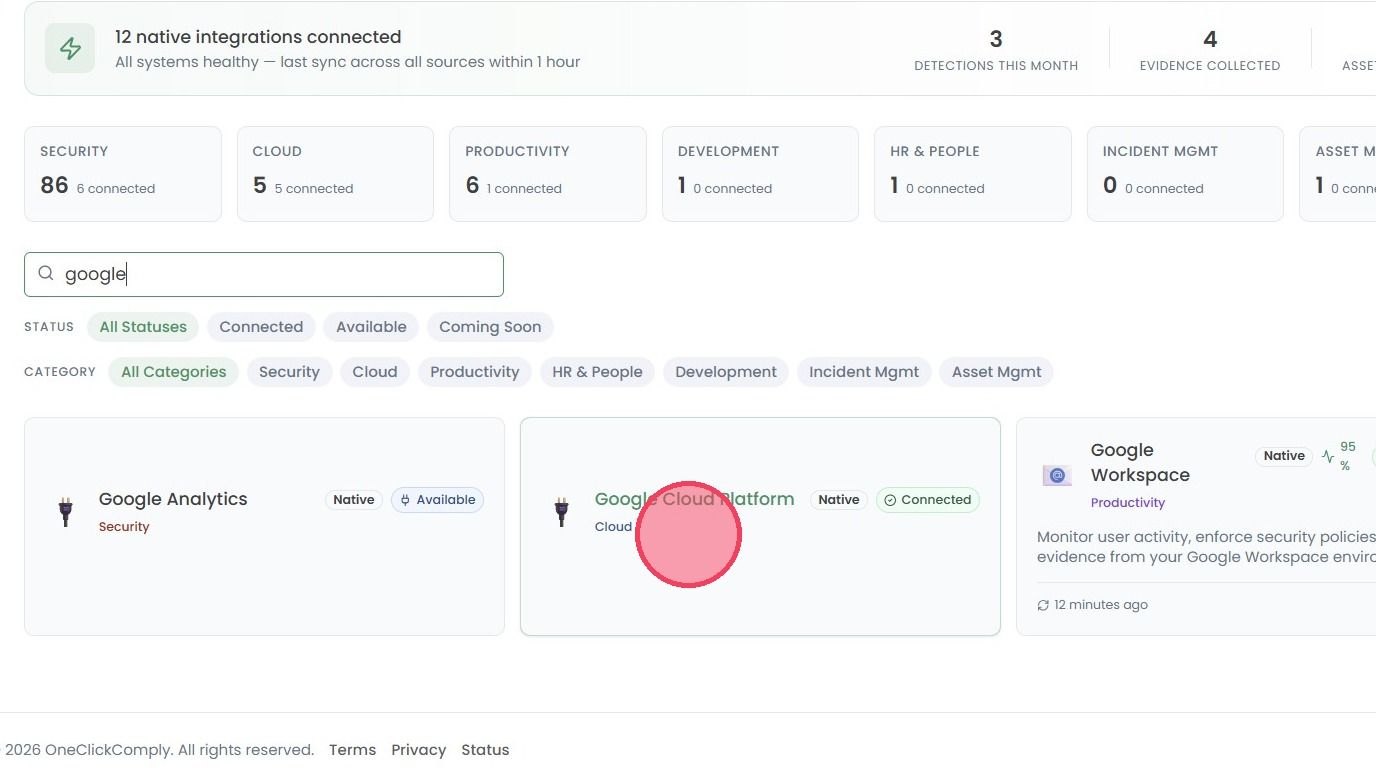
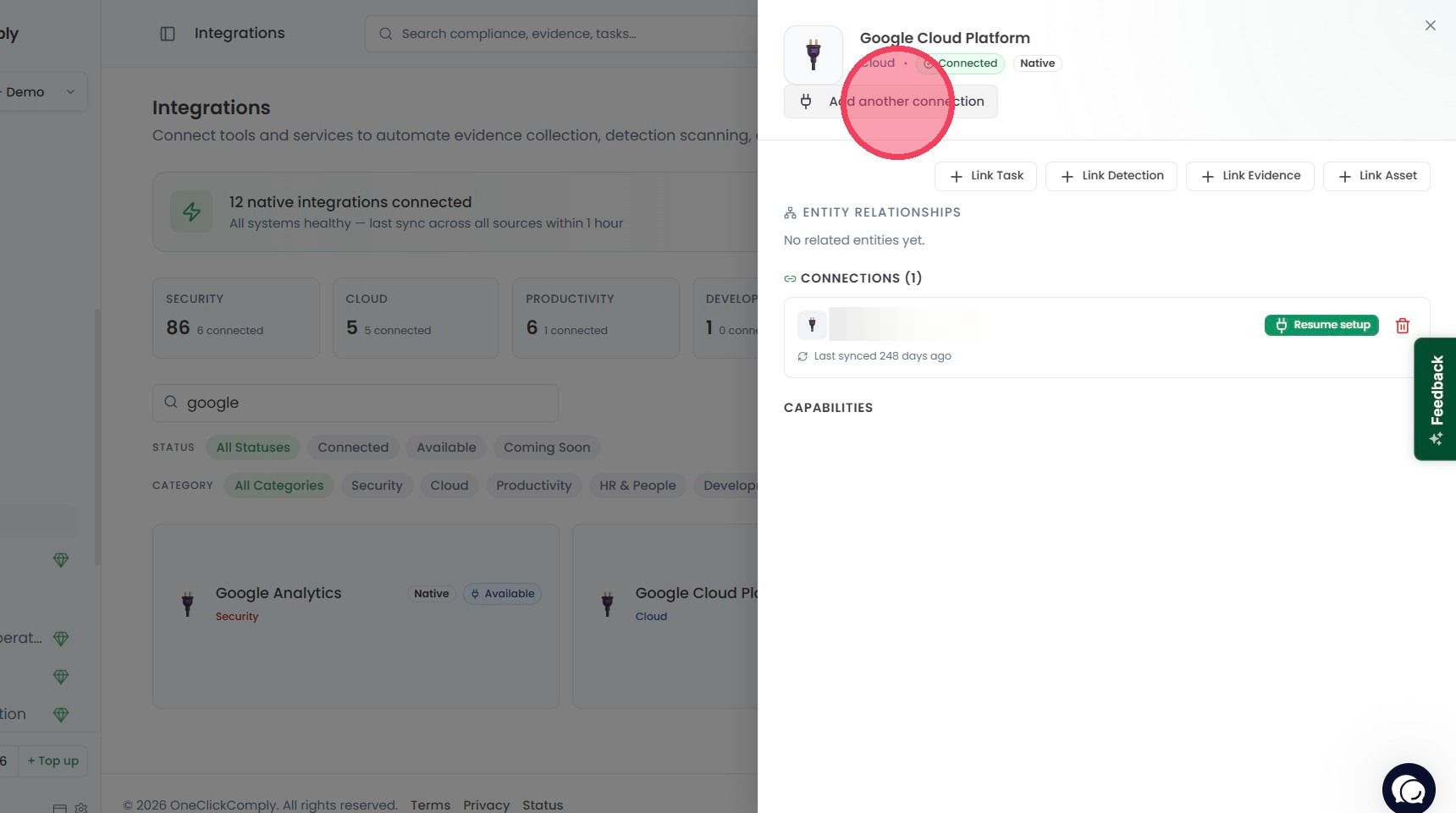
Select the Google Cloud Platform integration to open a side window, and then select Connect Google Cloud Platform. This will open a pop-up modal which will guide you through the connection process.
First, assign a Connection name. The name should be clearly recognisable, and one that you don’t mind seeing in various areas within the platform.
Note: If you have multiple connections within an integration, ensure the names are unique and can be easily distinguished.
Next, provide your Project ID. You can also optionally assign an Alias (e.g. Production)
Then provide the Client ID, Client secret and Refresh token.
Finally, click Connect cloud account.
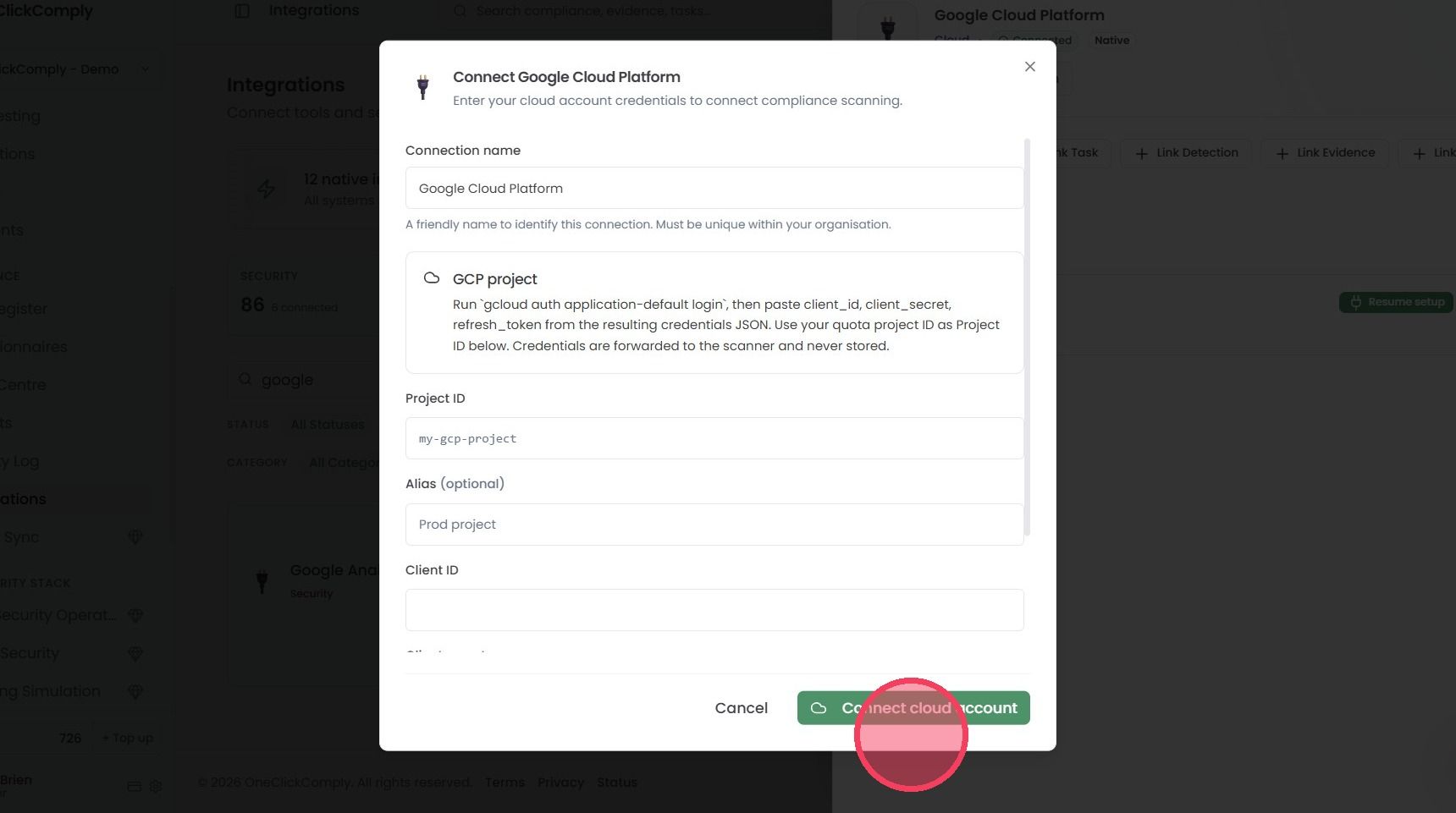
Once all of these steps are completed, the OneClickComply platform will have successfully paired with Google Cloud Platform, and will begin scanning the connected environment for gaps and misconfigurations.