Updating Asset Details
This guide helps administrators keep accurate records by detailing the steps of assets.
Assets stored within the Asset Register should be regularly reviewed and updated to ensure they reflect any recent changes in policy, process, or organisational structure.
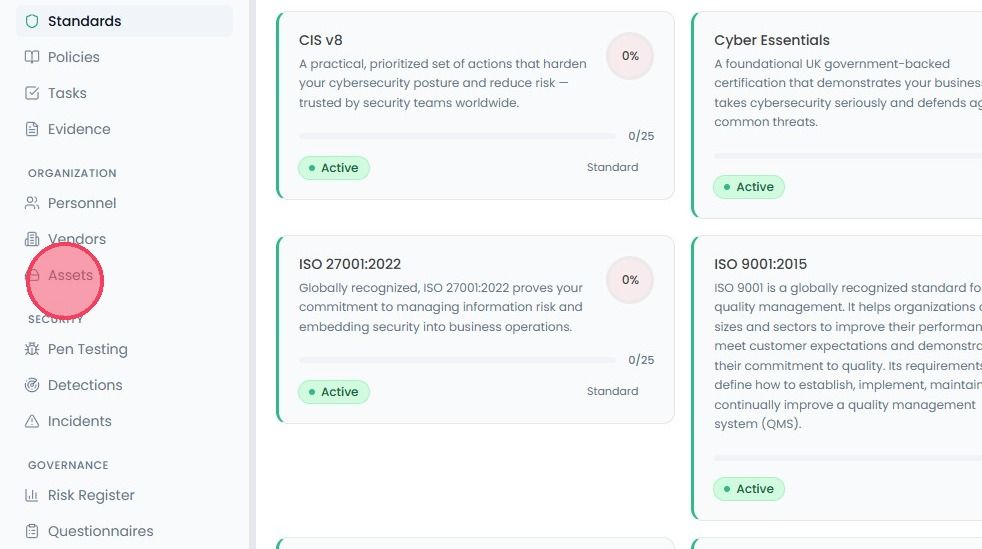
To review and update the asset details, select Assets from the main navigation bar.
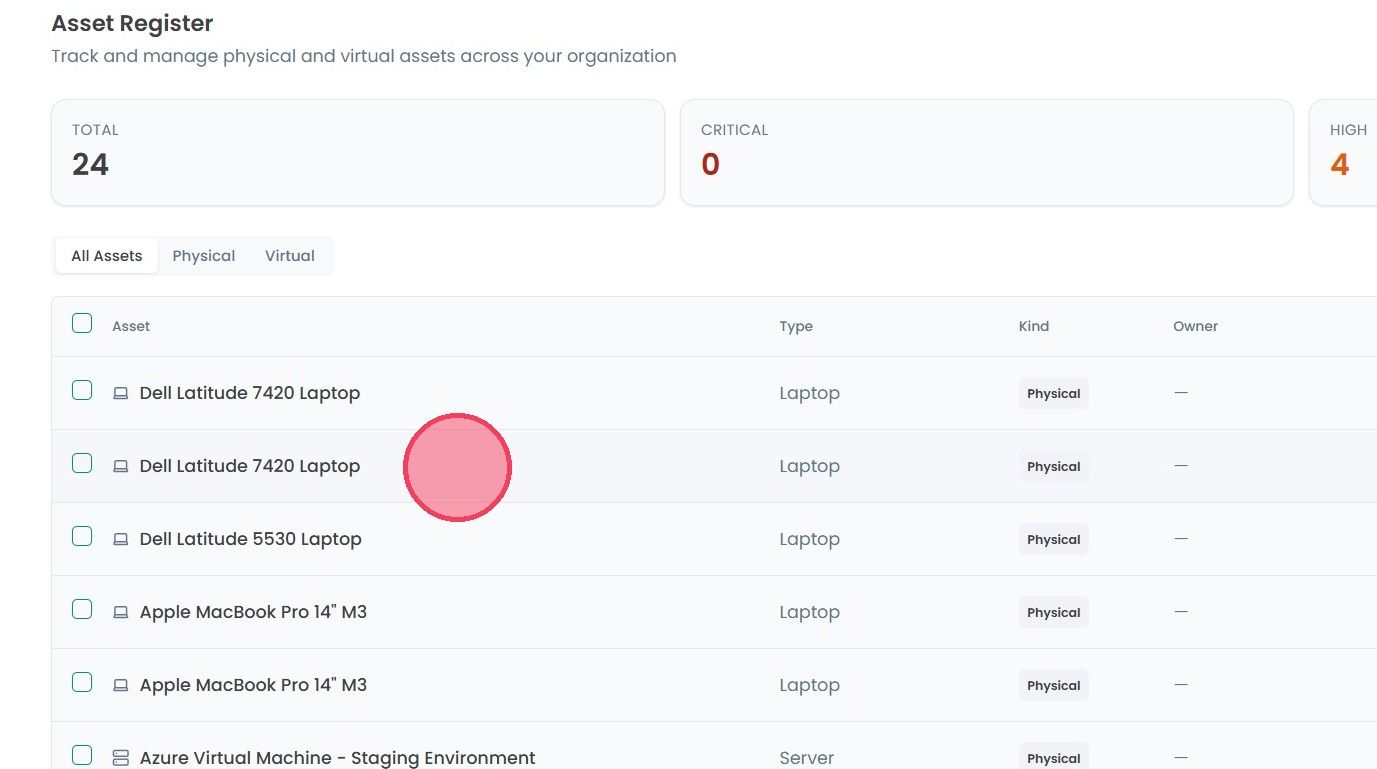
Once you are on the Asset Register page, you’ll see a list of your recorded assets. Each entry provides quick overview of that specific asset, including:
Asset: The name of the device.
Type: The form of the asset (laptop, server, database, information asset etc.)
Kind: Whether the asset is Physical or Virtual.
Owner: Who is currently responsible for the asset.
Importance: Set the importance Critical, High, Medium, & Low based on the importance of the asset.
Source: Whether the asset was added manually, or synced from a connected environment.
Status: See whether the asset is Active, In Maintenance, or has been Decommissioned.
Last Scanned: The date of the most recent security or system scan.
Environment: Shows whether the asset is in Production, Staging, or Development.
To edit the details of an asset, click on the asset to open a side panel.
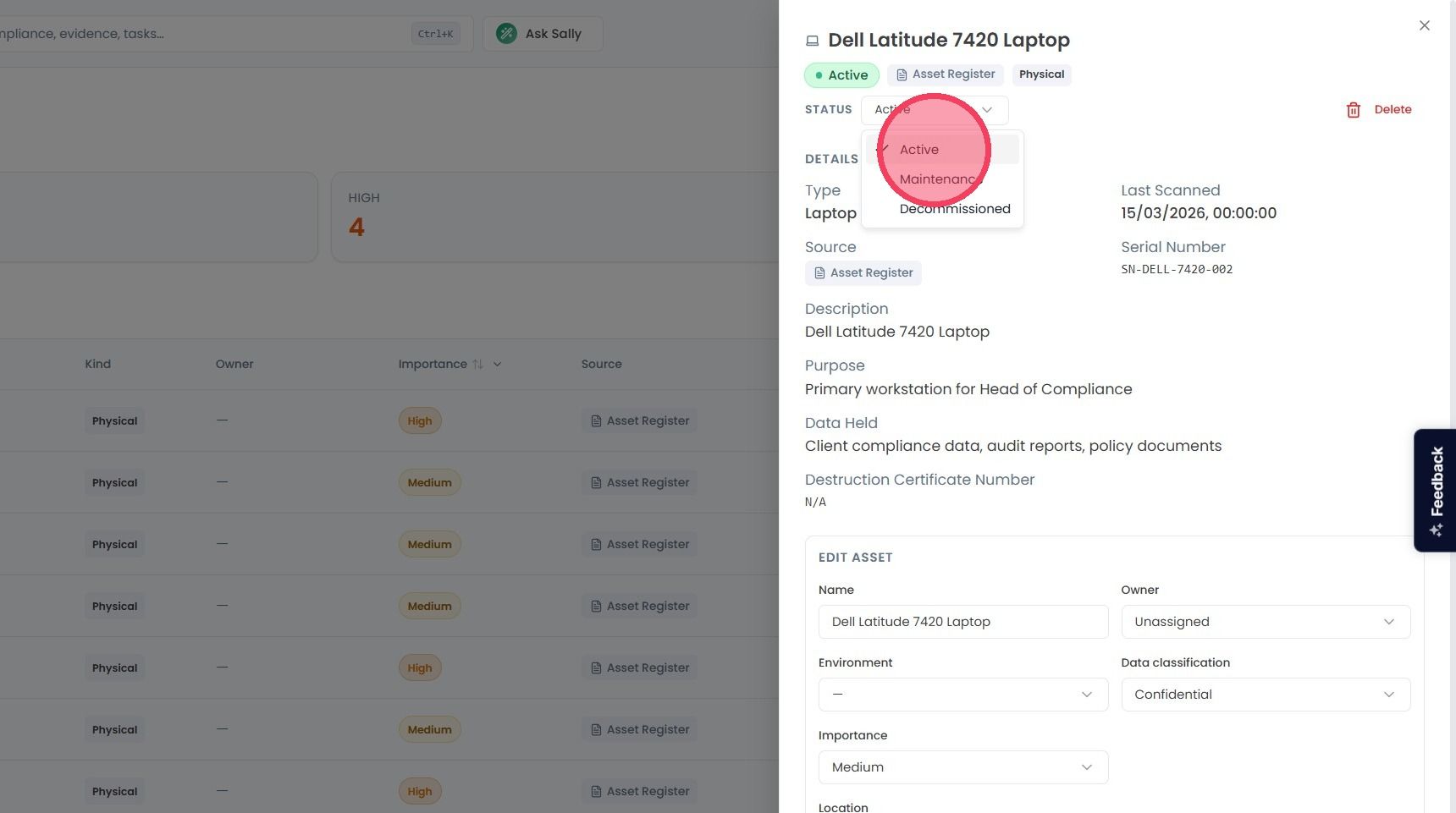
At the top of this new side window, you can edit the Status of an asset by selecting the Status drop down, and choosing one of the following options:
Active: The asset is currently in use within your organisation
Maintenance: The asset is currently being repaired, undergoing updates, or is otherwise temporarily unavailable
Decommissioned: The asset is no longer used within your organisation.
Next, the Edit Asset area allows you to quickly updates the details of the chosen asset, including the Name, Owner, Environment, Data Classification, Importance, and Location.
Any changes made to assets are saved automatically.
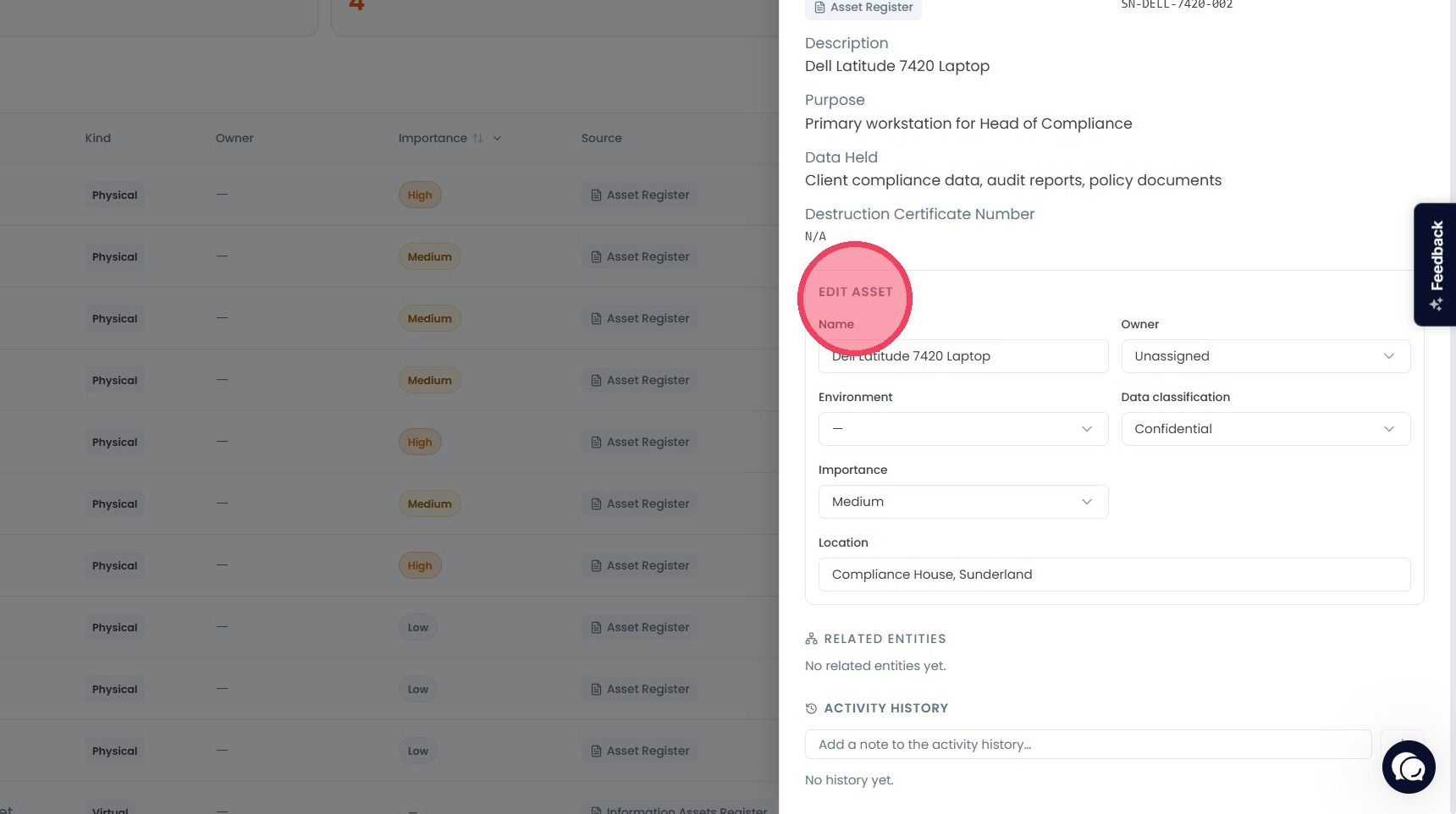
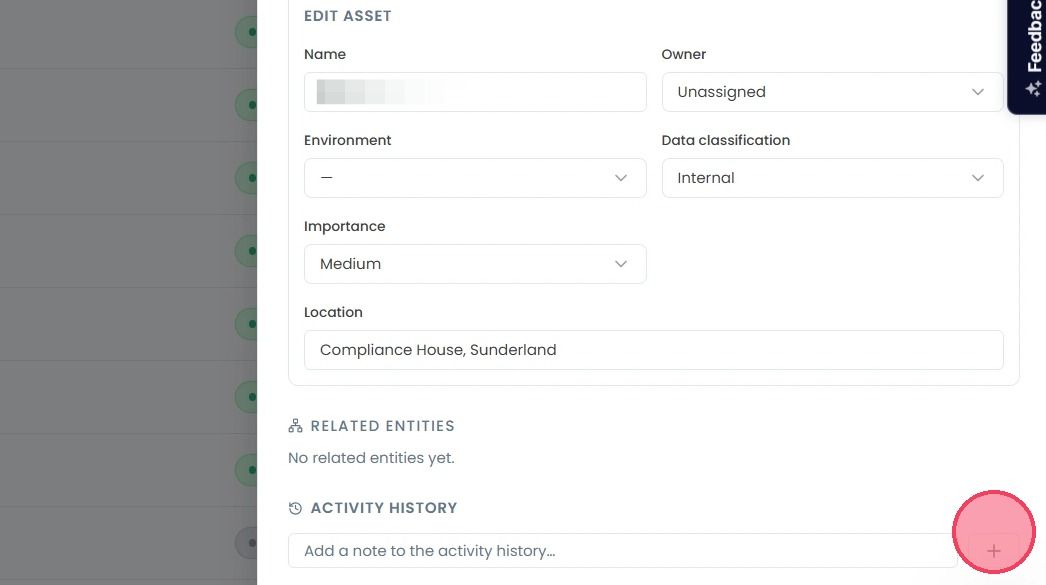
If you wish to keep a record of why a change was made to an asset, you can leave a note in the Activity History area at the bottom of the side window.
To save an added note, click the + button.