Reviewing and Managing Detections
This guide will help you review, manage, and resolve security findings in the form of Detections.
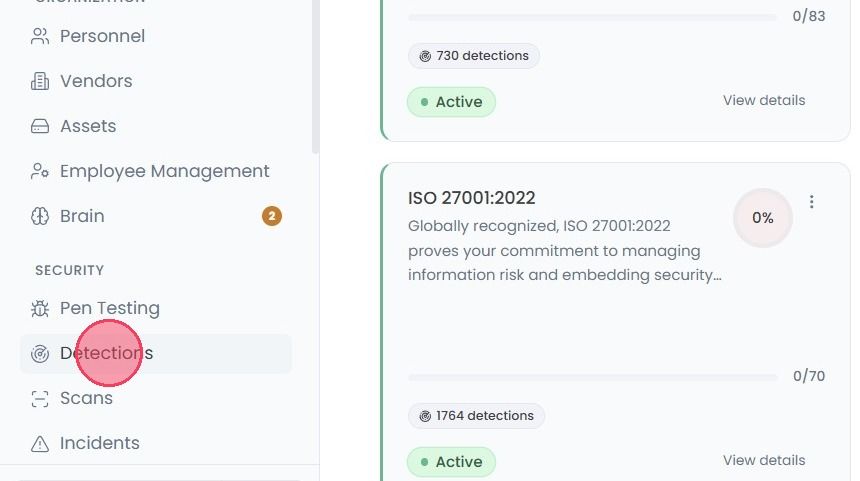
To begin reviewing and managing detections, Select Detections from the main navigation bar.
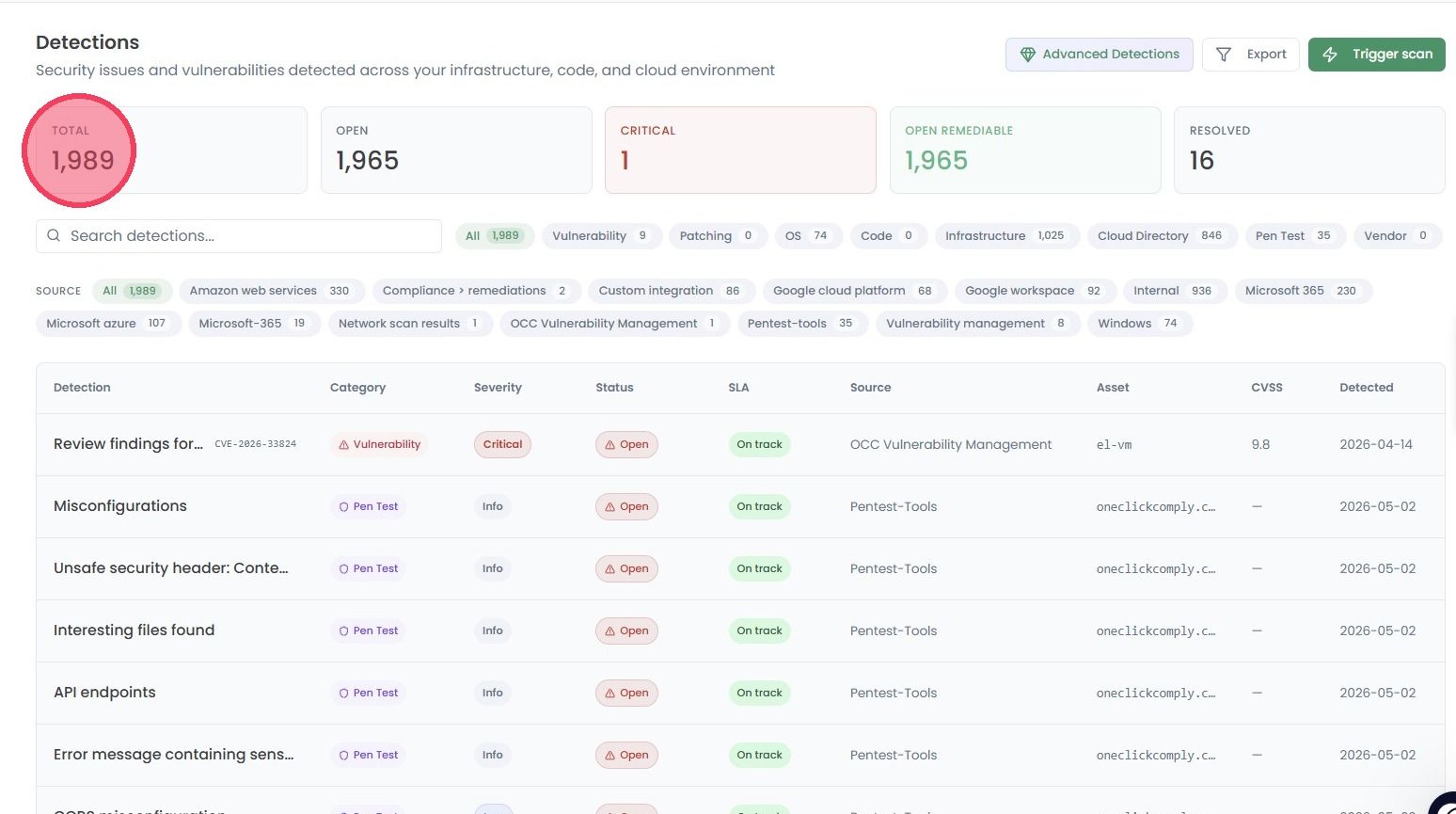
At the top of the Detections page, you will see several cards that provide a high-level overview of your current security posture. These are:
Total: The total number of all detections identified.
Open: The number of Detections that have yet to be actioned.
Critical: The number of Detections that represent the greatest risk to your organisation.
Open Remediable: The number of Detections that have remediation options available.
Resolved: The number of Detections that have been fixed successfully.
Underneath these overview cards are the Category filters, which can be used to filter the list of Detections to specific areas of your organisation. These categories are:
Vulnerability: Known CVE vulnerabilities on devices or in software dependencies.
Patching: Software or OS updates that haven’t been applied. E.g. “Chrome is 3 versions behind on 12 devices.”
OS: Operating system configuration problems, e.g. BitLocker not enabled.
Code: Issues in code repositories or CI/CD pipelines.
Infrastructure: Cloud infrastructure misconfigurations (open ports, overly permissive IAM roles, etc.).
Cloud Directory: Issues in connected cloud environment settings (e.g. admin accounts with email access, MFA not enforced).
Operational: Issues found in operational tasks (e.g., Establish cybersecurity risk management review process).
Pen Test: Findings from penetration testing scans.
Vendor: Security issues related to third-party vendors
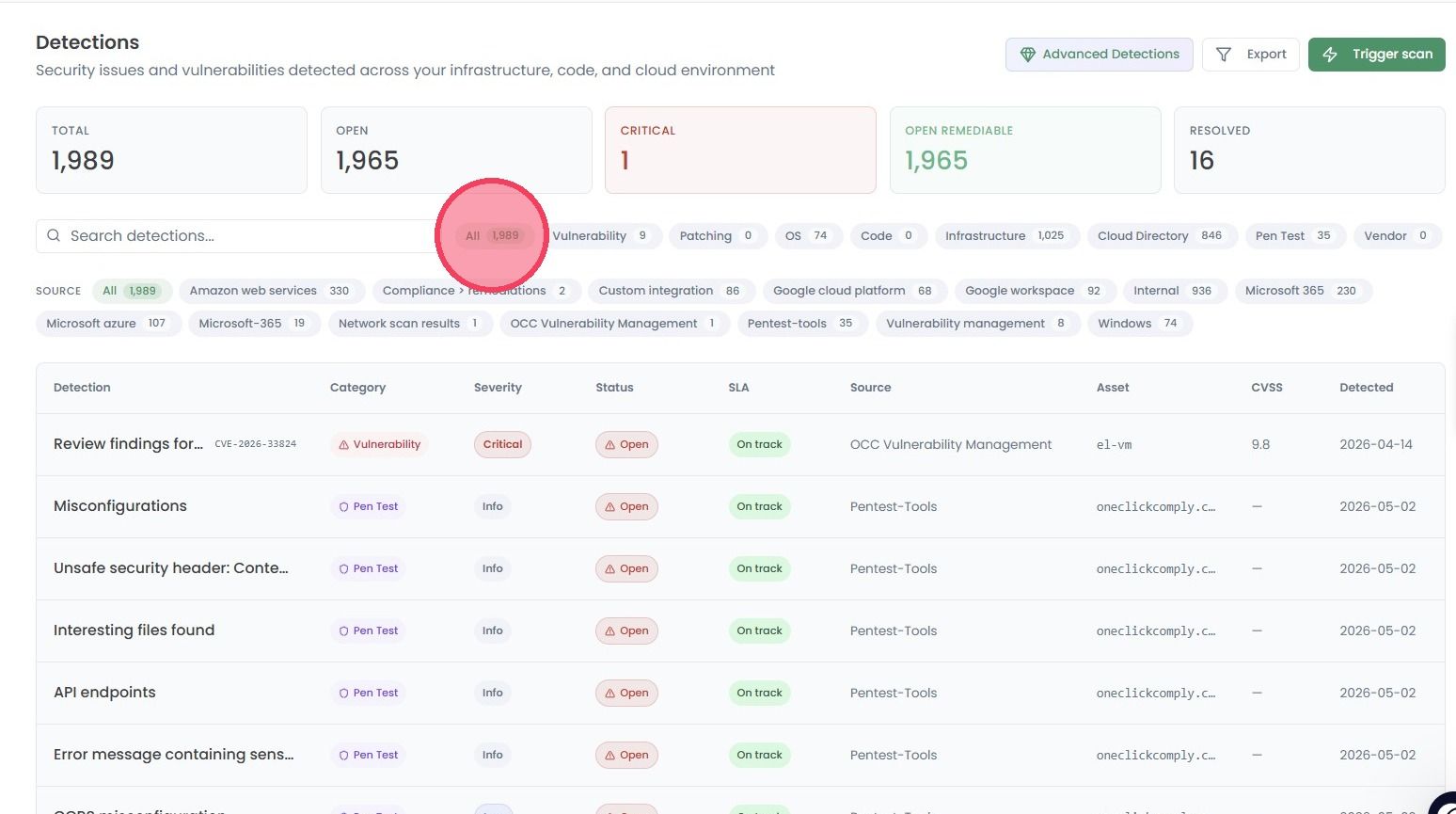
The final set of filters are the Source filters. These allow you to filter the Detection list based on where the detection originated (e.g. penetration tests, a specific integration, a network scan).
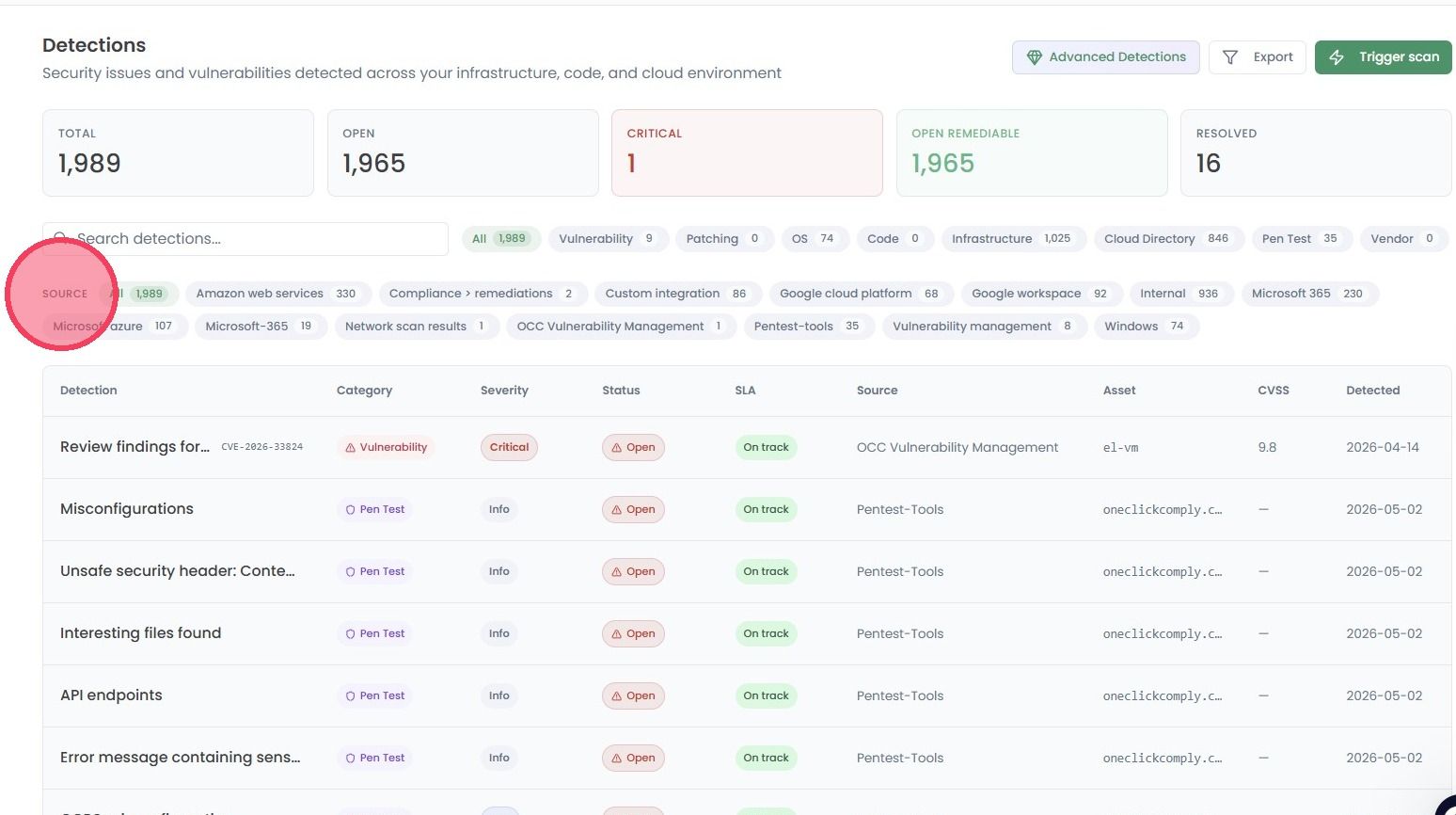
Every Detection in the table will provide the following high-level information:
Detection Name: A short description of the identified issue.
Category: The type of issue that was identified.
Severity: A rating from Critical, High, Medium, and Low based on the overall impact the detection could have if left untreated.
Status: Current progress of the detection (e.g., Open, In Progress, Resolved, Accepted or Ignored).
SLA: Shows whether the Detection resolution time is currently On Track, At Risk or Breached.
Source: Where the detection was identified from.
Asset: The asset that is linked to the Detection.
CVSS: The technical industry-standard score for the risk if it is a known vulnerability.
Detected: The date the issue was found.
To view the details of a specific Detection, click on the Detection to open a side window.
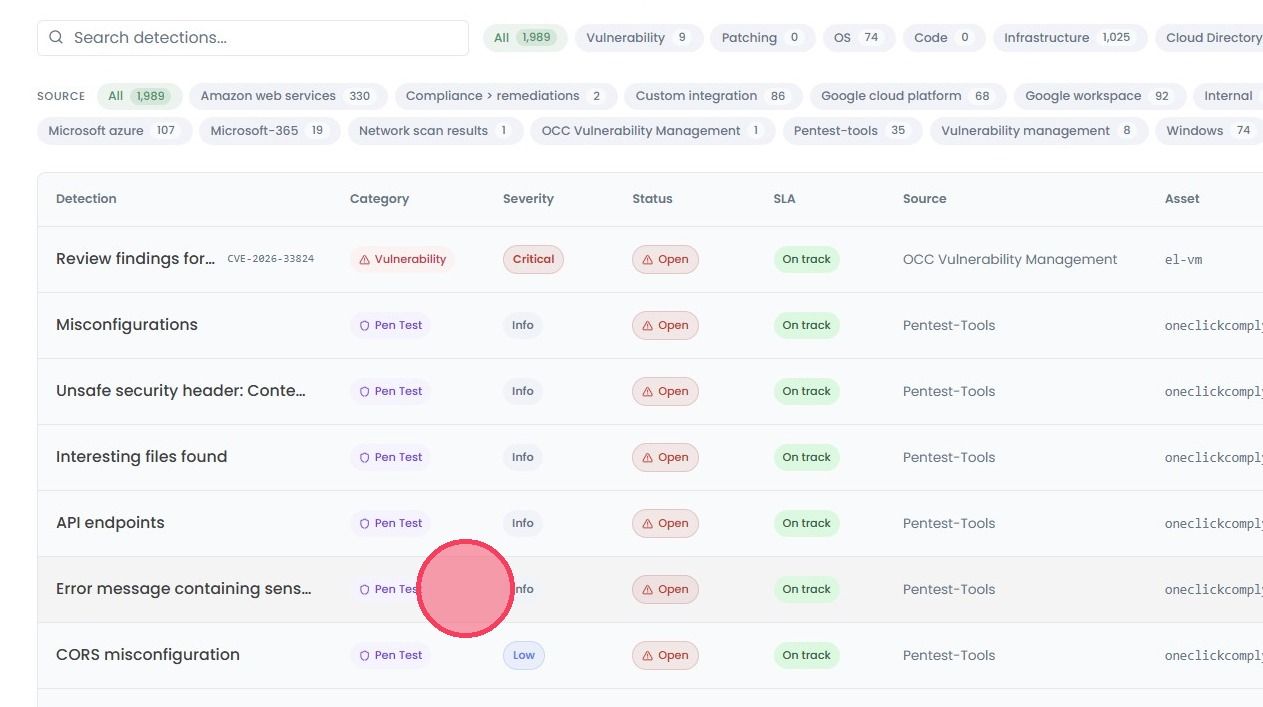
This side panel will provide additional details about the detection to aid with tracking, management, and resolution.
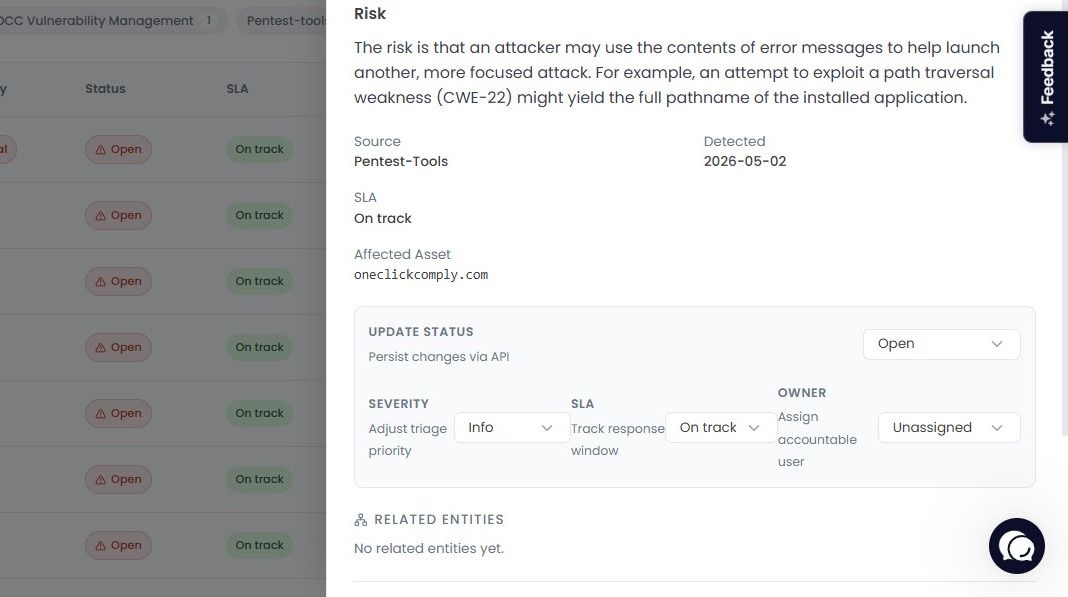
Note: The information displayed on this side panel will vary depending on the Category of detection. As shown in the example below, a Detection from a penetration test contains a brief description of the issue, a recommended action, and a risk summary.
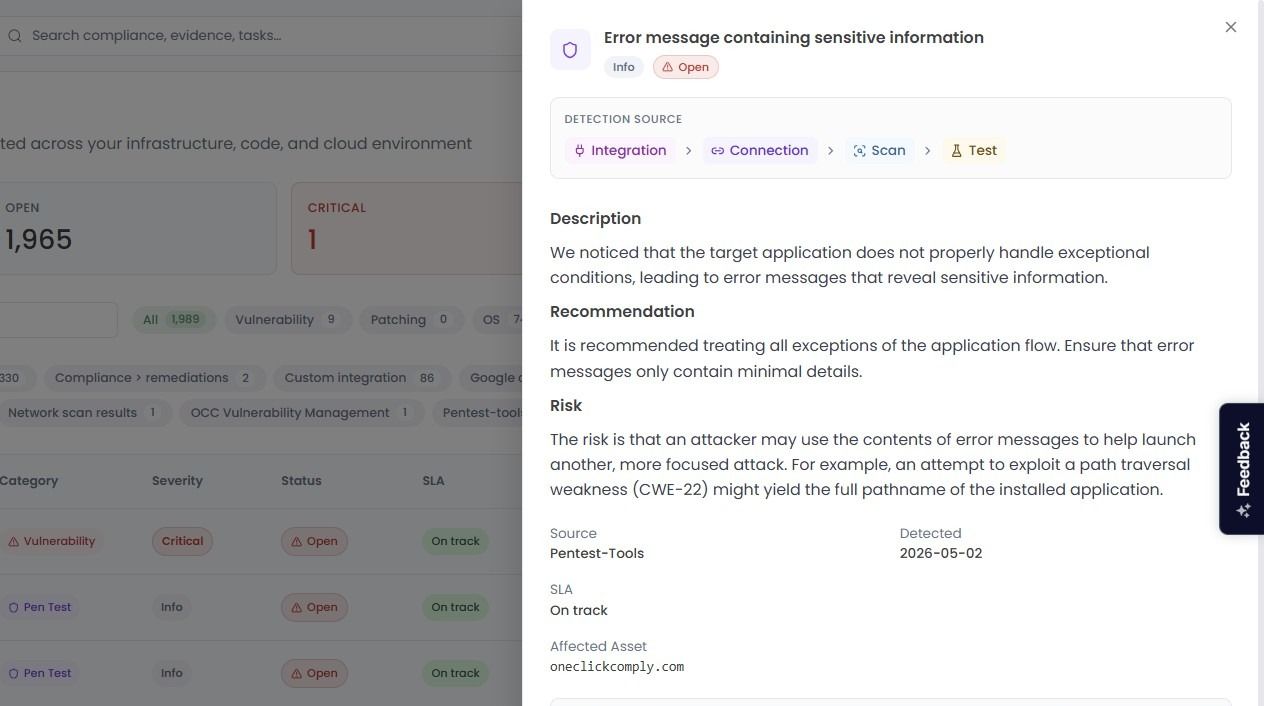
To manage the lifecycle of a detection, scroll down to the Update Status area, where you can adjust the Severity of the Detection, change the SLA response window, and assign an Owner to be responsible for managing the Detection.