rutuja.tilekar
Last updated: 5 February 2026
In this article, you will find:
Information about accessing and utilising our accessibility features to adjust your in-platform experience.
A variety of accessibility tools are available to provide a smooth and comfortable experience for every user. Whether there is a need to make the text larger, change colours, or use a reading guide, these features are there to make use of the platform accessible to all users.
To get started, simply click on the Accessibility icon, located in the upper right-hand corner of your screen, as shown below, or by using the keyboard shortcut CTRL + U.
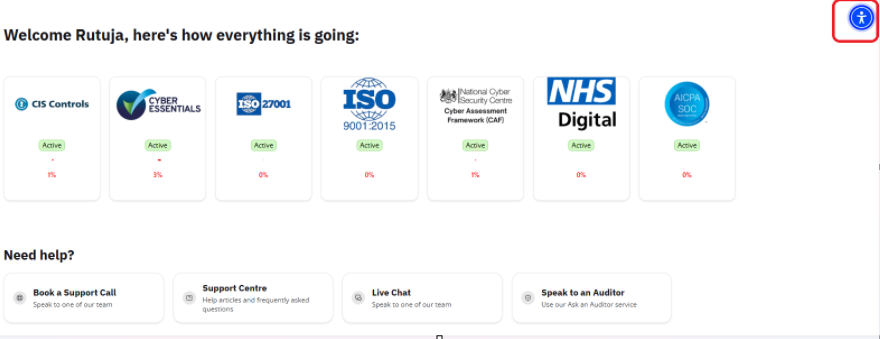
Accessibility Icon Location in the platform
After clicking the icon, a menu will appear where you can enable your preferred settings.
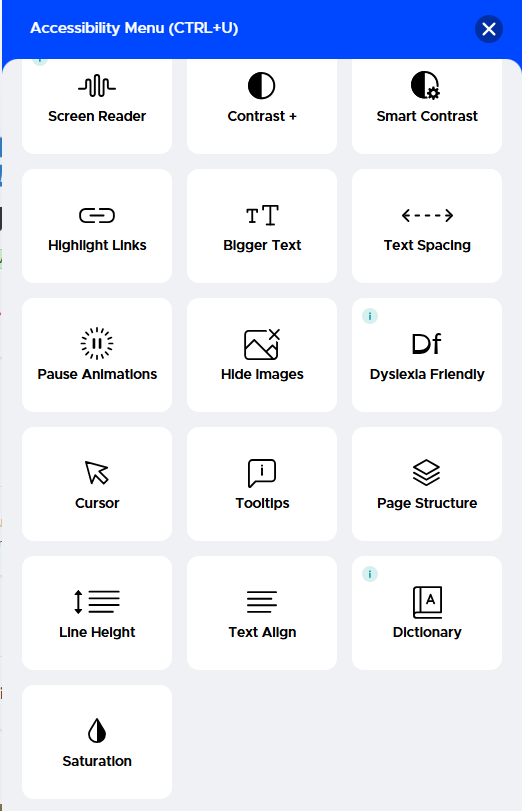
Screenshot of Accessibility Menu
Screen Reader: This feature reads the text and elements on the screen aloud to help with navigation and content descriptions. By enabling this, users can adjust the reading pace to slow, normal, or fast speeds according to their listening preferences.
Contrast: This feature allows users to adjust the colour palette of the platform to reduce eye strain or improve visibility. You can choose between high-contrast light or dark modes, or inverted colours.
Smart Contrast: This feature automatically analyses the content of a page, and adjusts colour ratios to ensure that text is always easy to read against its background.
Highlight Links: This feature places a bright yellow highlight/underline around every clickable link on the page.
Bigger Text: You can increase the font size by clicking the button up to four times for maximum readability. Each click scales the text larger, making it easier to read.
Text Spacing (Light, Moderate, & Heavy): This feature increases the gap between letters and words to improve reading clarity. Users can choose from three levels of spacing.
Pause Animations: This feature disables all moving elements, flashing content, or auto-playing videos.
Hide Images: Activating this feature will remove all images and graphics from the page, leaving only the text.
Dyslexia Friendly/Legible Fonts: This feature switches the platform's font to one of two unique typefaces that help reduce character confusion and improve overall reading speed.
Cursor, Reading Mask & Reading Guide: These three options allow you to increase the size of your mouse pointer, create a horizontal 'window' or a guided line that follows the cursor to help users stay focused on one line of text at a time. Reading Mask and Reading Guide options can be enabled by clicking the Cursor icon, which reveals these additional settings once selected.
Tooltips: This option gives additional information about a button or link when hovered over.
Page Structure: This feature provides a clear overview of the page's headings, landmarks, and links.
Line Height (1.5x, 1.75x, 2x): This feature adjusts the vertical space between lines of text to prevent rows from blurring together. Users can increase spacing to 1.5x, 1.75x, or 2x by clicking the icon multiple times.
Text Align (Left, Right, Center, or Justify): This feature allows you to change how text is positioned on the page. Whether you prefer a standard left-align or a clean justified look, you can set the layout that works for you.
Dictionary: This feature allows you to look up the meaning of words instantly without leaving the page. Simply highlight a word to see its definition, or press CTRL + M to open the dictionary search bar.
Saturation (Low, High, Desaturate): This allows you to adjust the intensity of colours on the screen or remove colour entirely (grayscale).
Language Support: The accessibility menu offers support for 64 languages. Selecting a preferred language from the drop-down will instantly update all feature descriptions and settings within the menu, making the tool easier to navigate and understand.
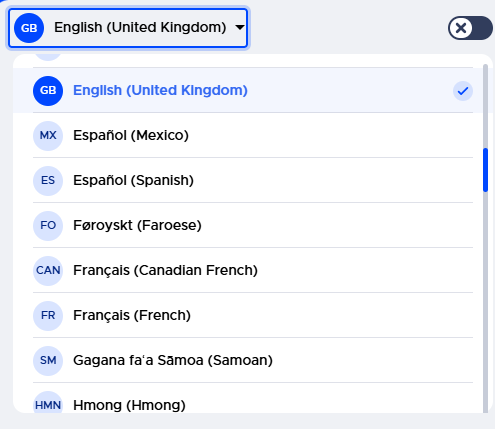
Screenshot of Language area
Accessibility Profile: Users can select a preset profile from the drop-down menu to automatically apply the best features for their specific needs.
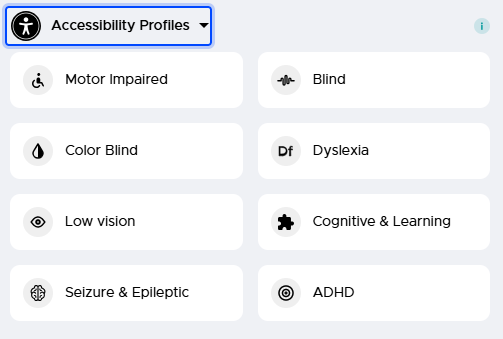
Screenshot of Accessibility Profiles area
Oversized Widget: Located within the profile settings, this toggle allows users to increase the size of the accessibility menu itself. Once enabled, the widget menu will become larger, making it much easier to see and interact with, as shown below:
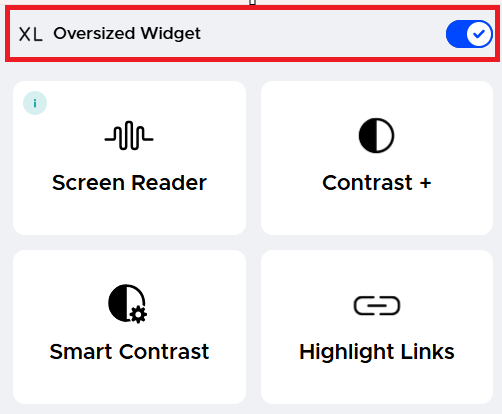
Oversized Widget area
Move/Hide Widget: Found at the bottom of the menu, this drop-down allows users to reposition the accessibility menu panel to the Left, or Right side of the screen. There is also an option to Hide the widget entirely if a clear view of the page is preferred.
If the Hide option is selected, a prompt will appear asking for a specific duration, such as, one day, one week, one month, only for current session, or indefinitely.
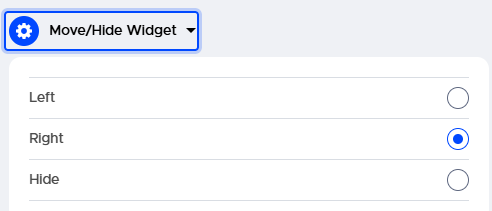
Move Widget option