Adding Vendors Manually
This guide walks you through the necessary fields and settings to ensure your vendor profiles are accurately configured for collaboration.
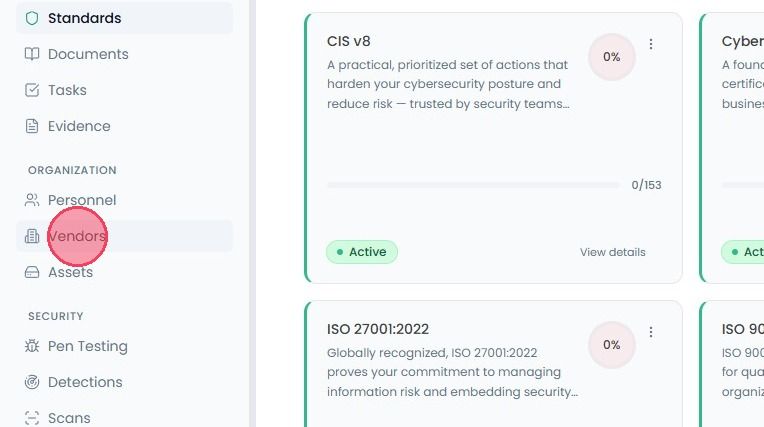
To add new vendors manually, select Vendors from the main navigation bar.
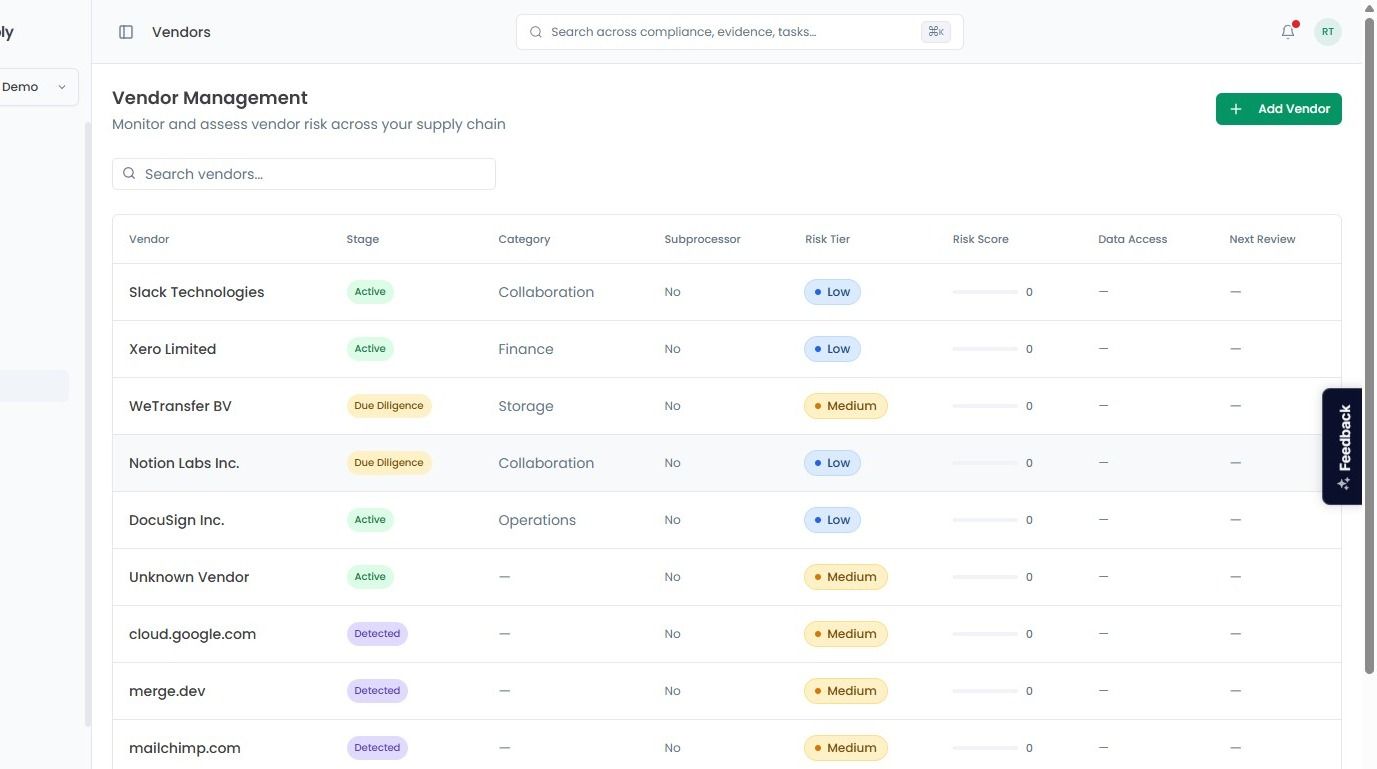
Once on the Vendor Management page, you will see a list of all automatically discovered and manually added vendors within your organisation, each of which has the following information:
Vendor Name: The name of the service provider.
Stage: The current phase of the vendor, such as Active, Due Diligence, Detected, or Retired.
Category: The type of service provided (e.g., SaaS, or infrastructure, etc.)
Subprocessor: If that vendor hires their own third-party services (like cloud hosting) to handle the data (Yes or No).
Risk Tier & Score: A classification of the vendor risk (Critical, High, Medium, or Low) alongside their current risk rating.
Data Access: If that vendor has permissions to access organisational data.
Next Reviews: The scheduled date for the next vendor review.
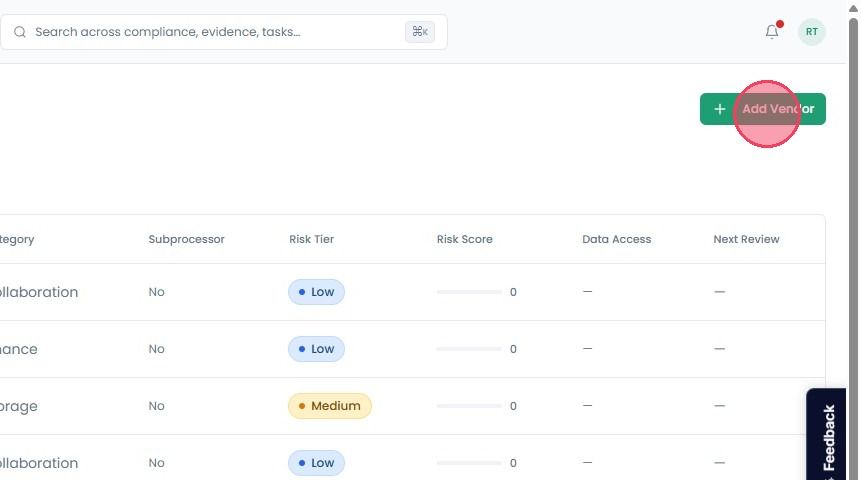
If you need to add a vendor manually, click the Add Vendor button located in the top-right corner of the page.
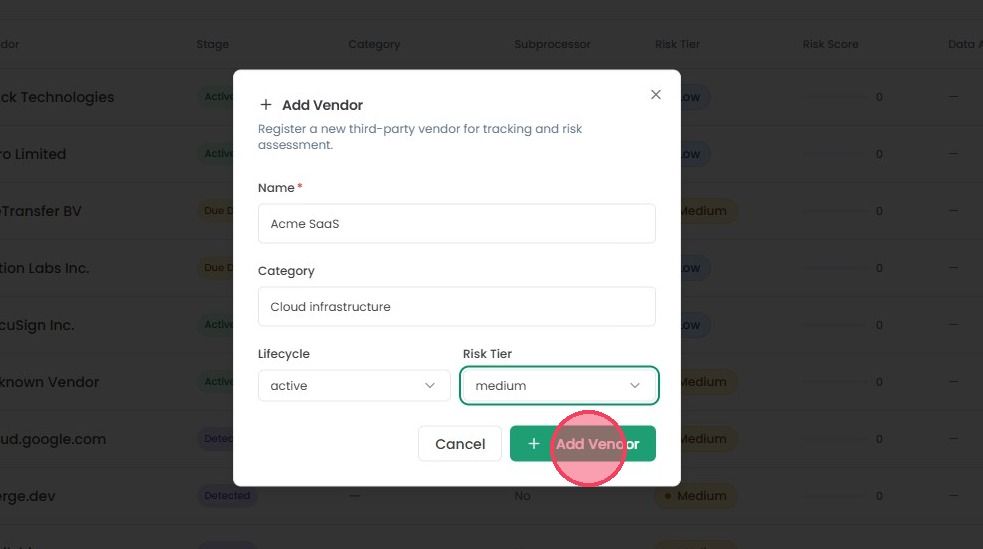
Once selected, it will open a small window where you can register a new vendor.
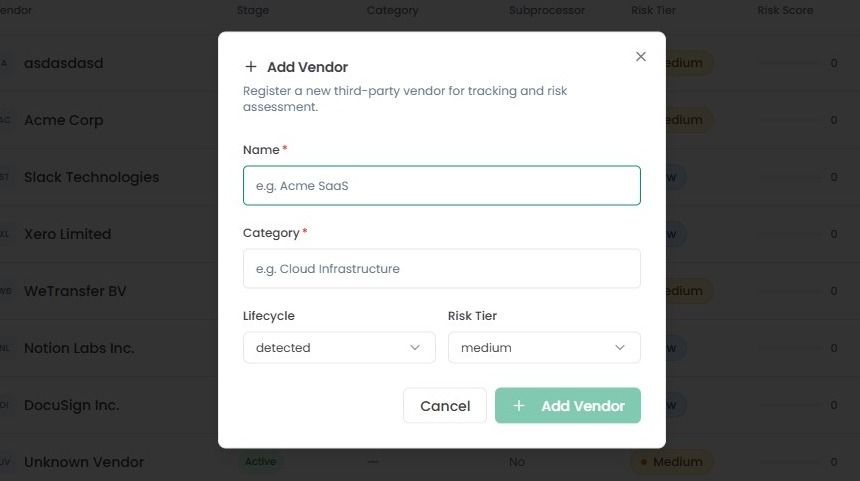
Name: The name of the vendor you wish to add
Category: Enter the category of that vendor.
Within the Lifecycle field, choose the status that best describes their current state, such as:
Detected: You have identified them as a potential vendor but haven’t started a formal review process
Due Diligence: You are currently conducting due diligence on this vendor
Active: The vendor is active and currently in use by the organisation
Retired: You no longer work with this vendor.
Risk Tier: Finally, assign the risk level that best fits for this vendor (e.g., Critical, High, Medium, or Low).
Once you have added this information, select the Add Vendor button to add the vendor to the Vendor Management area.