Reviewing Automatically Detected Vendors
This guide walks you through accepting or rejecting the automatically discovered vendors and sending them a Due Diligence Questionnaire to ensure your vendor assessment process is streamlined and accurate.
The Automated Vendor Discovery feature identifies the third-party services or tools that your organisation may have forgotten about within your environment, giving you visibility into your supply chain.
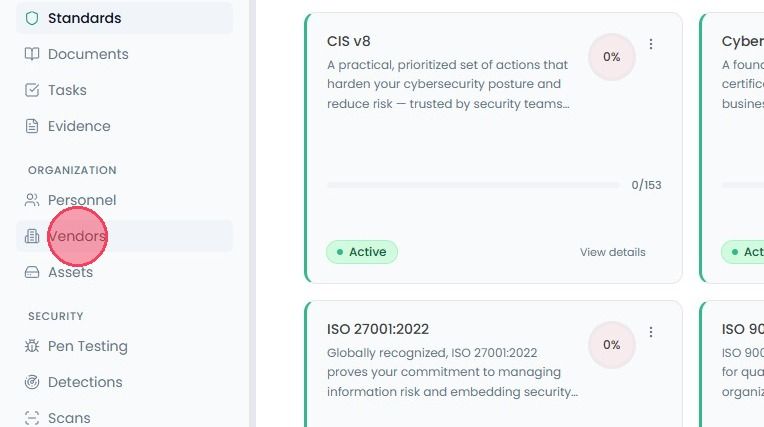
To review the list of automatically gathered vendors, select Vendors from the main navigation bar.
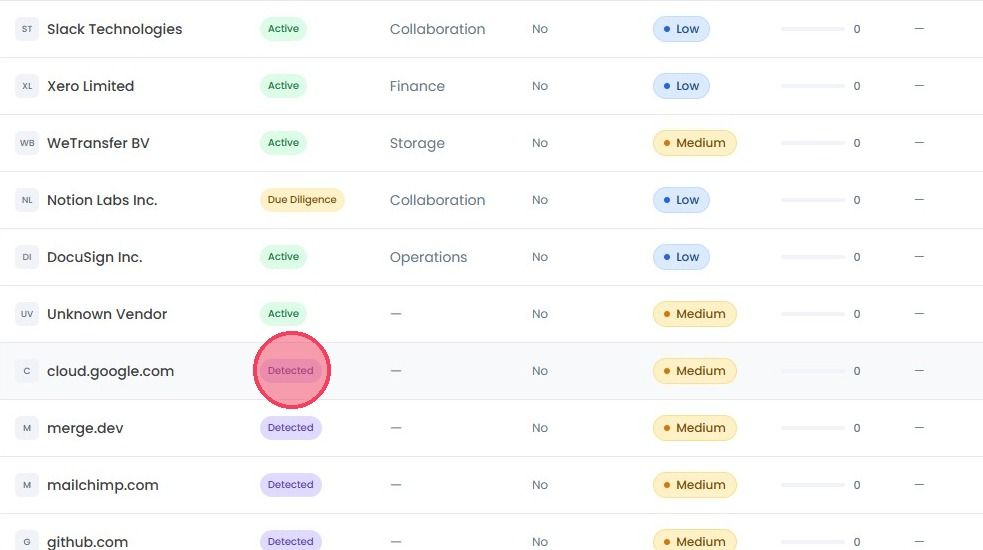
In your vendor list, any vendor that has been detected automatically by the OneClickComply platform will be assigned the Detected stage, as shown in the example below. To review the detected vendor’s details, click on the vendor’s name to open a side panel.
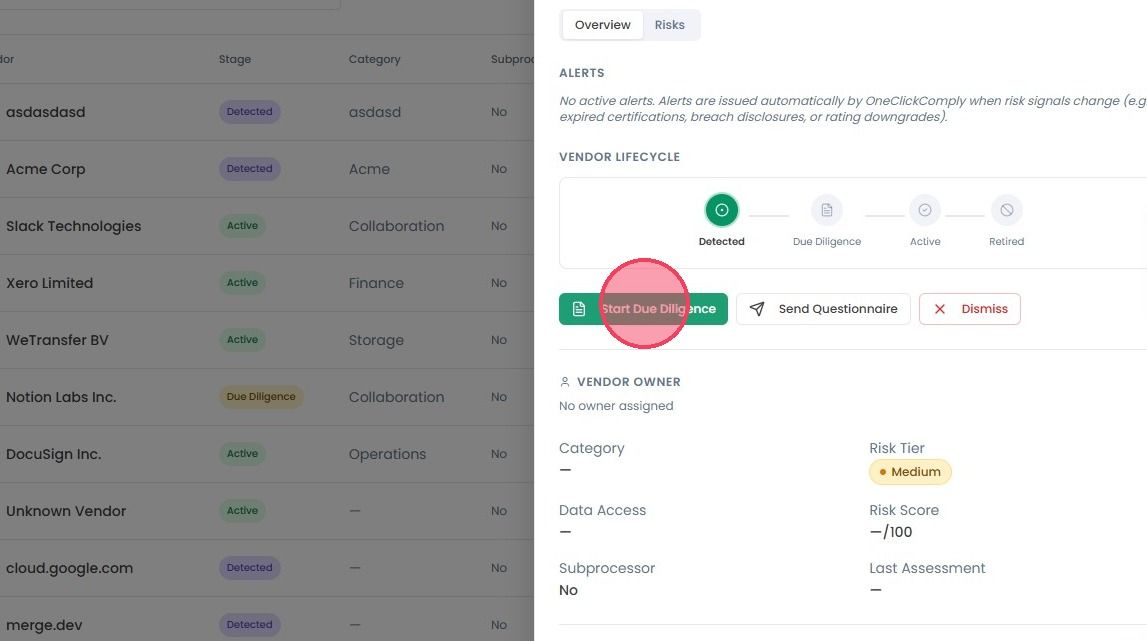
If you recognise the vendor, you can approve the detection by clicking the Start Due Diligence button to initiate the formal review process.
If you do not recognise the vendor, or the vendor is no longer used by your organisation, click the Dismiss button to reject the detection and remove them from the Vendor Management list.
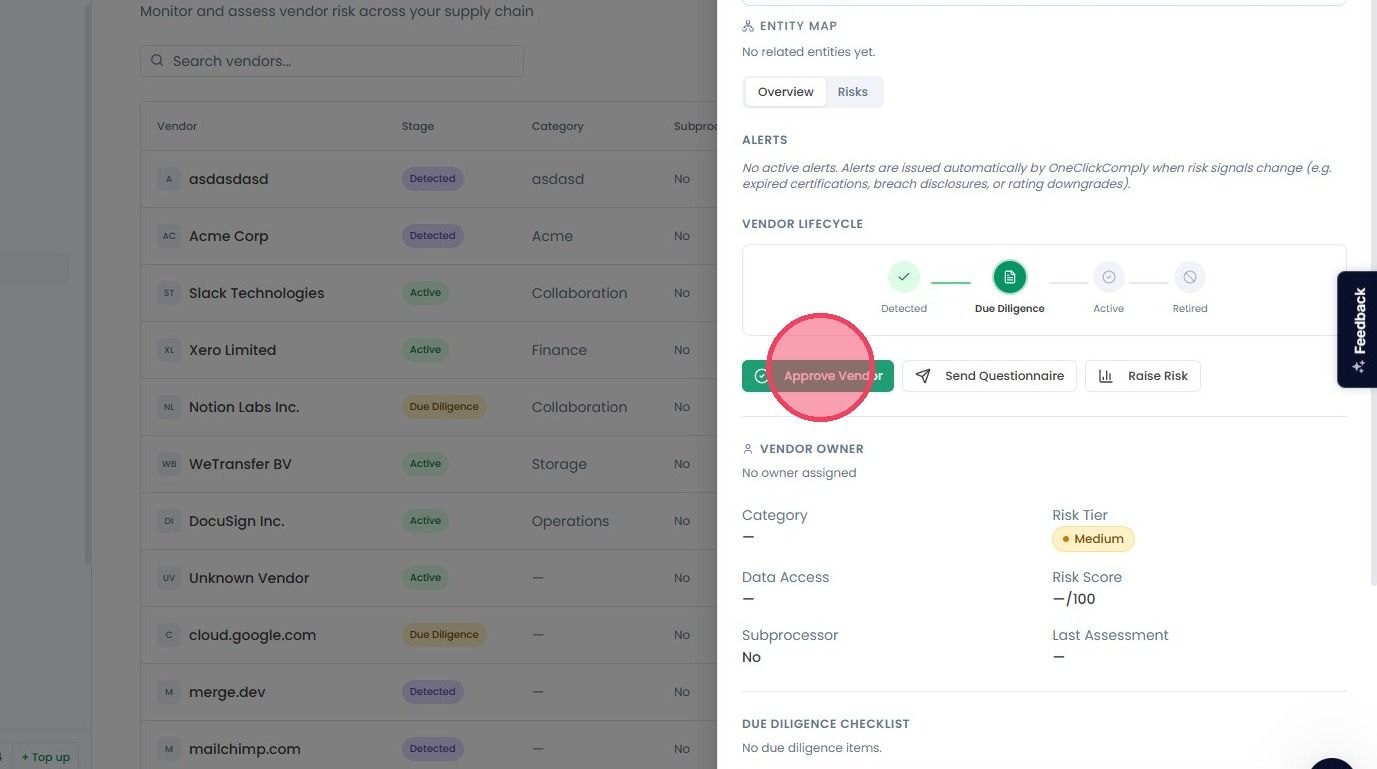
Once due diligence is underway, the button will change to Approve Vendor. Click this button to approve the vendor.
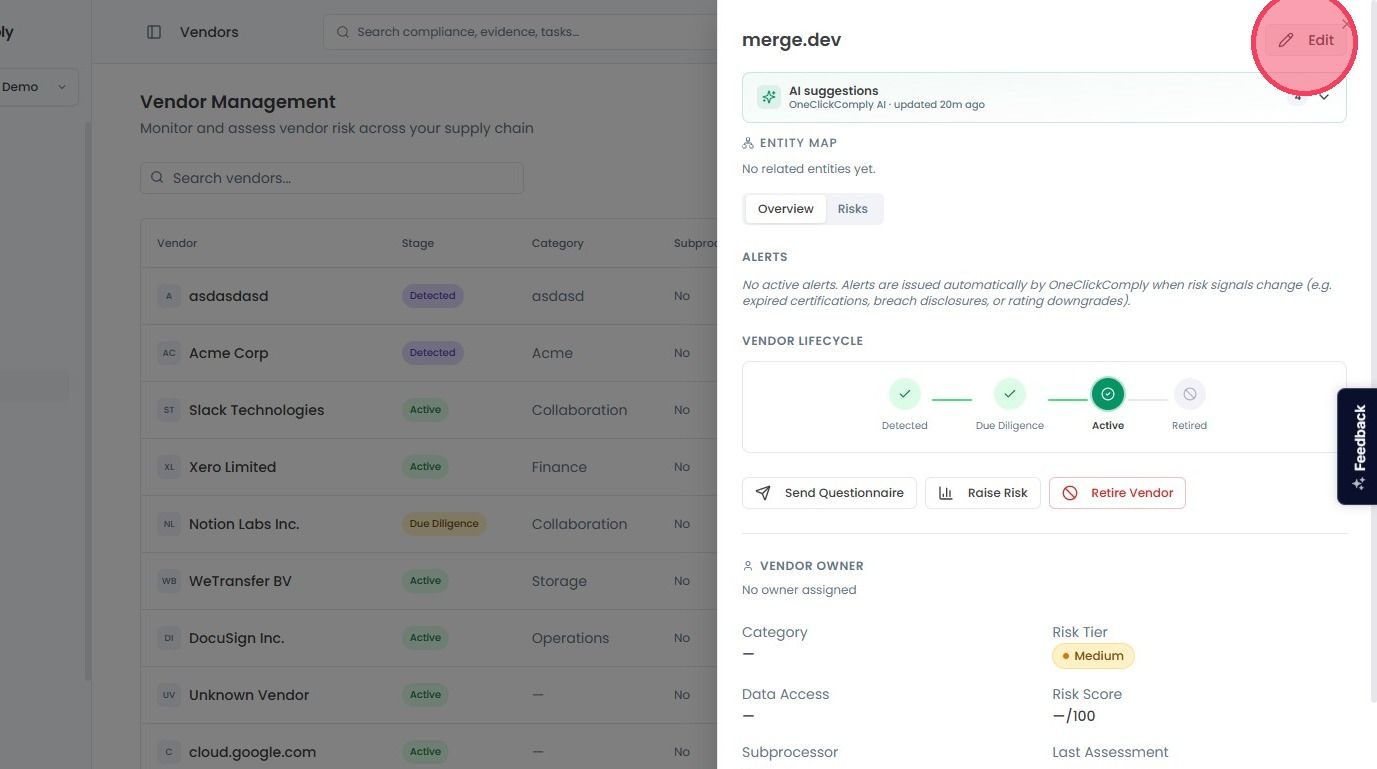
To provide more context for a discovered vendor, or to change specific details, click the Edit button in the top-right corner of the side panel.
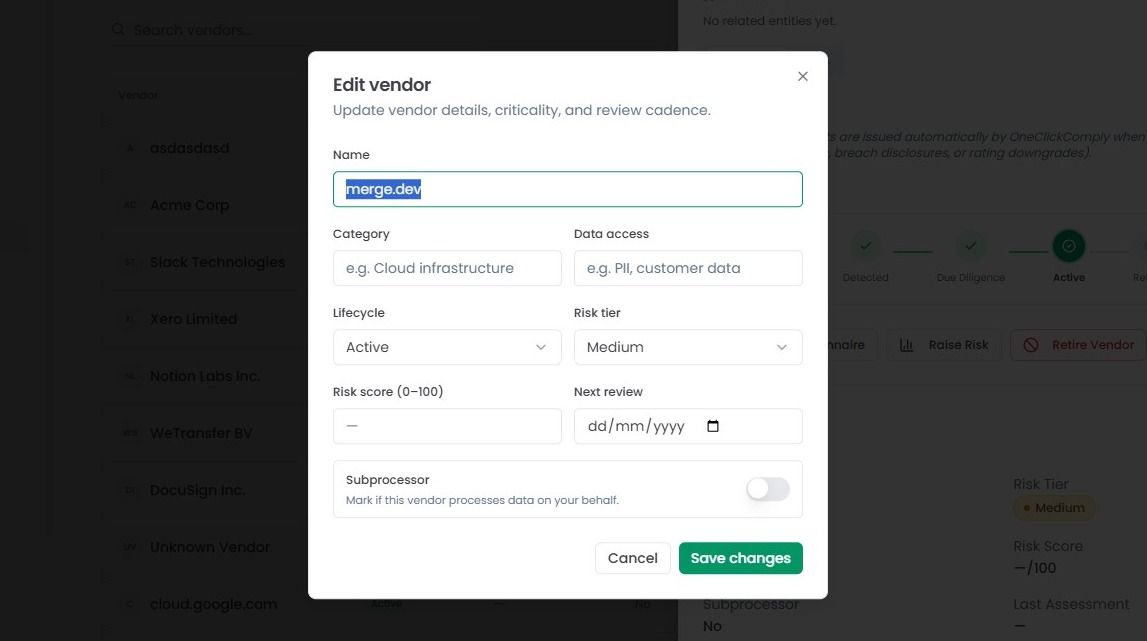
A new window will appear where you can provide following details:
Classification: Set the Category (e.g., Cloud Infrastructure) and Data Access level (e.g., PII or Customer Data).
Risk Profile: Assign a Risk Tier (Critical to Low) and a Risk Score (0-100).
Lifecycle & Compliance: Update the Lifecycle stage, set the Next review date, and use the Subprocessor toggle if the vendor processes data on your behalf.
Click Save Changes to update the record.
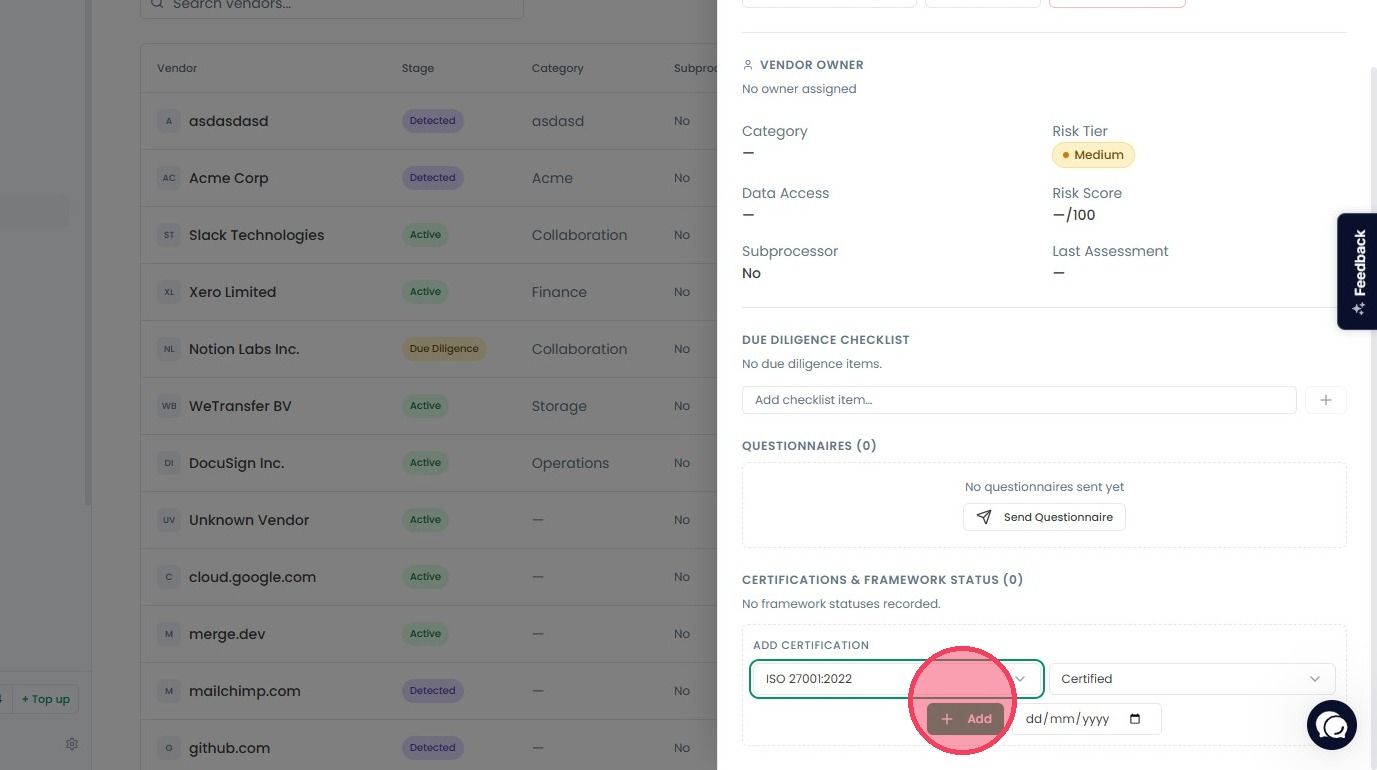
If you scroll down at the bottom of the side panel, you can also document the vendor’s existing Certification & Framework Status.
Framework: Select the compliance standards or certifications they hold (e.g., ISO 27001, SOC 2).
Status: Mark the certification as Certified, In Progress, Expired, or N/A.
Record Date: Set the date the information was added and click Add button.