Adding an Employee
This guide walks you through the navigation, role assignment, and invitation process to ensure your team has the correct access.
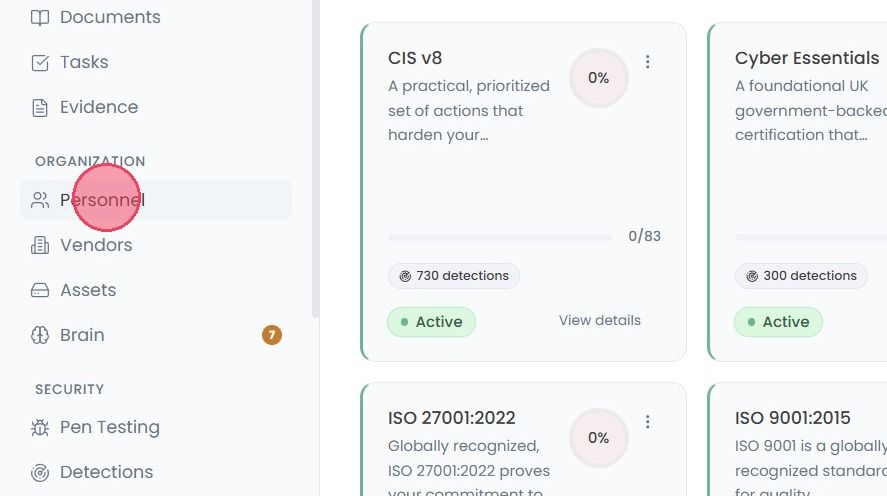
To add a new team member in the OneClickComply platform, select Personnel from the main navigation bar.
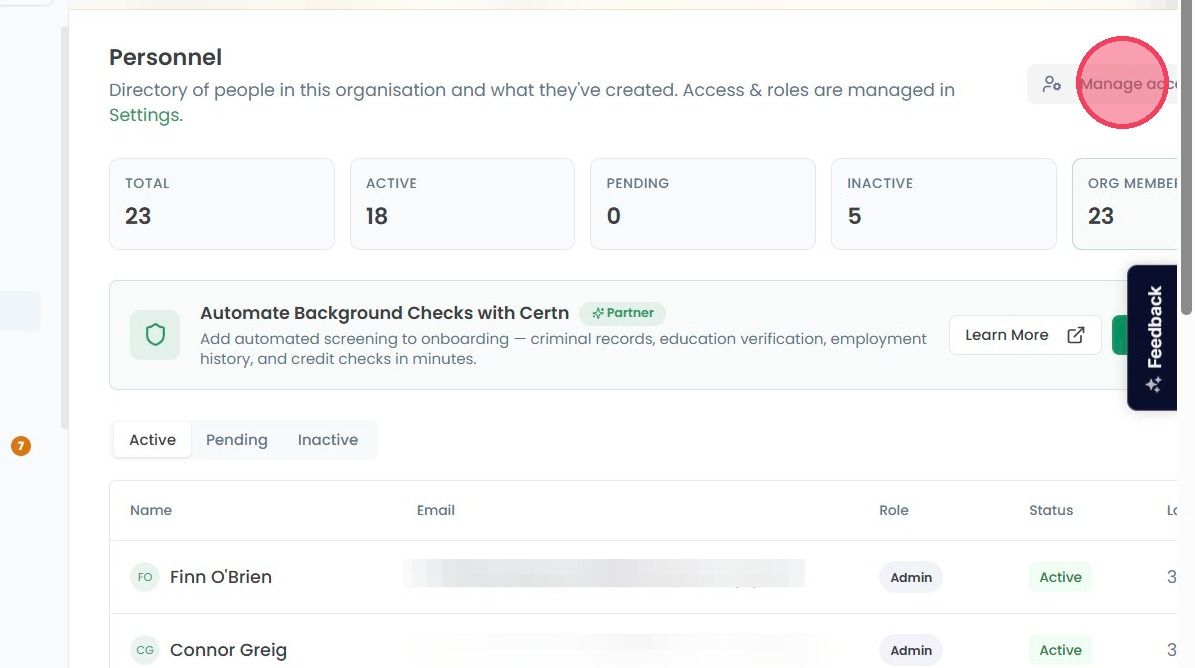
On the Personnel page, select the Manage access in Settings button on at the top right of the page.
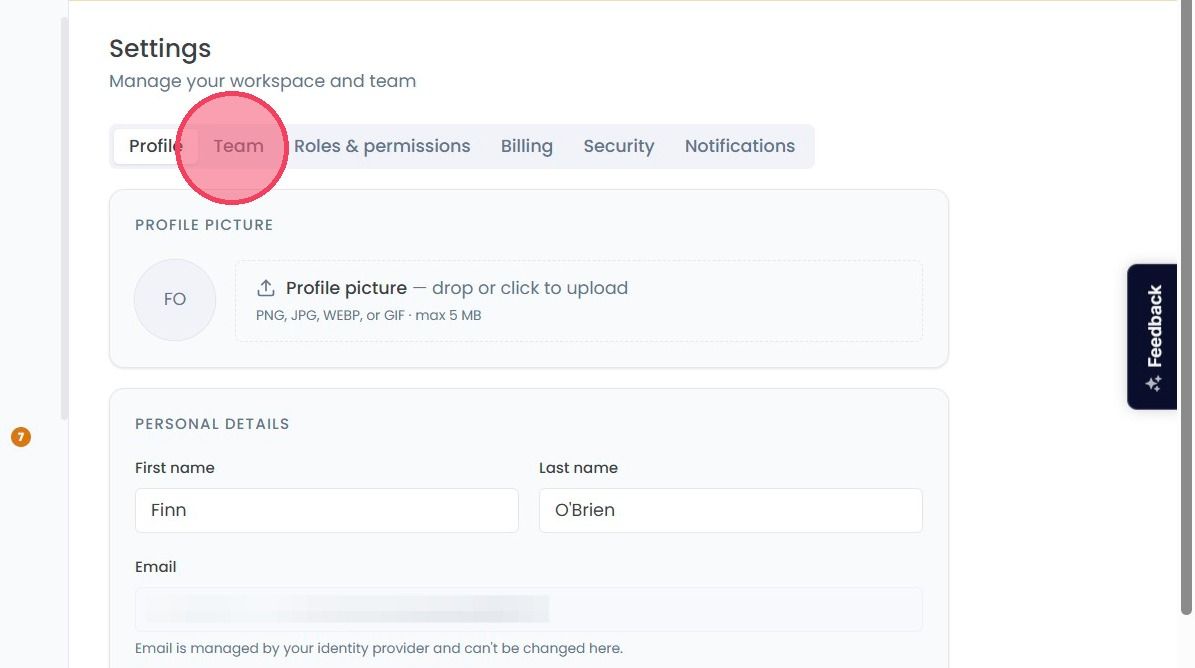
This will bring you to the Settings area of the OneClickComply platform. Next, select the Team tab.
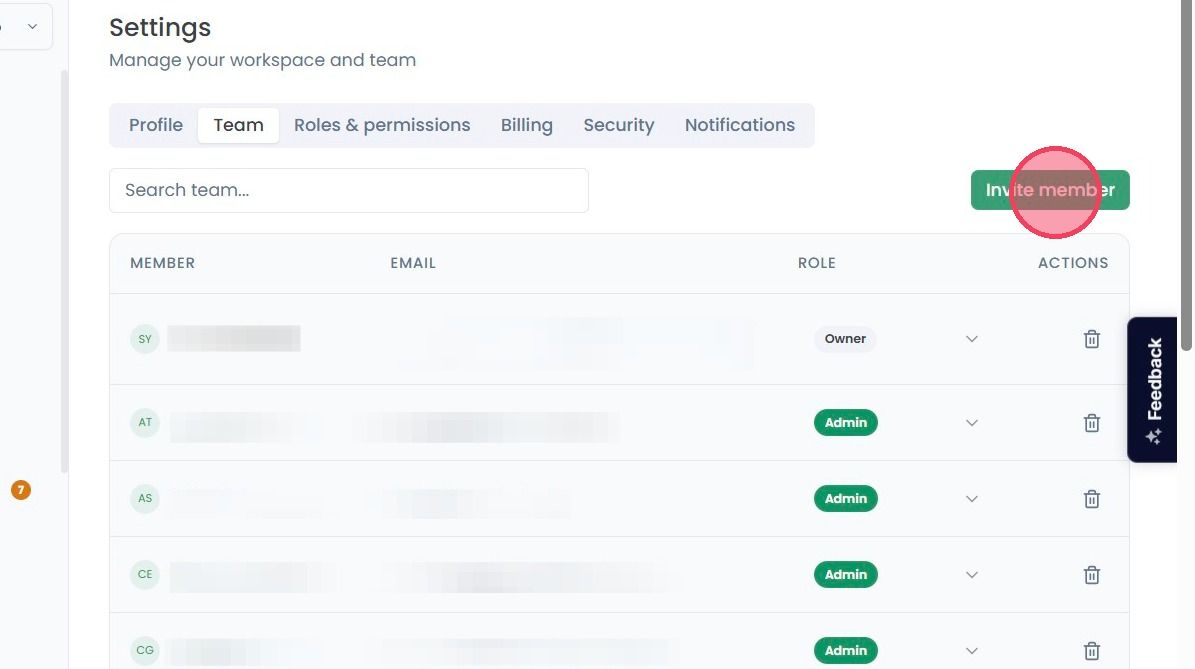
Then select the Invite member button
When inviting a new team member by email, select the Email address field, and add their email.
Next, assign a role to the new team member by selecting the Role dropdown.
Finally, select the Send Invitation button to send a notification email to the team member, inviting them to access the OneClickComply platform.
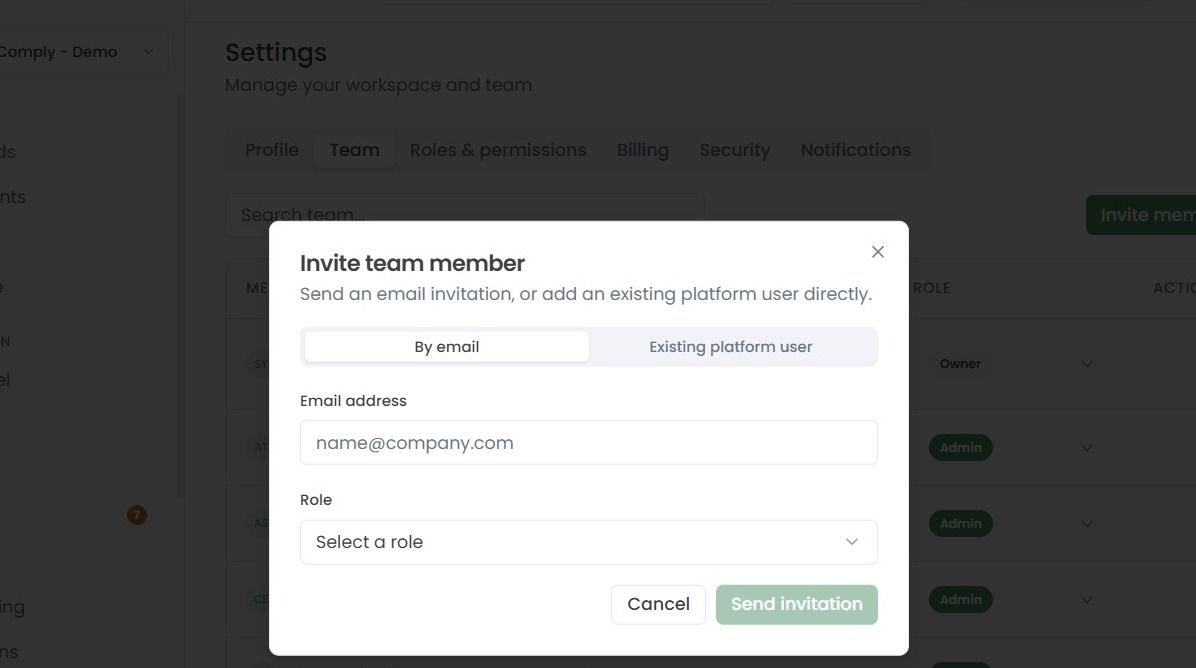
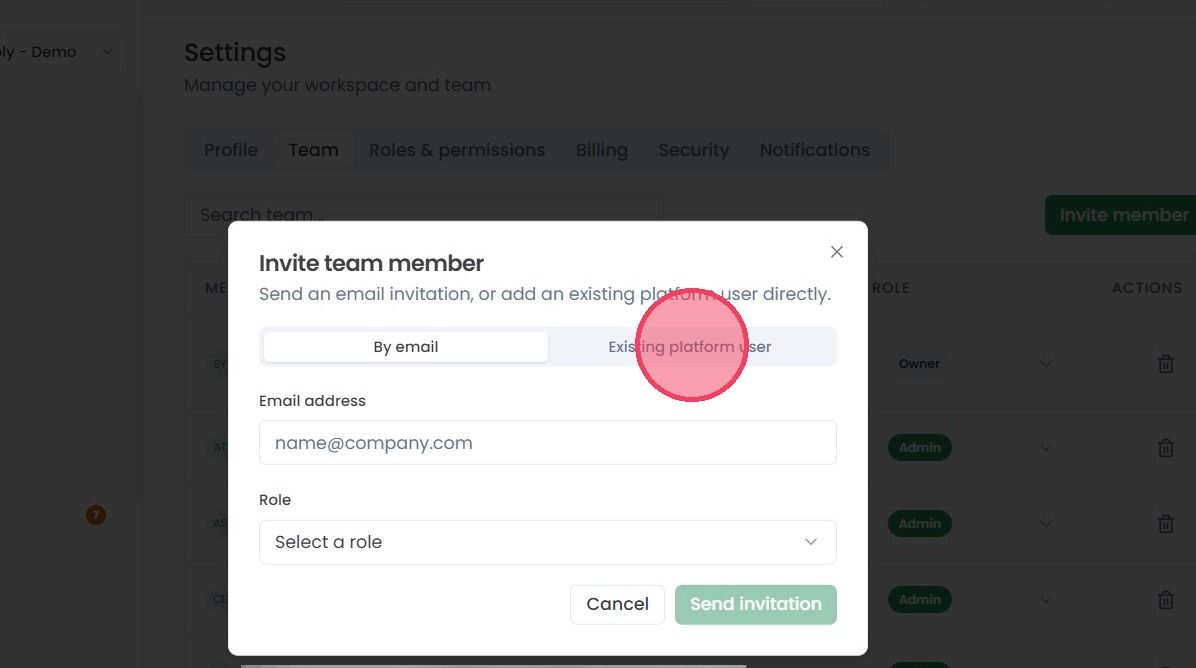
Alternatively, if you wish to invite an existing platform user to your team, select the Existing User tab.
When inviting an existing user, rather than specifying an email address, you can simply select their name from the User drop down.
Note: If all user accounts within your organisation have already been invited to your team, or there are no applicable accounts to be added you will see the following notification: "No eligible users found"
The specified employee will then receive an invitation to join your team within the OneClickComply platform, and their account will be marked as Pending until this invitation is accepted.