Viewing Employee Details
This guide provides a clear walkthrough for verifying access levels and maintaining secure organizational records.
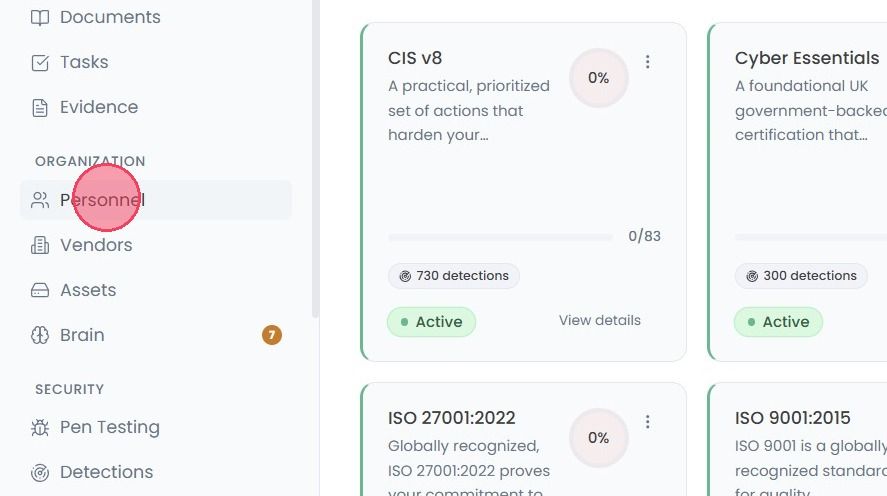
To review employee details, select Personnel from the main navigation bar.
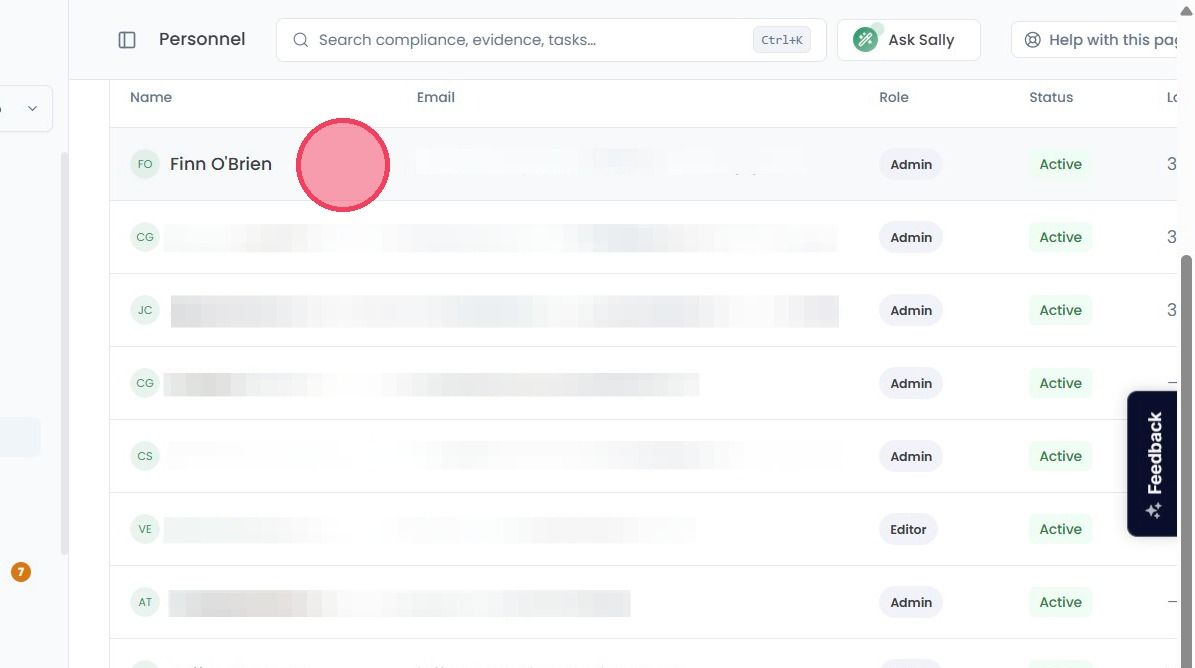
On this new page, click on the employee whose details you wish to view.
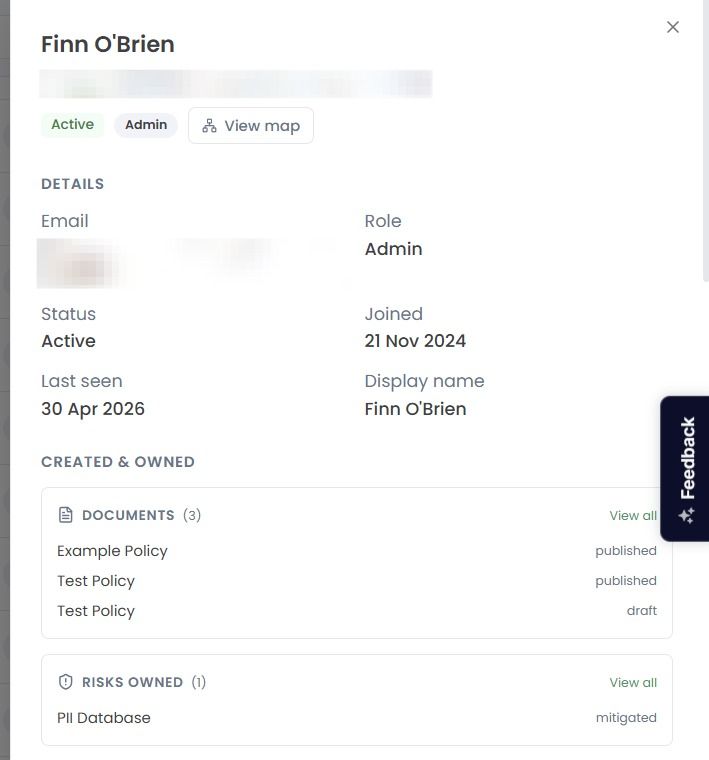
This will open a side panel, containing various important details about the chosen employee, such as:
Start date: The date the employee joined your workspace.
Role: The permissions the employee has in the workspace.
Status: Shows whether the account is Active, Pending, or Inactive.
Documents owned: A record of all documents the employee owns or is responsible for.
Risks owned: A record of any organisational risks the employee owns or is responsible for.
Tasks created: A record of any Tasks created by the employee in the platform.
Assets owned: A record of any business assets (either physical, virtual, or informational) owned by the employee.
Detections owned: A record of all detections assigned to the employee in the platform.
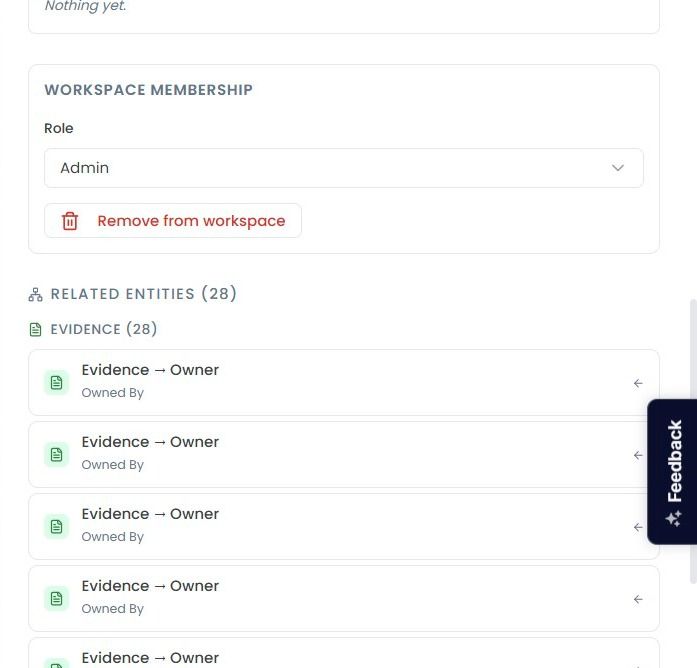
You can also change the Role of an employee from this view (provided you have a higher level of permissions than the user). To do this, select the new permissions from the Workspace Membership drop down.
Additionally, should you need to remove a user from you workspace, select the Remove from workspace option to revoke their access from your account.