Changing User Roles and Permissions
This guide will walk you through the process of changing the role (and associated permissions) of a team member within your OneClickComply account.
Every user within an organisation is assigned a role that determines what they can see and do within the OneClickComply platform.
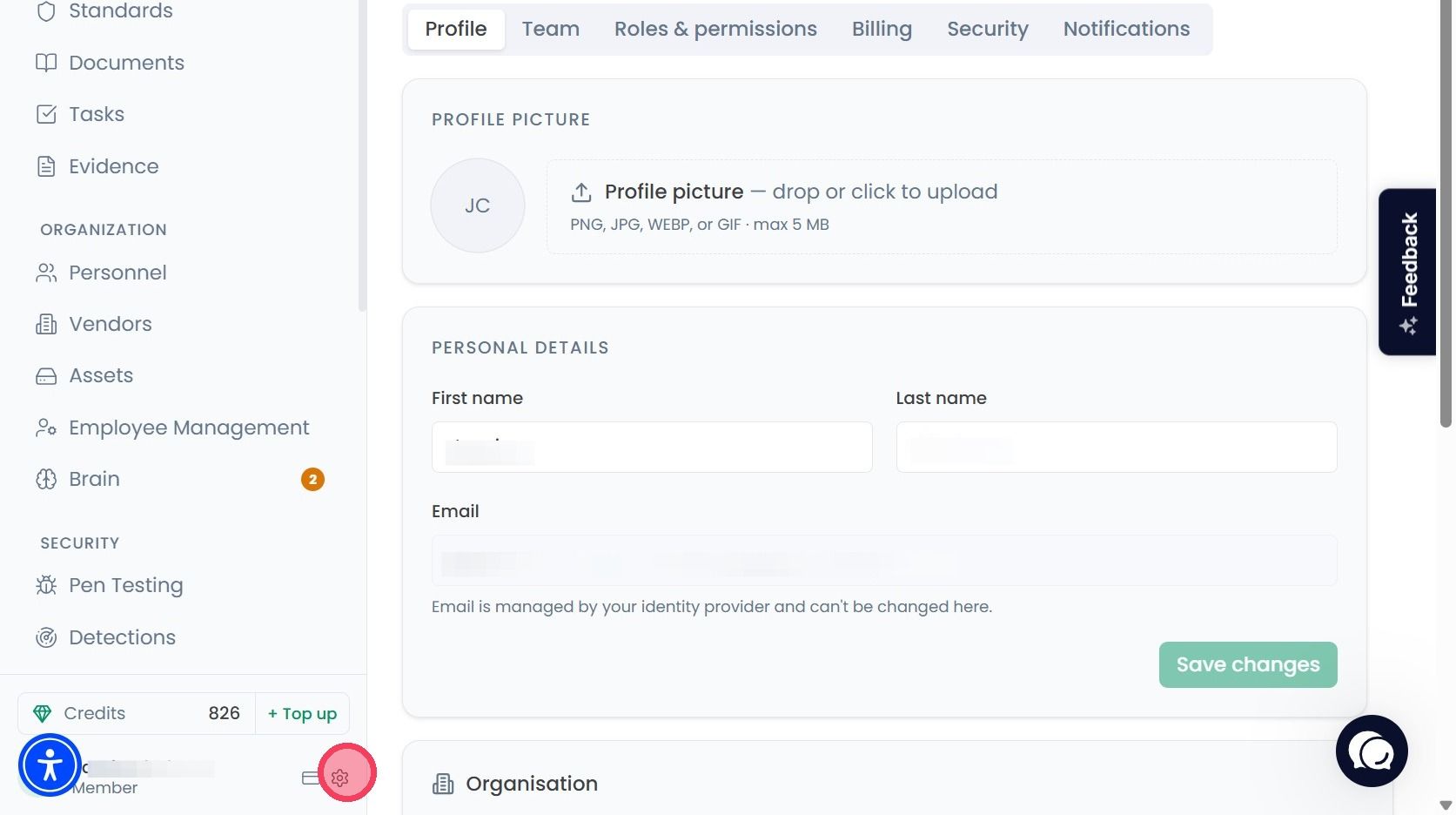
To change the permissions of a user, select Account and Organisation Settings by clicking the cog wheel, located next to your name at the bottom of the navigation bar.
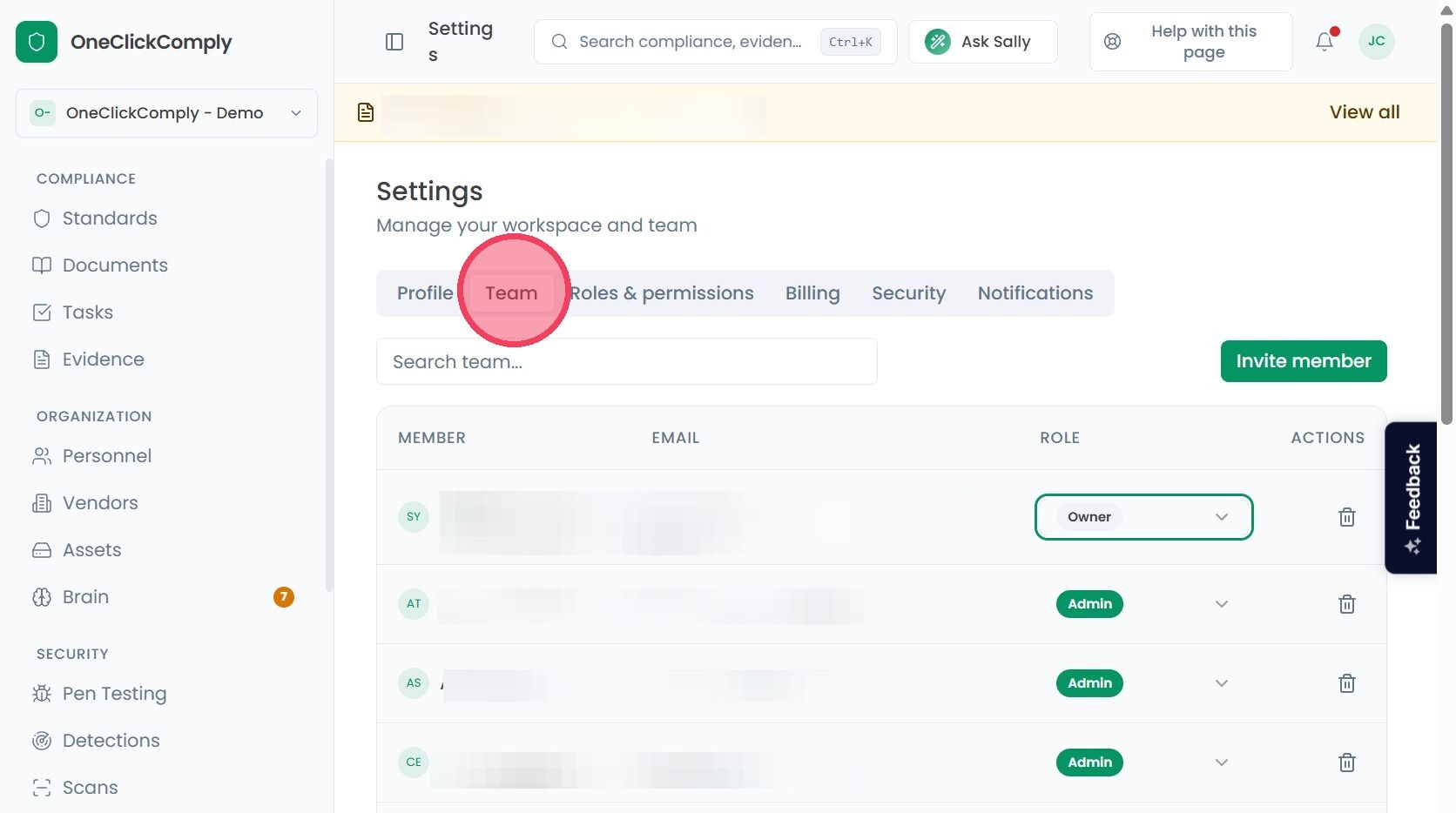
On the Settings page, select the Team tab from the various options on the top row.
On the Team page, you will find a list of all team members who have access to the OneClickComply platform. To edit the role (and associated permissions) of a team member, select the Role dropdown.
From here, select the role that you wish to assign to the team member.
Note: You are unable to modify the permissions of a user whose role is equal to or higher than yours. For example, an Admin may not change the role of another Admin.
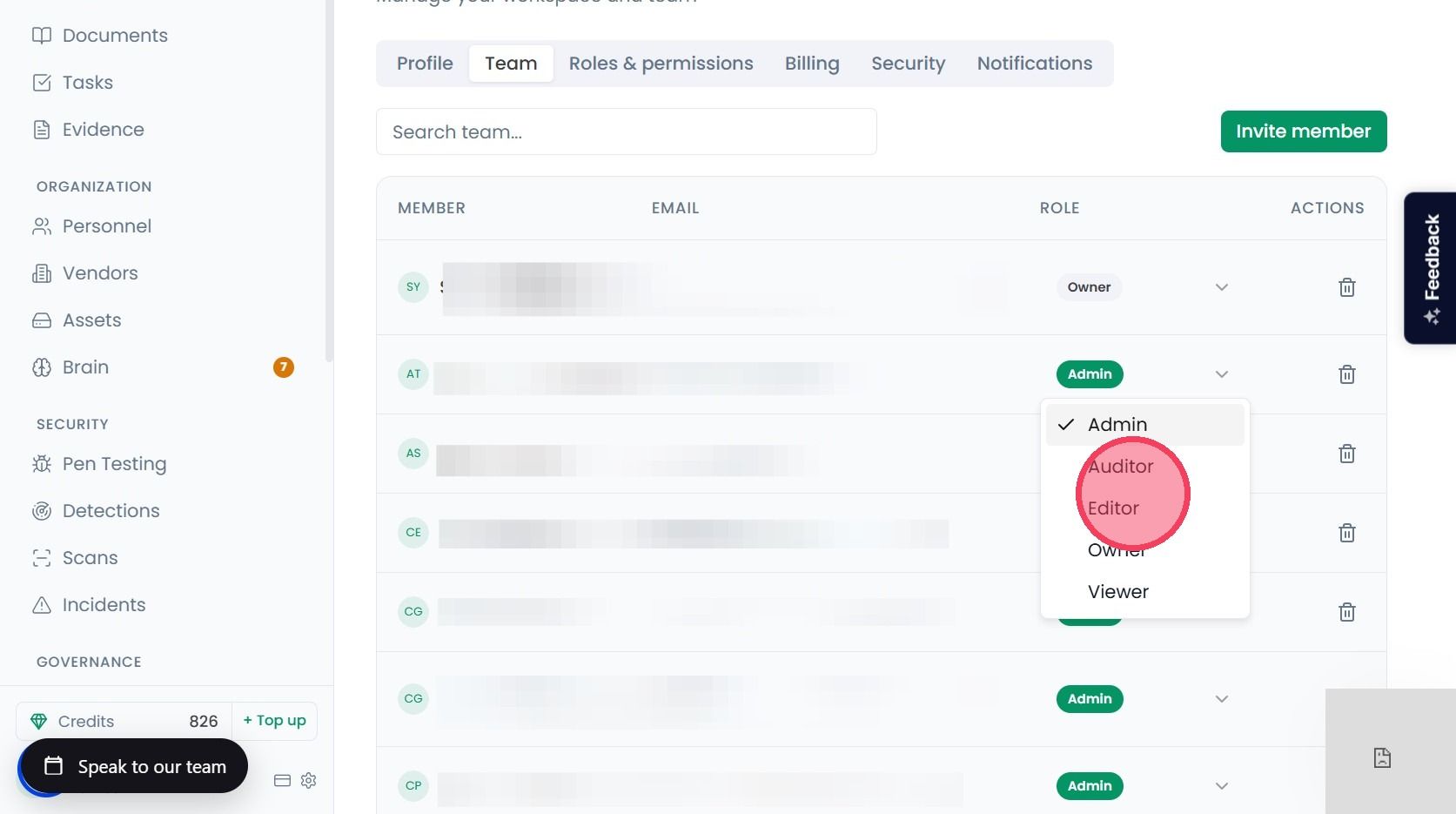
The permissions of each role are as follows:
Owner - Full access to everything. Can manage billing, invite/remove users, delete the organisation, and access all modules.
Admin - Full operational access. Can manage users, connections, compliance workflows, and run scans. Cannot delete the organisation or manage billing.
Auditor - Read-only access plus report export and audit creation.
Editor - Read access plus create/update on most resources, no destructive actions.
Viewer - Read-only access. Can view Detections, compliance status, evidence, and reports but cannot make changes.
Note: If you have created a custom role, they will also appear in this dropdown.