Manually Linking Accounts on Other Platforms
This guide will walk you through the process of manually linking other accounts that you may have on other tools or services, so that they are recorded within the OneClickComply platform.
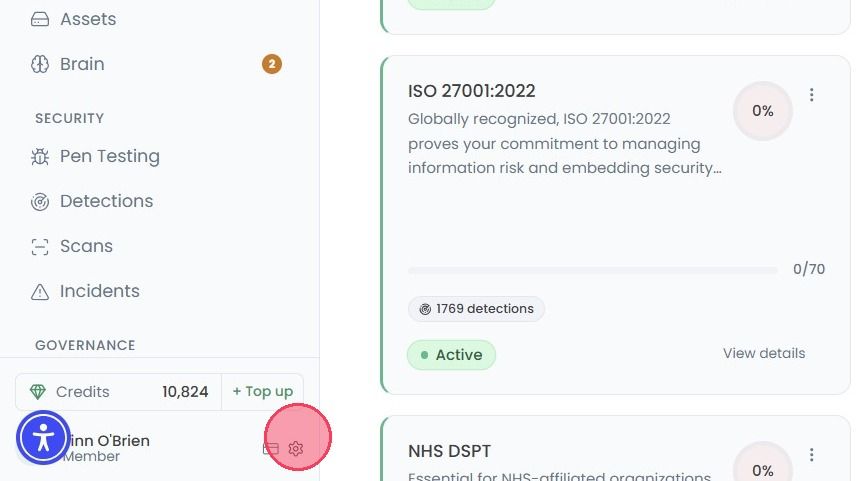
Select your Account and Organisation Settings by clicking the cog wheel, located next to your name at the bottom of the navigation bar.
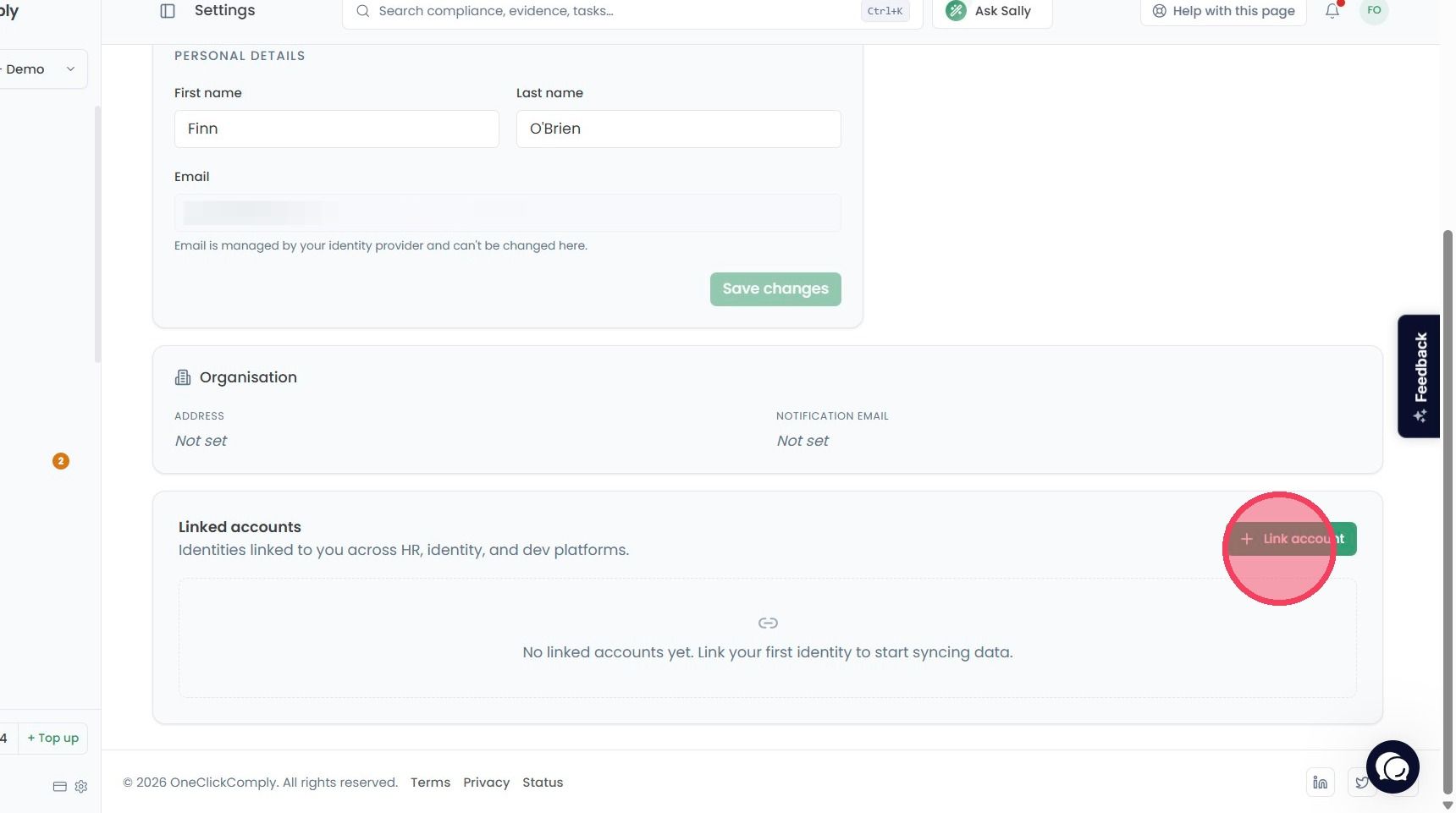
On the Profile settings page, select the Link account option. This will open a new window to manually link your profile with other platforms.
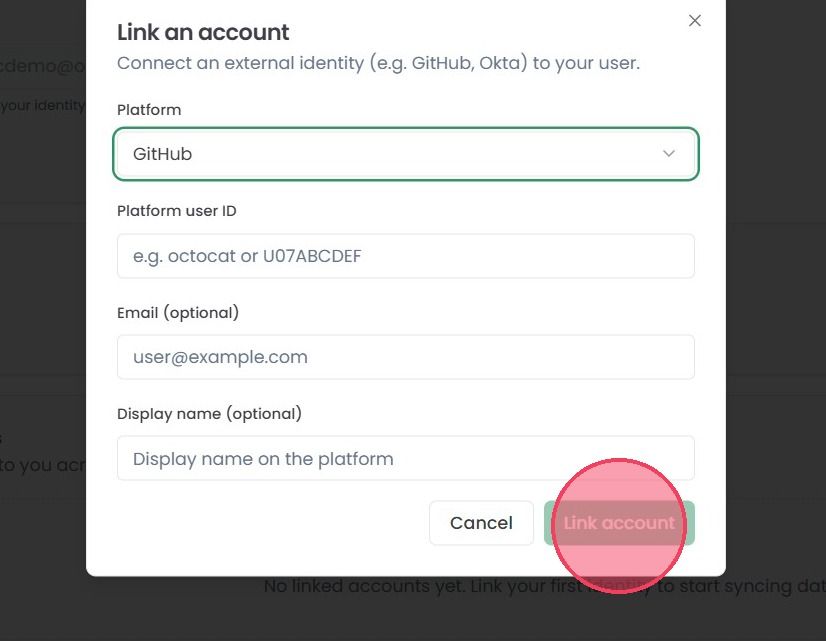
In the new Link an account window, you can provide the following information:
Platform: Select the relevant platform from the drop down list (e.g. Github, Intune, Slack).
Platform user ID: The specific user ID within the tool or service.
Email (optional): The email address associated with the account.
Display name (optional): The name of the account.
Once you have entered the required information, click the Link account button to confirm. The account will then appear within the Linked accounts area of your Profile.