Answering Context Questions
This guide explains how to answer various contextual questions asked by the OneClickComply platform so it can better understand your business.
In order for the in-platform AI to provide tailored guidance and support for your organisation, it requires context around your organisation's security and compliance posture.
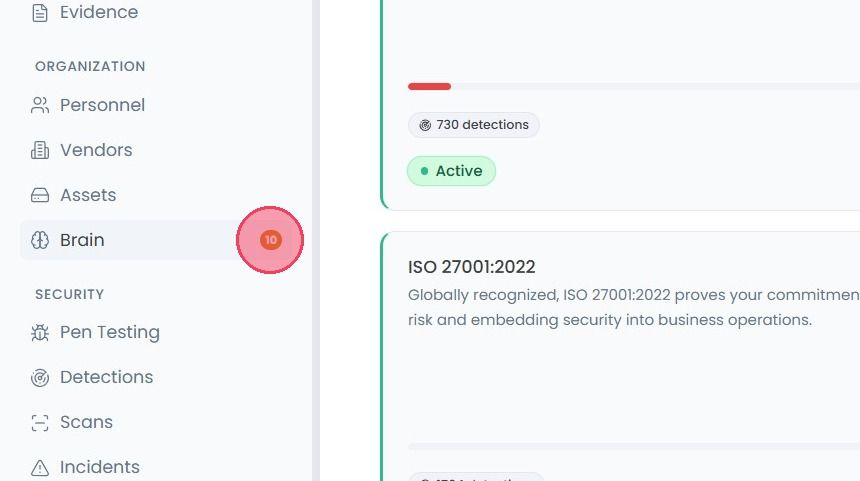
To streamline this process, questions are automatically generated by the platform, and can be answered within the Brain area. The number of questions currently outstanding can be determined by the small number to the right of the Brain tab.
To begin answering these questions, select Brain from the main navigation bar.
Note: If this service is not included in your package then you will need to add this feature as an add-on from the Billing area.
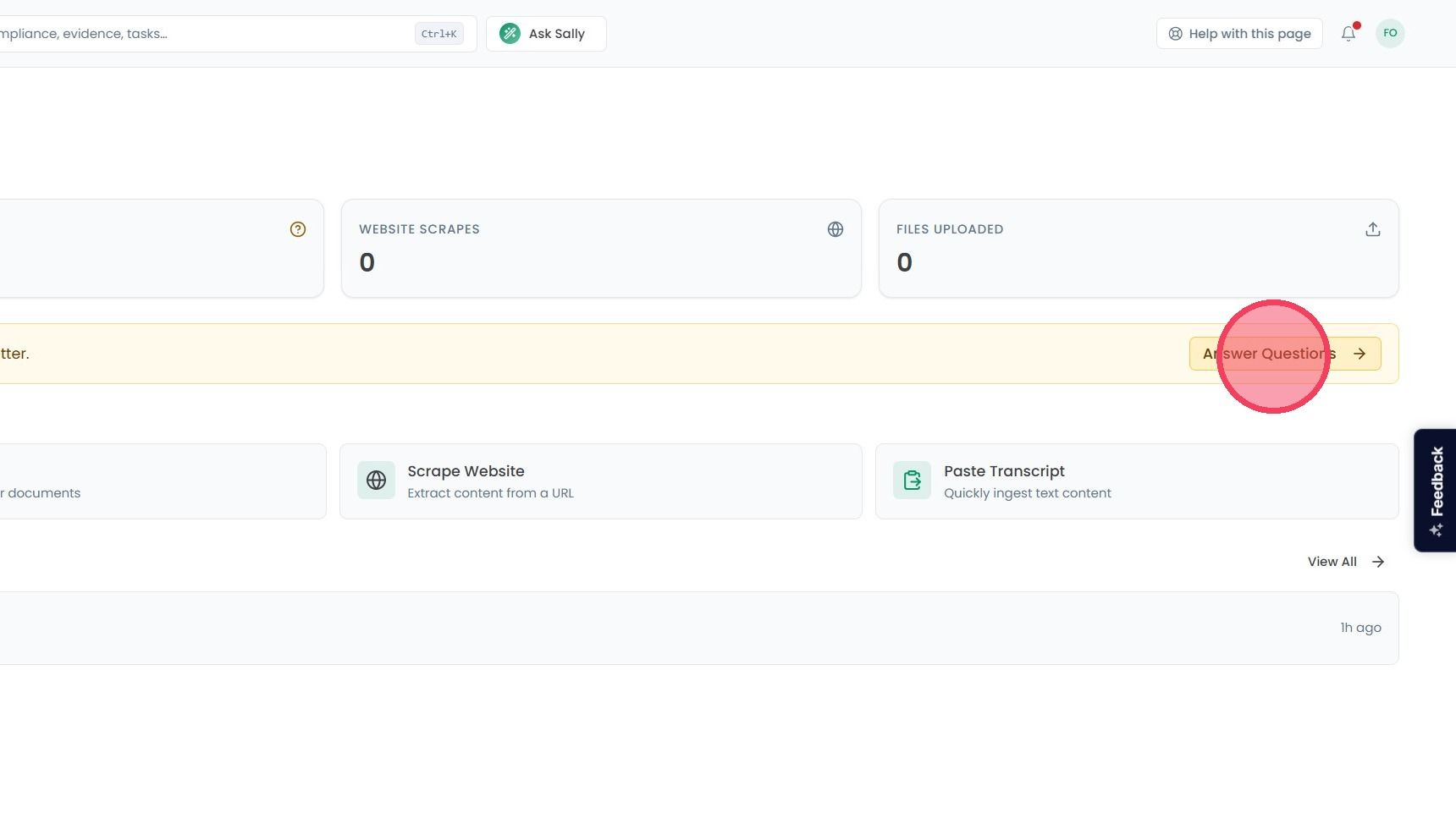
Once you add the service then, click the Answer Questions button, found in the yellow header near the top of the page.
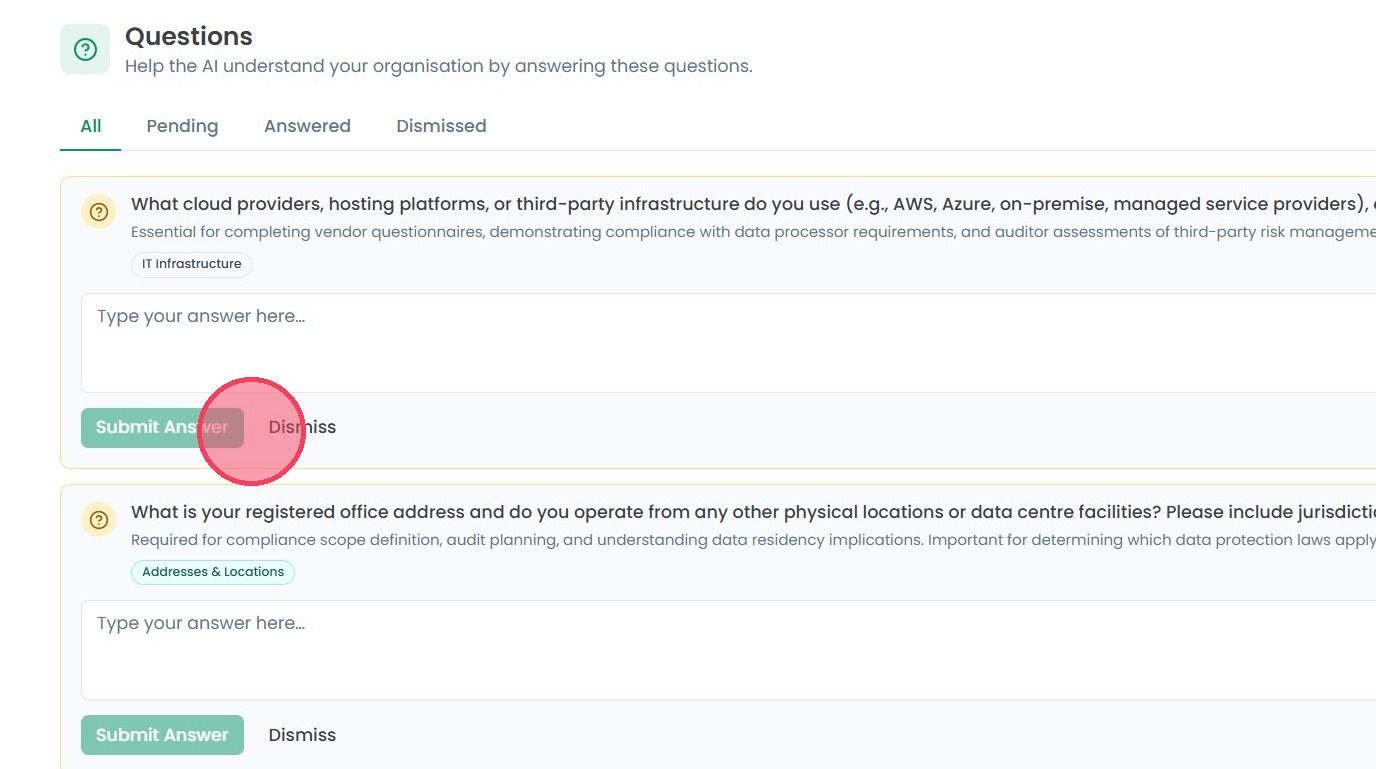
This will bring you to the Questions area, where you will see a list of the outstanding questions where you can provide additional context about your organisation.
At the top of this new page are several tabs that change which questions are displayed. These are:
All: Shows every question.
Pending: Only shows unanswered questions.
Answered: Only shows answered questions.
Dismissed: Only shows questions that have been dismissed.
To answer a pending question, click on the answer box, provide your response, then click Submit Answer.
Note: To change your response to a question, return to the Organisation Brain page and select the relevant box from the Recent Entries section.
If a question isn't applicable to your organisation, you can click the Dismiss button to remove it from the list of Pending questions.