Uploading Evidence
This guide will walk you through the essential fields needed to register your evidence and help demonstrate your compliance.
To upload evidence onto the OneClickComply platform, select Evidence from the main navigation bar.
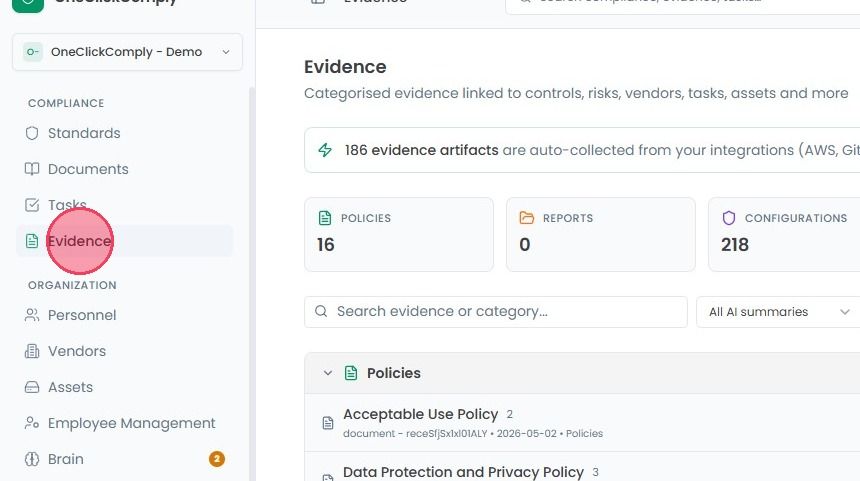
Inside the Evidence area you can upload documentation to demonstrate your alignment with compliance controls, including:
Policies: Formal guidelines or principles set by the organisation to achieve a specific aim.
Reports: Technical or operational outputs.
Configurations: Examples of which device or system settings are in place.
Logs & Monitoring: Logs showing user or system actions over a set period of time.
Assessments: Internal audit reviews, spot checks, penetration tests etc.
Training: Proof of employee learning, such as attendance or completion records, module information, or test scores.
To upload evidence, select the Upload Evidence button in the top-right corner of the page.
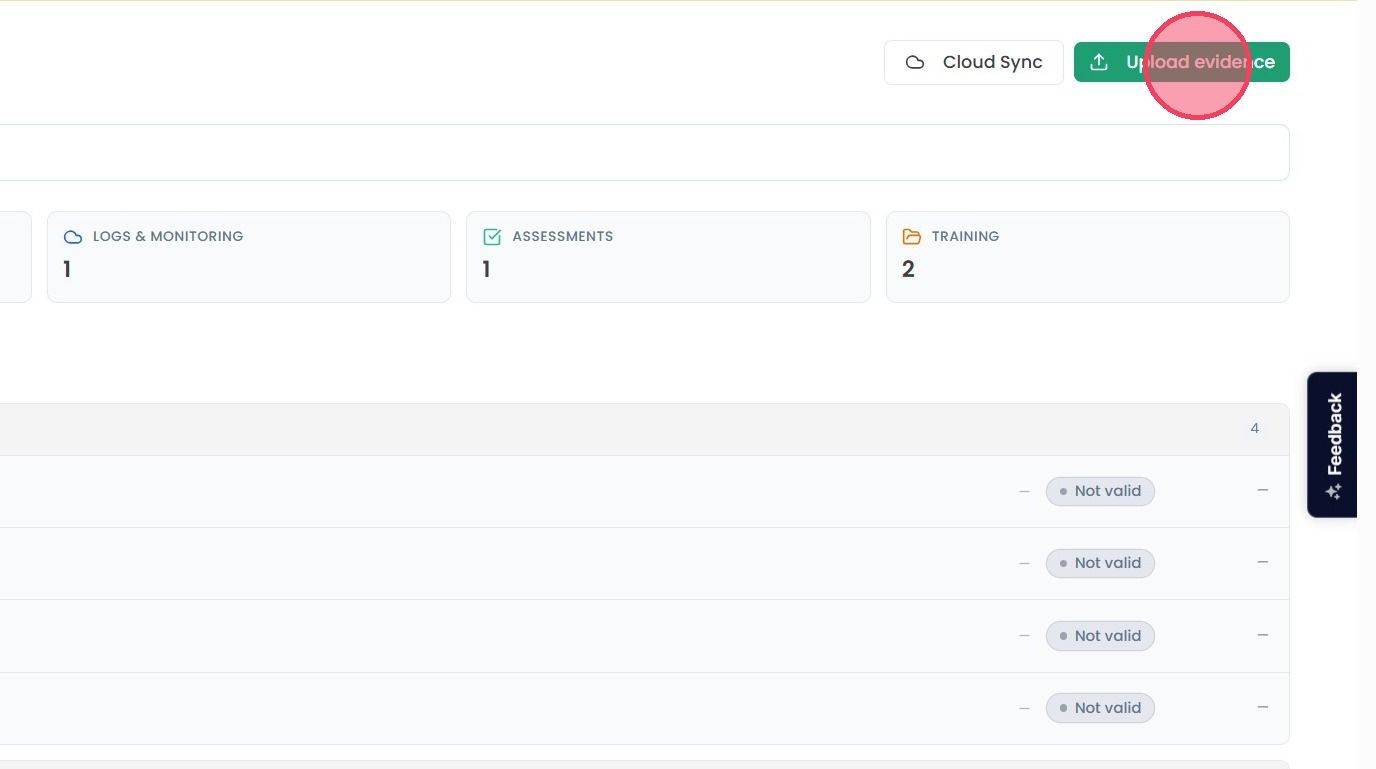
Once selected, a new window will open where you can enter details about the evidence you wish to upload.
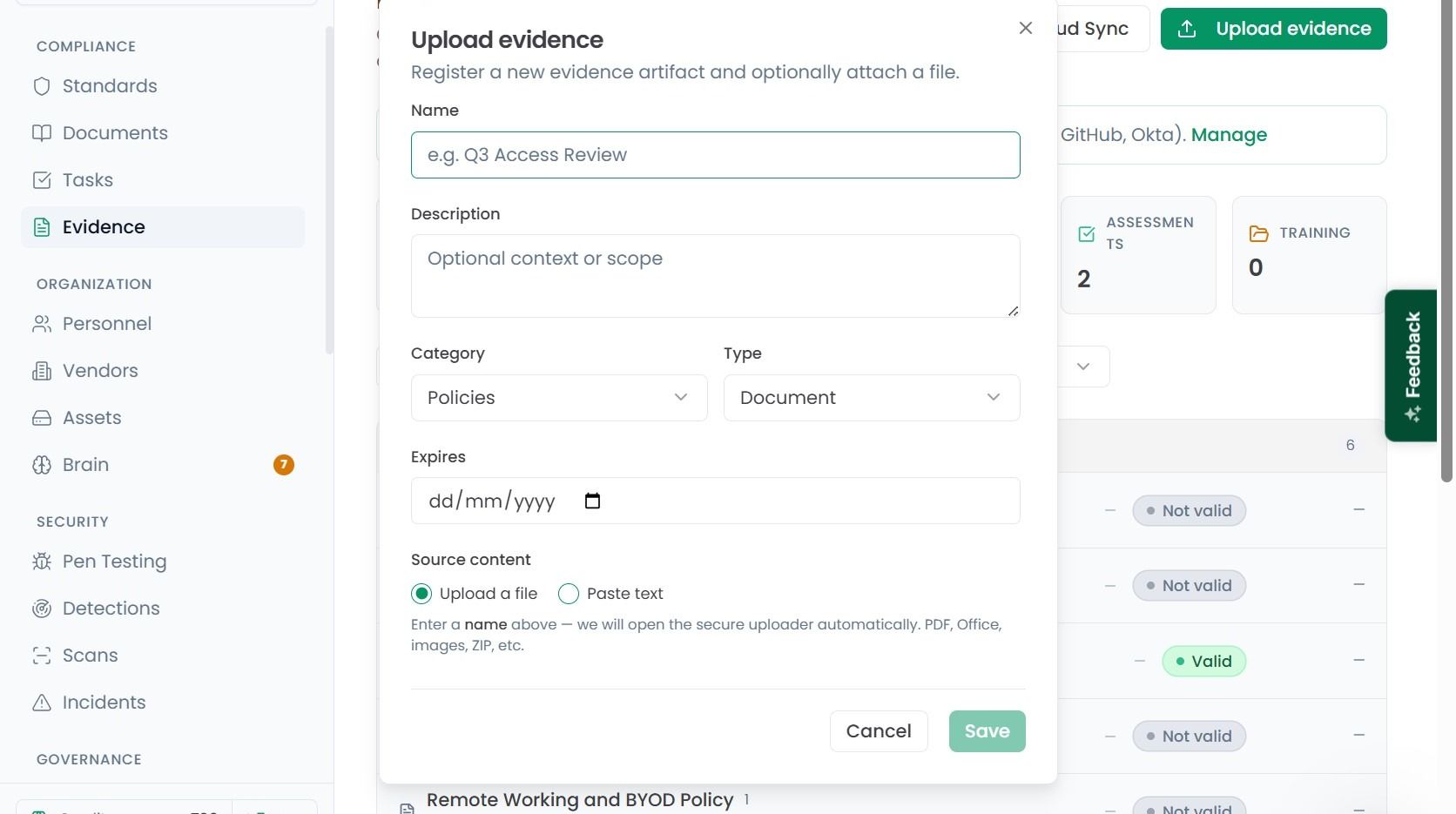
These details are:
Name: The evidence title, or brief description (e.g. “Access Control Policy” or “Firewall Configuration Report”).
Description: Provide additional context about the evidence.
Category: Choose which category the evidence falls into.
Type: Select the evidence format - is it a Document, a Screenshot, an Automated platform output or Log data?
Note: Selecting the Upload file option allows you to either upload the file directly to the OneClickComply platform, or provide a text-based response, which will be saved as a .txt file.
Expires: Set when the evidence is due to become outdated. This helps the platform remind you when it’s time to provide a fresh version.
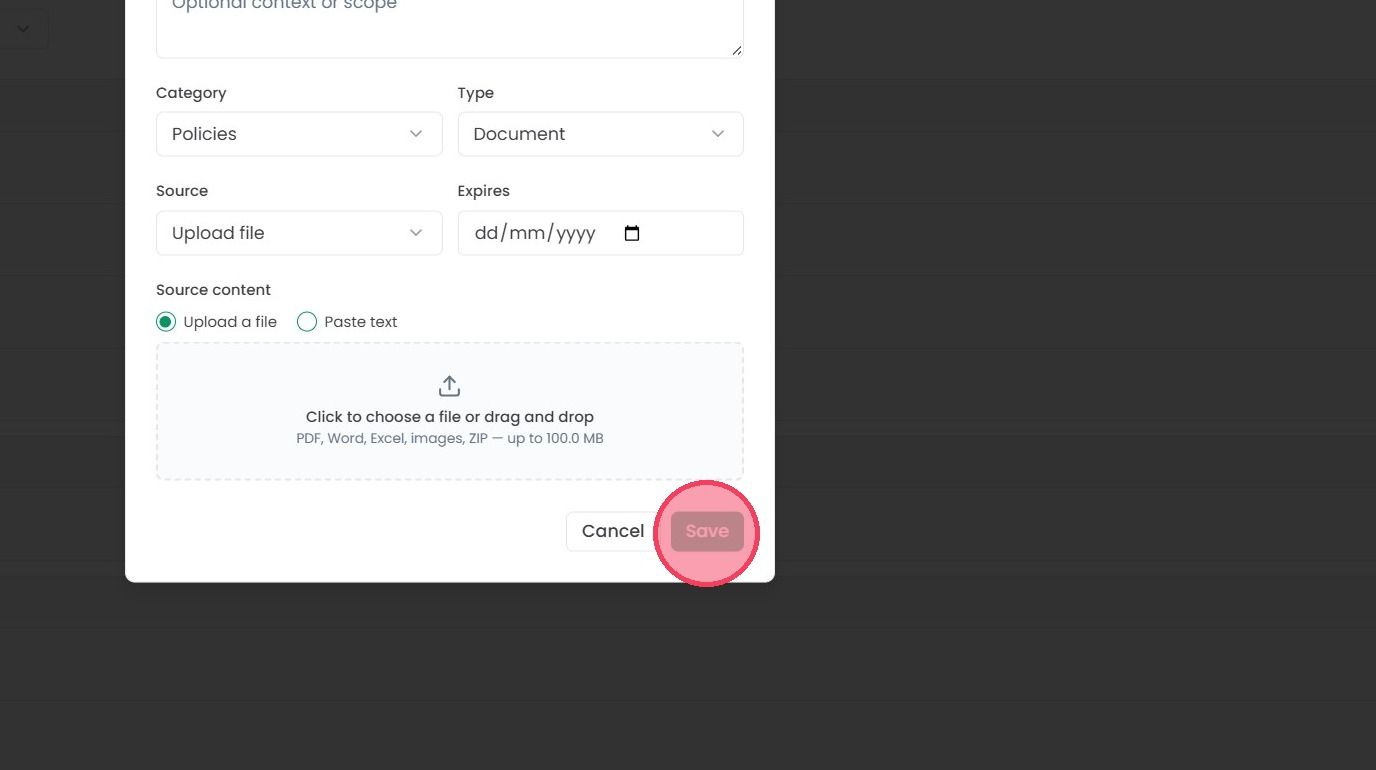
Once you’ve filled in the details, click Save button. The evidence will be immediately added into the relevant area on the Evidence homepage.