Syncing Evidence to Cloud Storage
The Cloud Sync feature allows you to mirror your evidence data directly into folders you own in Google Drive or Microsoft OneDrive. This ensures you always have a real-time backup of your compliance evidence within your own company infrastructure.
Currently, the platform supports a one-way mirror of your Evidence Library. Every five minutes, the system checks for new evidence and syncs it to your connected drive. To protect your data, this is a non-destructive sync. If a file is deleted within OneClickComply, it will remain safely in your Google or Microsoft drive.
Please note: Support for syncing policies, reports, and other exports is coming soon.
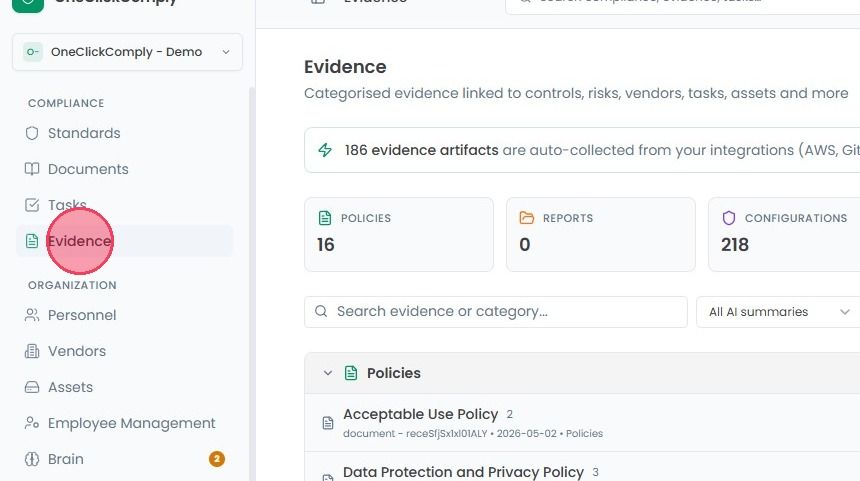
To start syncing your evidence to cloud storage, select Evidence from the main navigation bar.
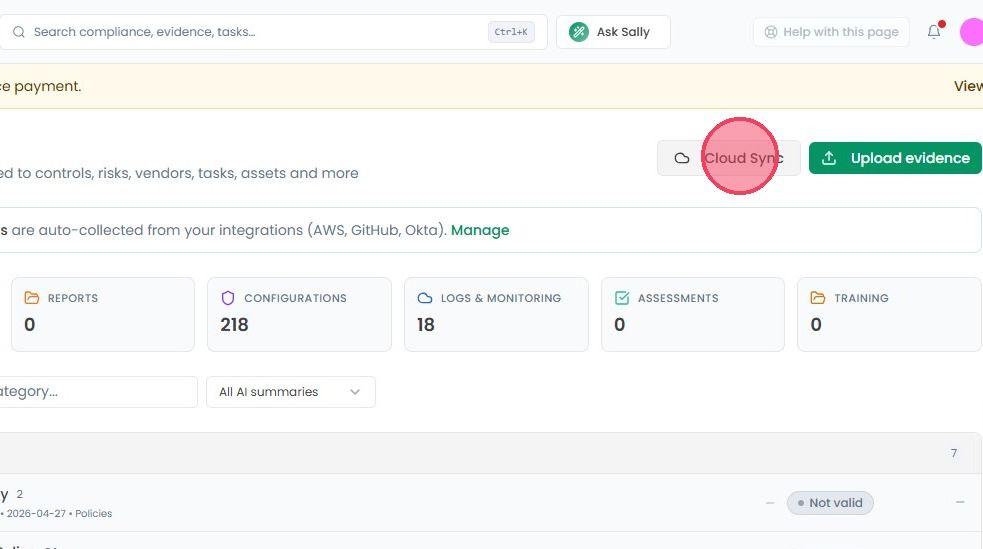
On this page, click Cloud Sync in the top-right corner of the page.
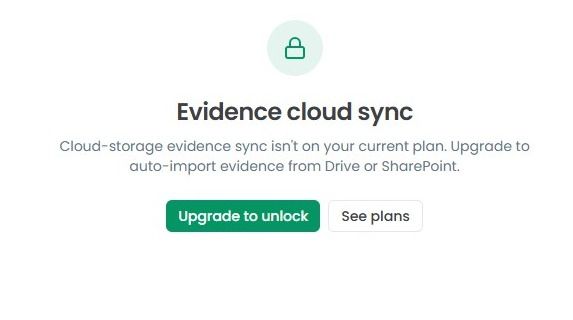
If this service is not included in your package then you will see the following screen.
Important: If the Cloud Sync is not included in your current subscription, a notification window will appear when you access the page. You need to upgrade the plan, in order to unlock automated evidence syncing.
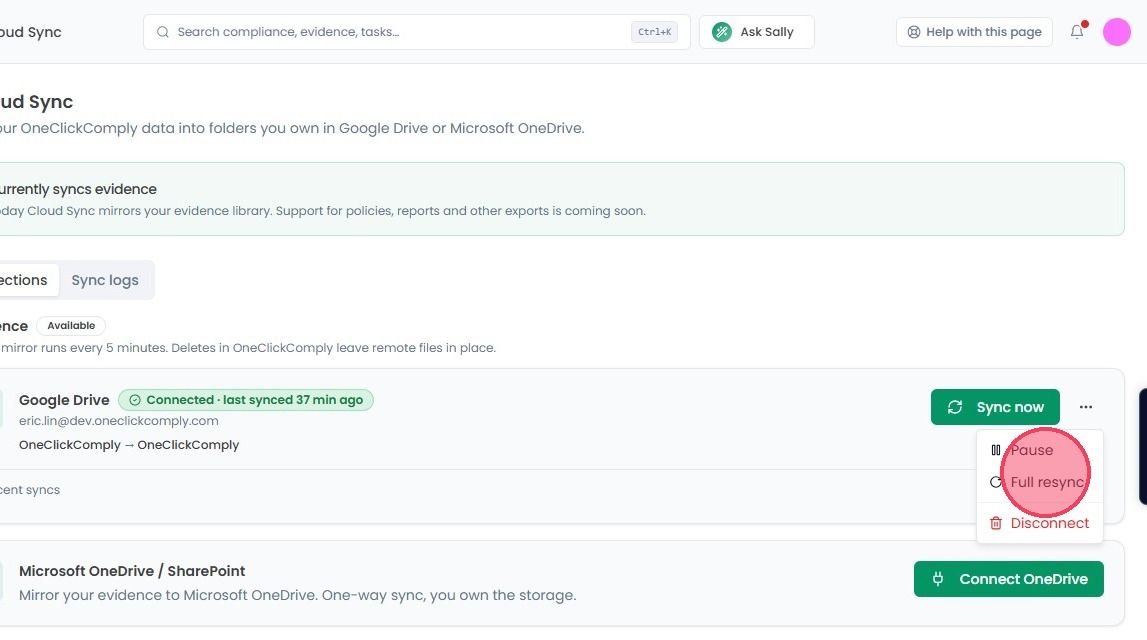
Once you upgrade the plan then you will see the screen as below. Under the Connections tab, you will see options for both Google Drive and Microsoft OneDrive.
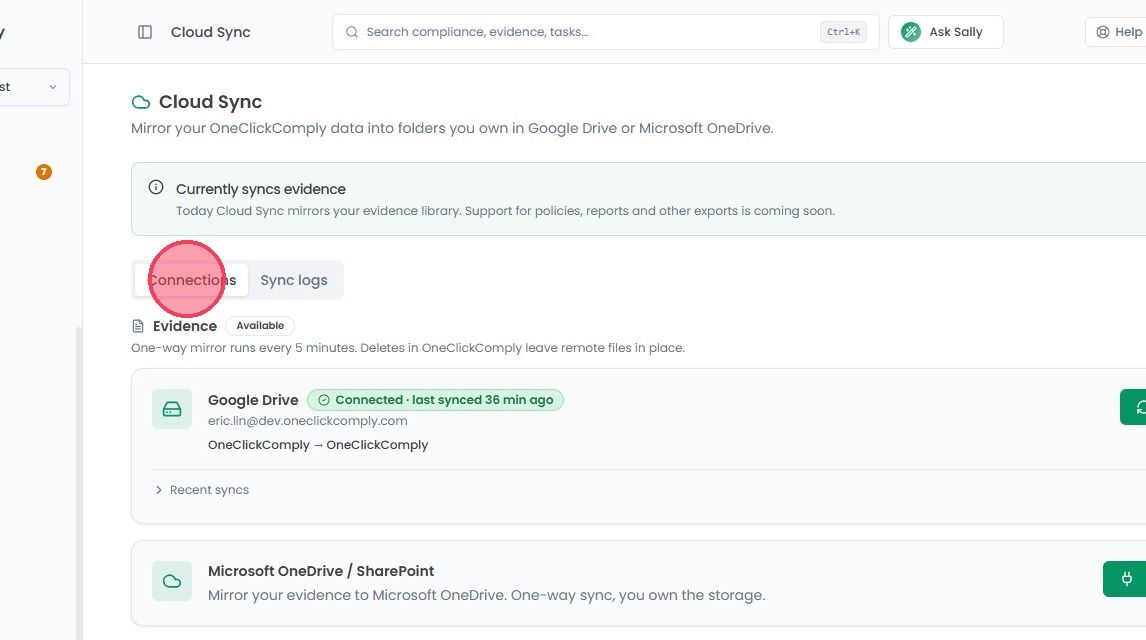
Click the Connect OneDrive button for your preferred provider. You will be prompted to sign-in and authorise the platform to access the specific folder where your data will be stored.
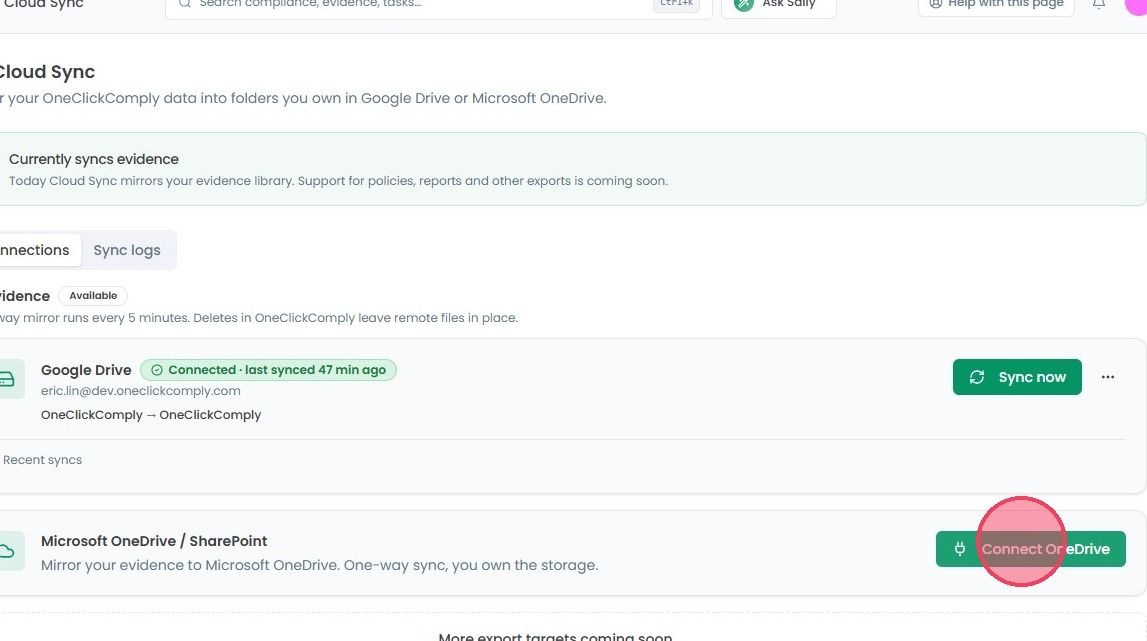
Once your account is successfully linked, a Sync Now button will appear. Click this to start the initial mirroring process. Your evidence will begin appearing in your cloud storage shortly after.
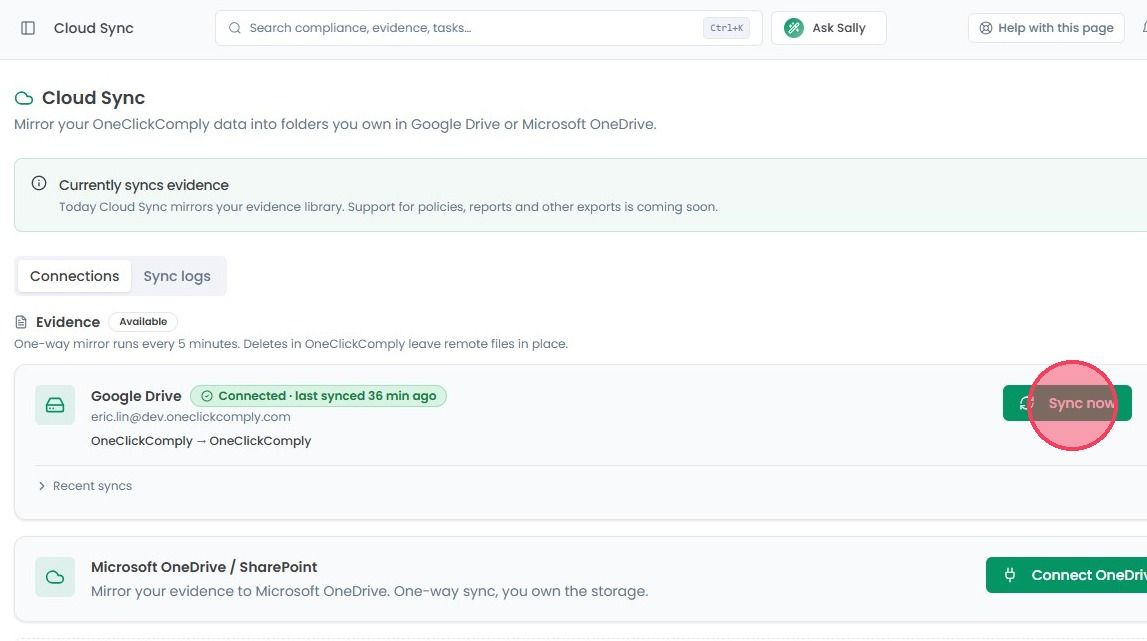
If you need to change how the sync behaves, click the ellipsis button (’…’) next to the ‘Sync Now’ button. From this menu, you can:
Pause Sync: Temporarily stop data from mirroring to your drive.
Resync: Manually trigger a fresh update of your files.
Disconnect: Completely remove the link between the platform and your cloud storage provider.