Reviewing Automatically Gathered Evidence
This guide provides a simple walk through for reviewing evidence gathered automatically by the OneClickComply platform.
When a Task or Detection is resolved through automated remediations (e.g. by OneClickFix), the OneClickComply platform will automatically gather the necessary evidence to prove that the necessary fix has been implemented. The evidence will also automatically be attached to the relevant Task, removing the need to manually gather or locate evidence
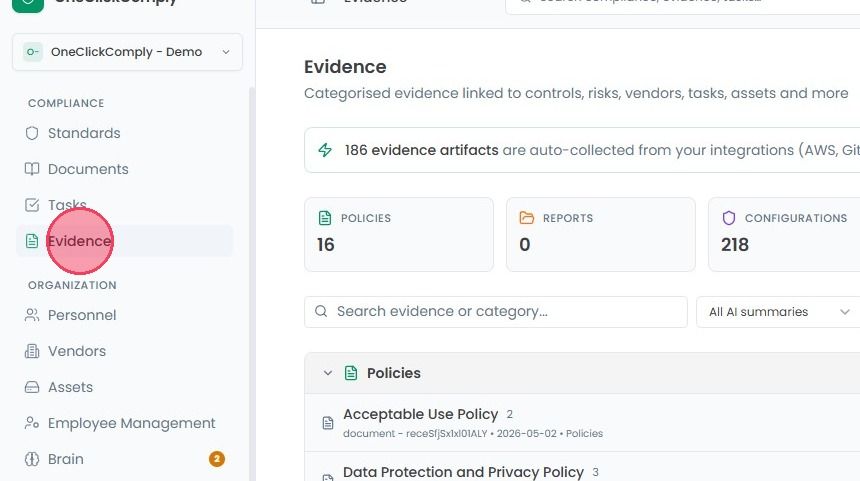
To review automatically gathered evidence, select Evidence from the main navigation bar.
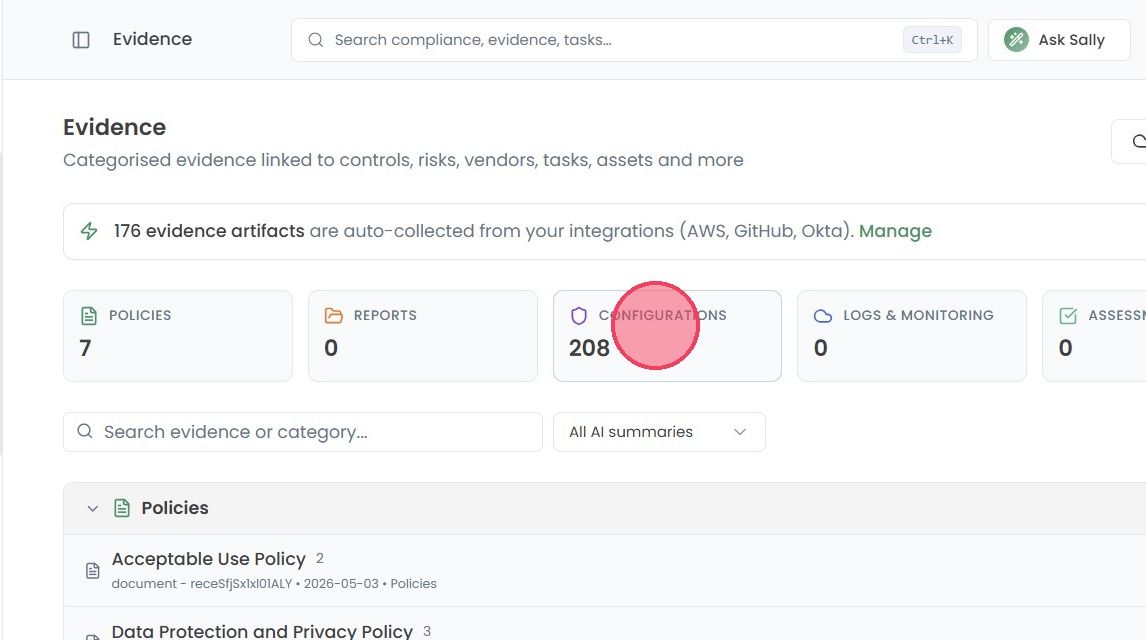
At the top of the Evidence page you will find a record of how many evidence has been automatically gathered by the OneClickComply platform.
To filter specifically for automatically gathered evidence, select the Configurations card as shown in the example below.
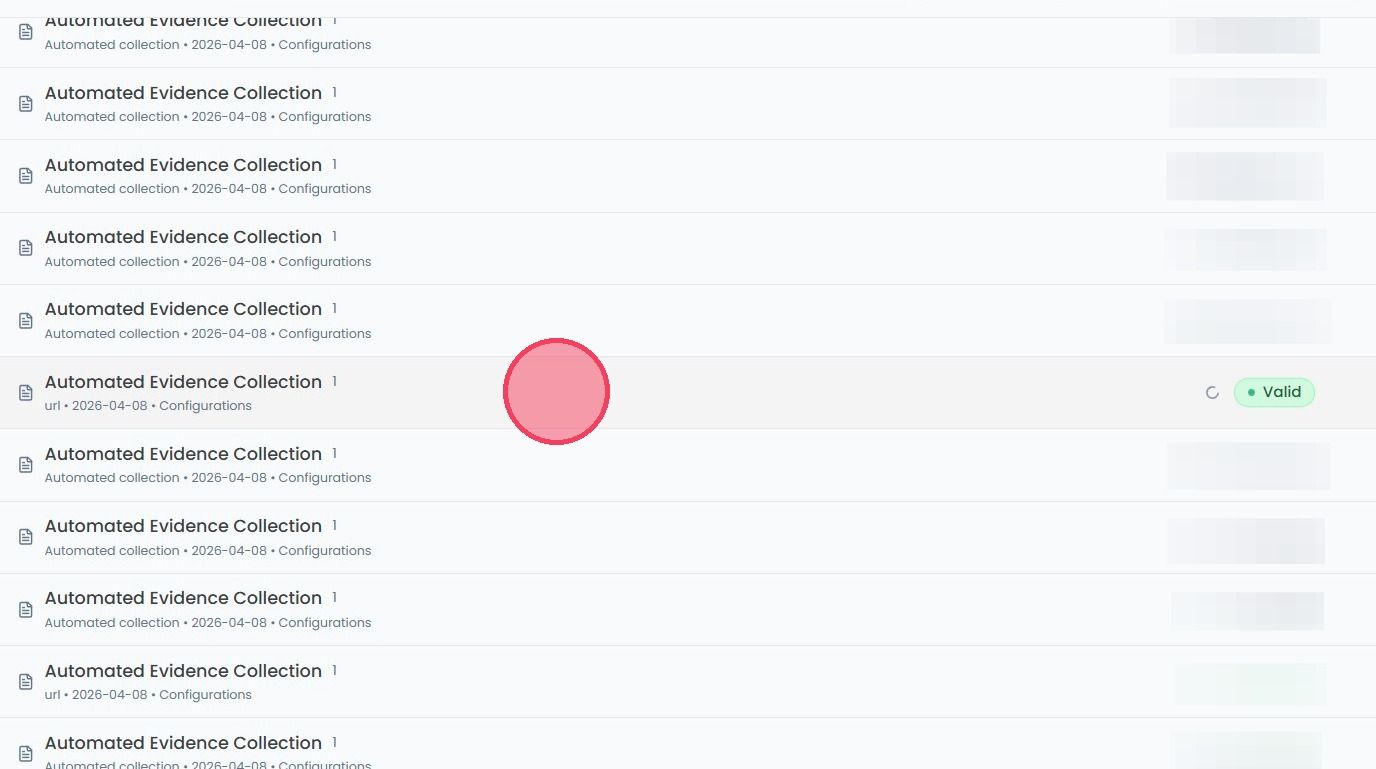
From here, select the evidence that you wish to review to open a side window.
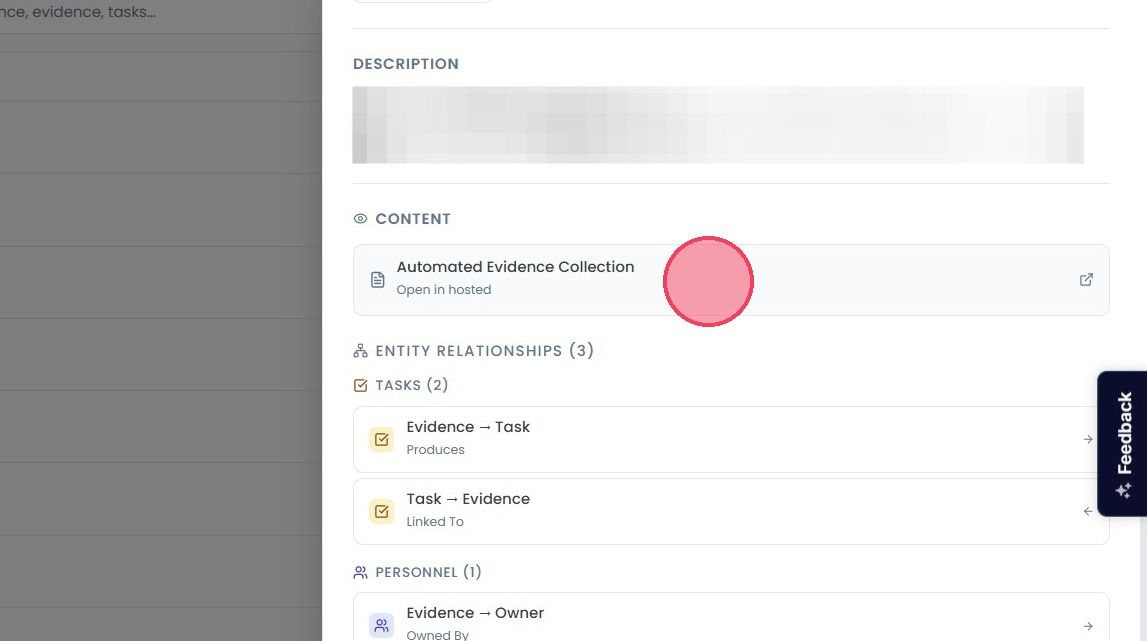
Within this new side window, the Content area will contain a link to the gathered evidence.
Automatically gathered evidence will be shown in one of two types, depending on the action taken. These are:
Video
Script
Video Evidence
Video evidence is a short recording of your environment that captures the required information for a given task. The length of the video depends on the complexity of the automation, but they typically range from around 15 seconds to just over a minute.
The content of each video will also vary by task. For example, one recording may simply show a setting being switched to “Enabled” while another may demonstrate a more detailed process, such as configuring firewall rules for managed devices.
Script Evidence
Script evidence provides a more technical view of your environment. Instead of a video recording, it displays the raw response from the Microsoft Graph API, showing which settings are configured and how they are set up.
This format is particularly useful for auditors, as it gives direct access to the underlying data that reflects your organisation’s compliance and security posture. It ensures that both you, and any auditors invited to the platform, can review the exact configuration details without interpretation or modification.