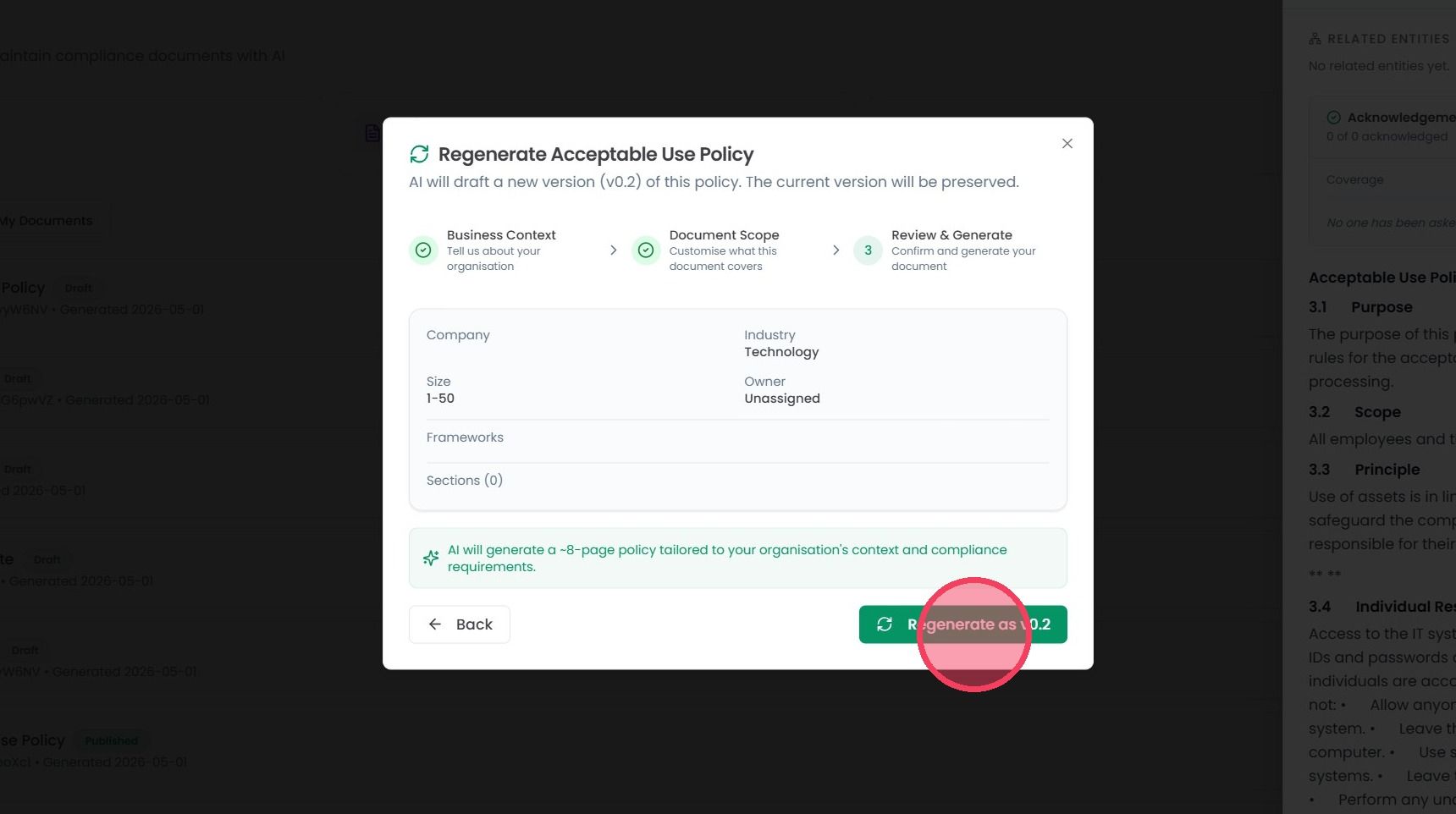
Regenerating Document Content
This guide walks you through the process of regenerating document content through the in-platform AI.
Documents within the OneClickComply platform can have their contents regenerated to reflect changes in the organisation, such as newly implemented controls, changes to risk management, or procedural updates.
Important note: Regenerate policy button is only visible to the designated policy owner. If you are the owner of that specific policy, you can find this option within the policy’s details page to update the document with any recent changes.
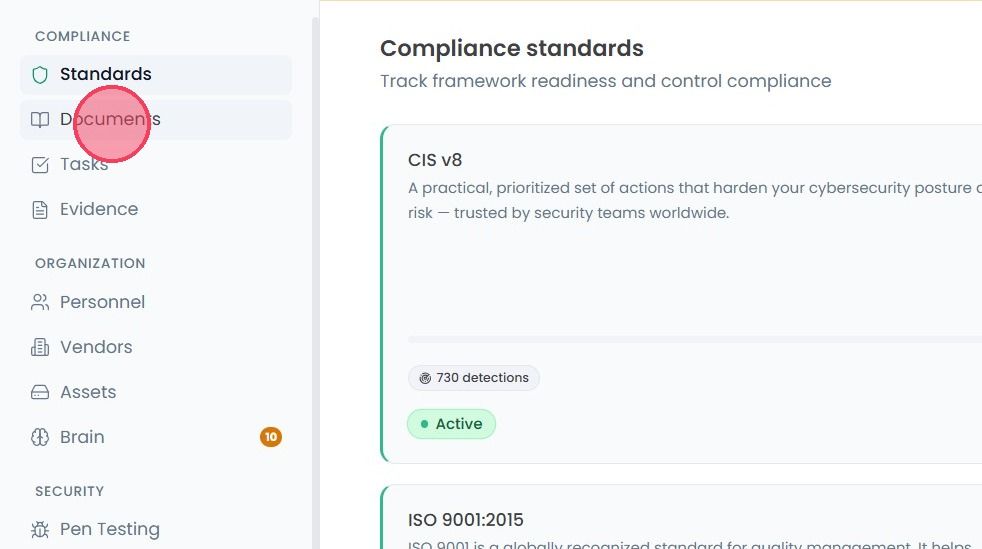
To regenerate a document, select the Documents option from the navigation bar on the left-hand side.
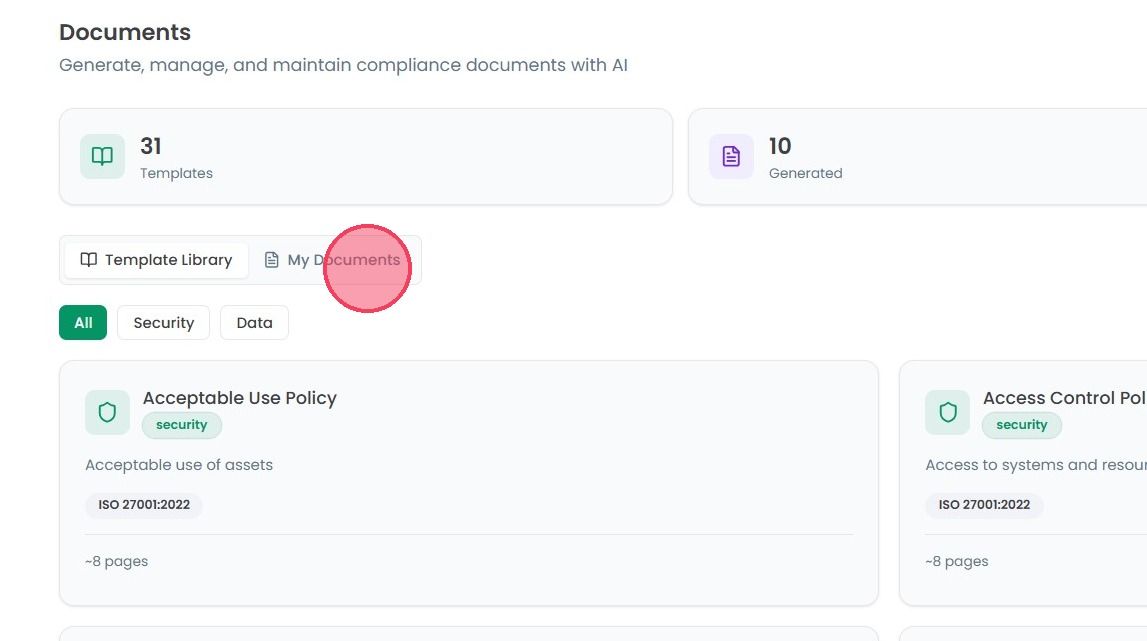
Next, select the My Documents tab.
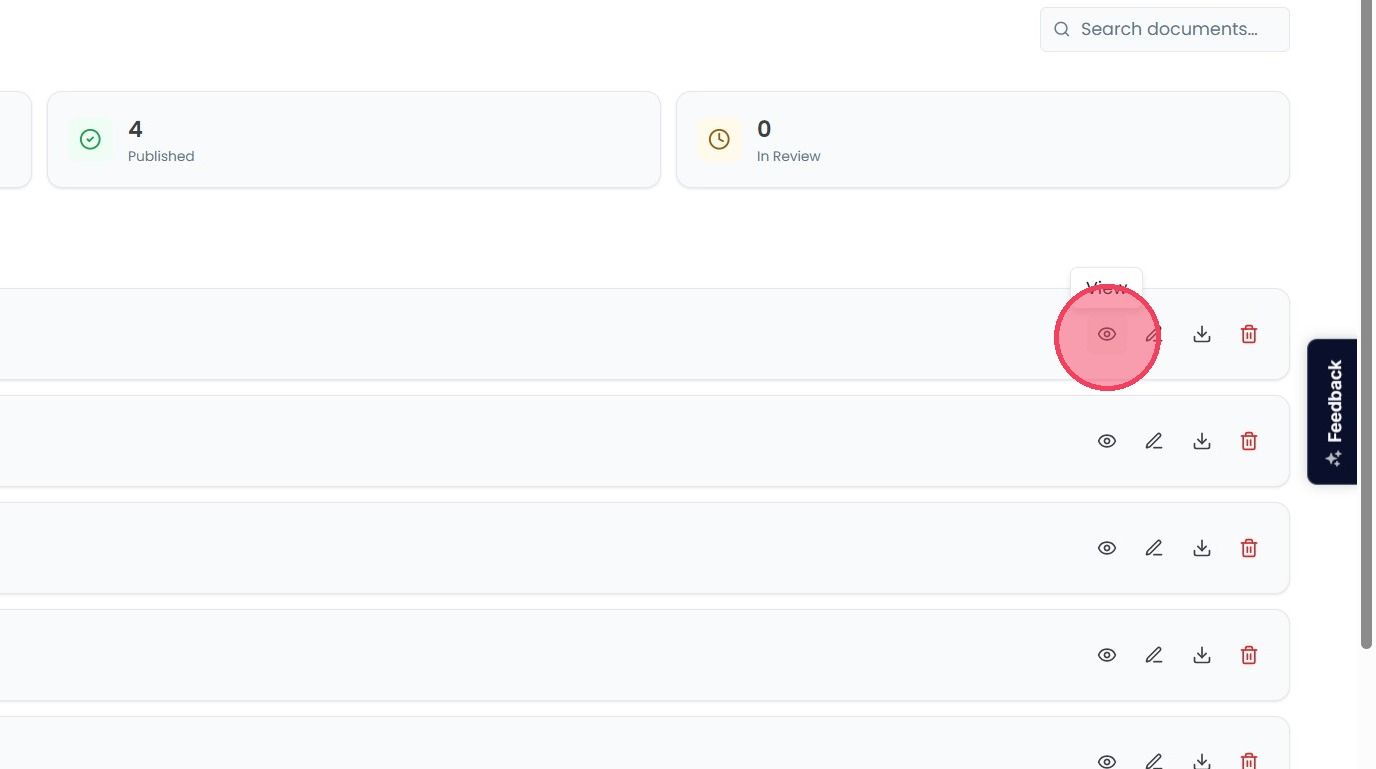
Then select the Eye icon (View) to open the document side window.
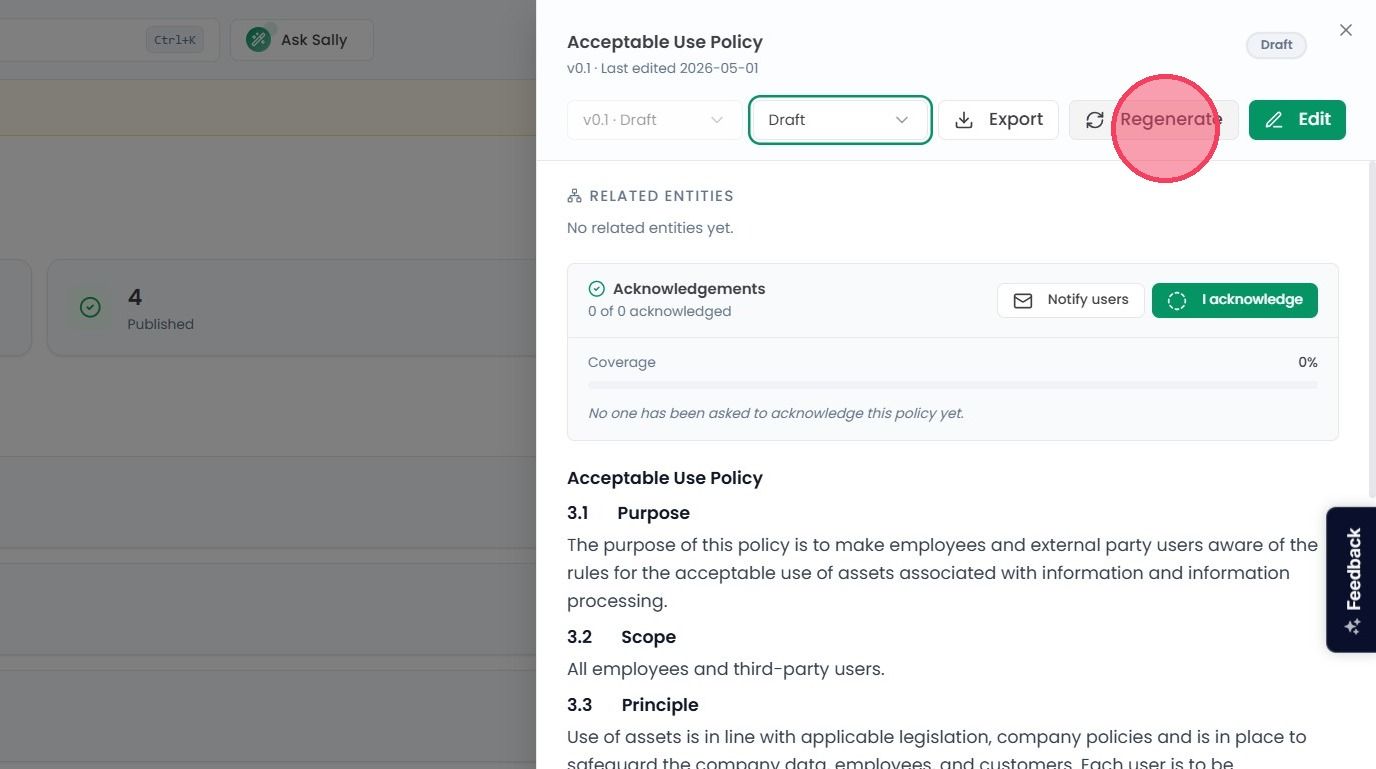
On this side window, select the Regenerate option, located next to the Edit button at the top of the page.
Note: The Regenerate button is only visible when the View option is selected, as the Edit feature is designed for making specific changes to a document, rather than recreating the entire contents.
Once the Regenerate option is selected, the document creation window will open, where you can update the Business Context or Document Scope that you provided previously.
To begin updating the document, click the Regenerate as vx.x button. Once complete, the regenerated document will appear in the My Documents area under the new version number.