Completing Controls
This guide walks you through the standard process of completing controls within the OneClickComply platform.
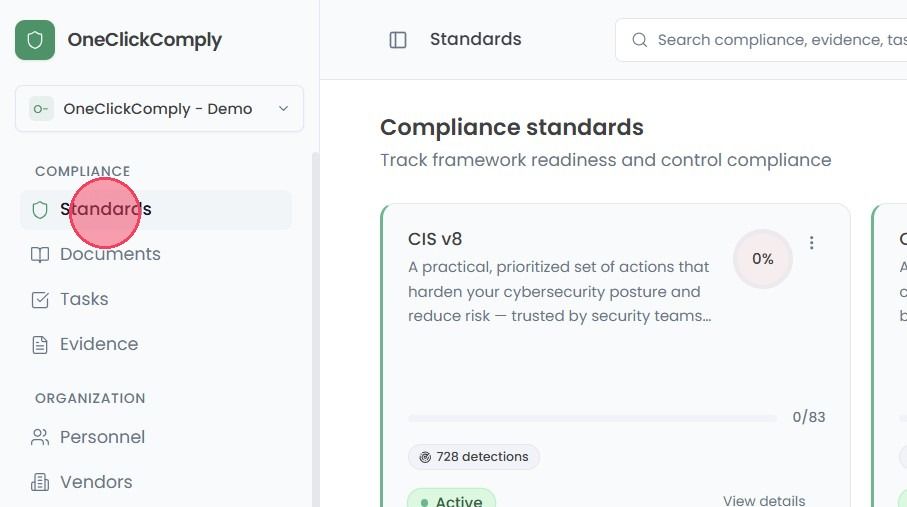
To begin completing controls and demonstrating alignment with your chosen standards, select the Standards area from the main navigation bar.
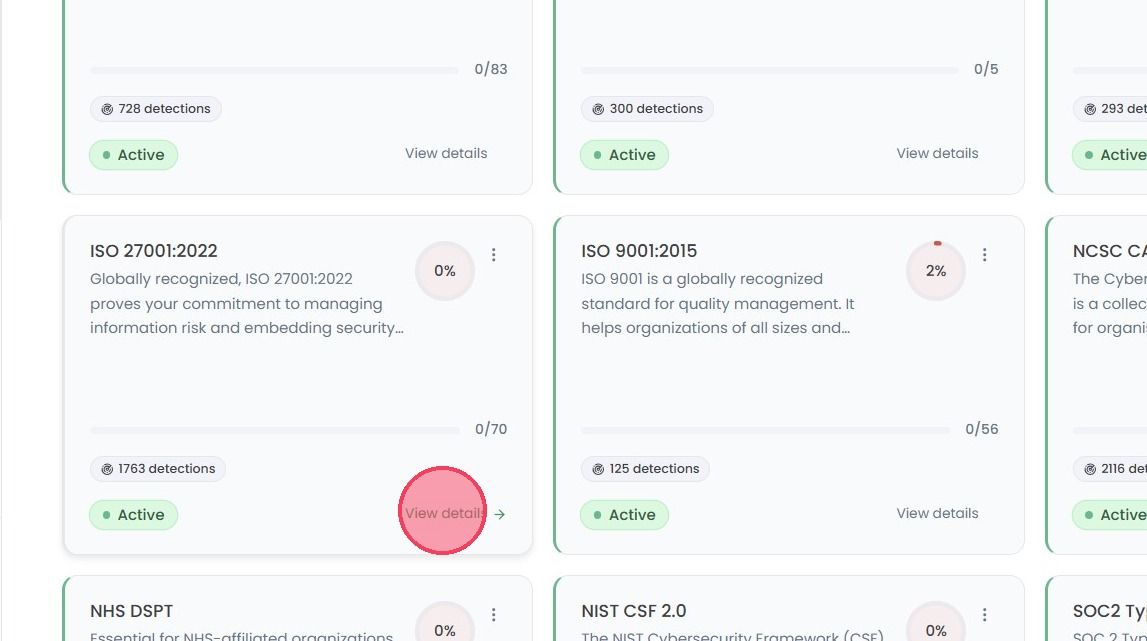
From the Compliance Standards page, select the View details button on the standard you wish to work towards.
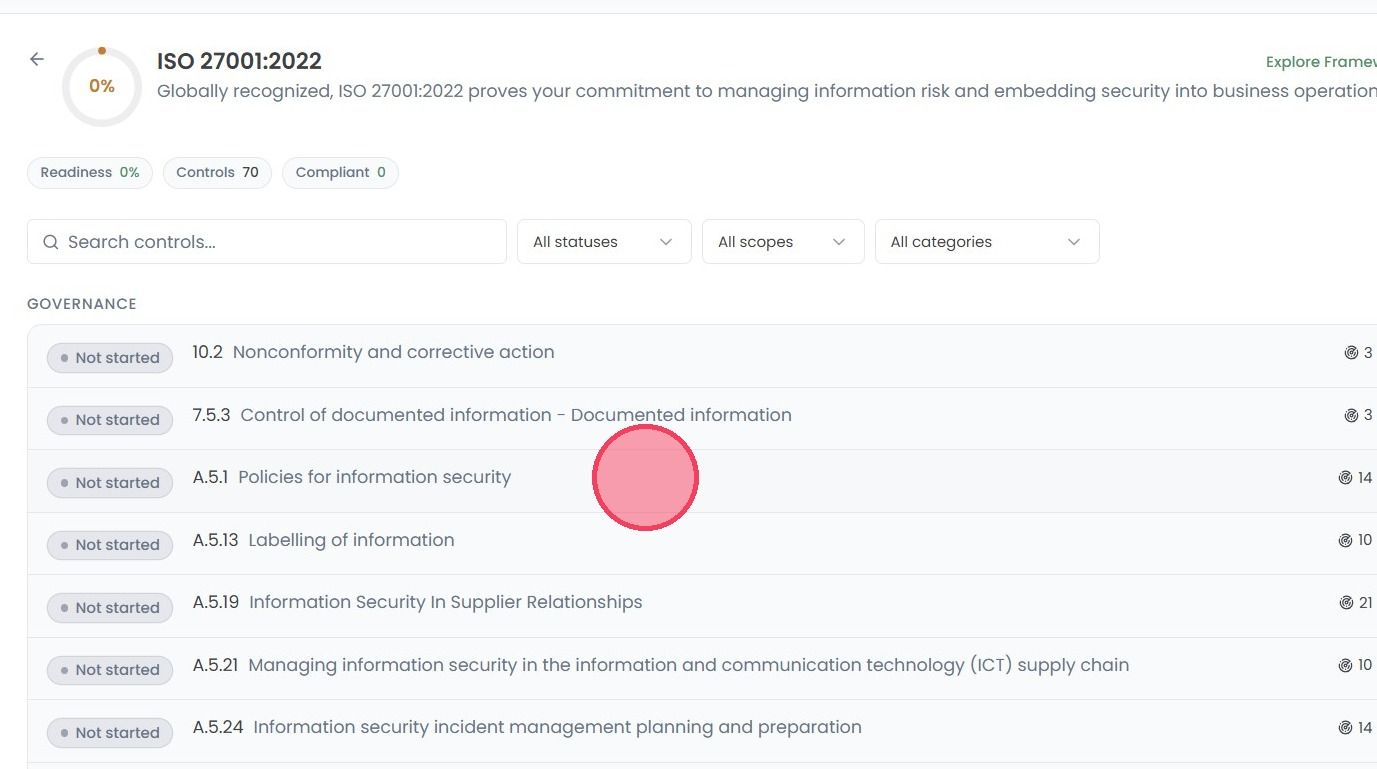
This will bring you to the Controls page, where you can click a control to view its requirements.
When a control is selected, the Control Details drop down will appear.
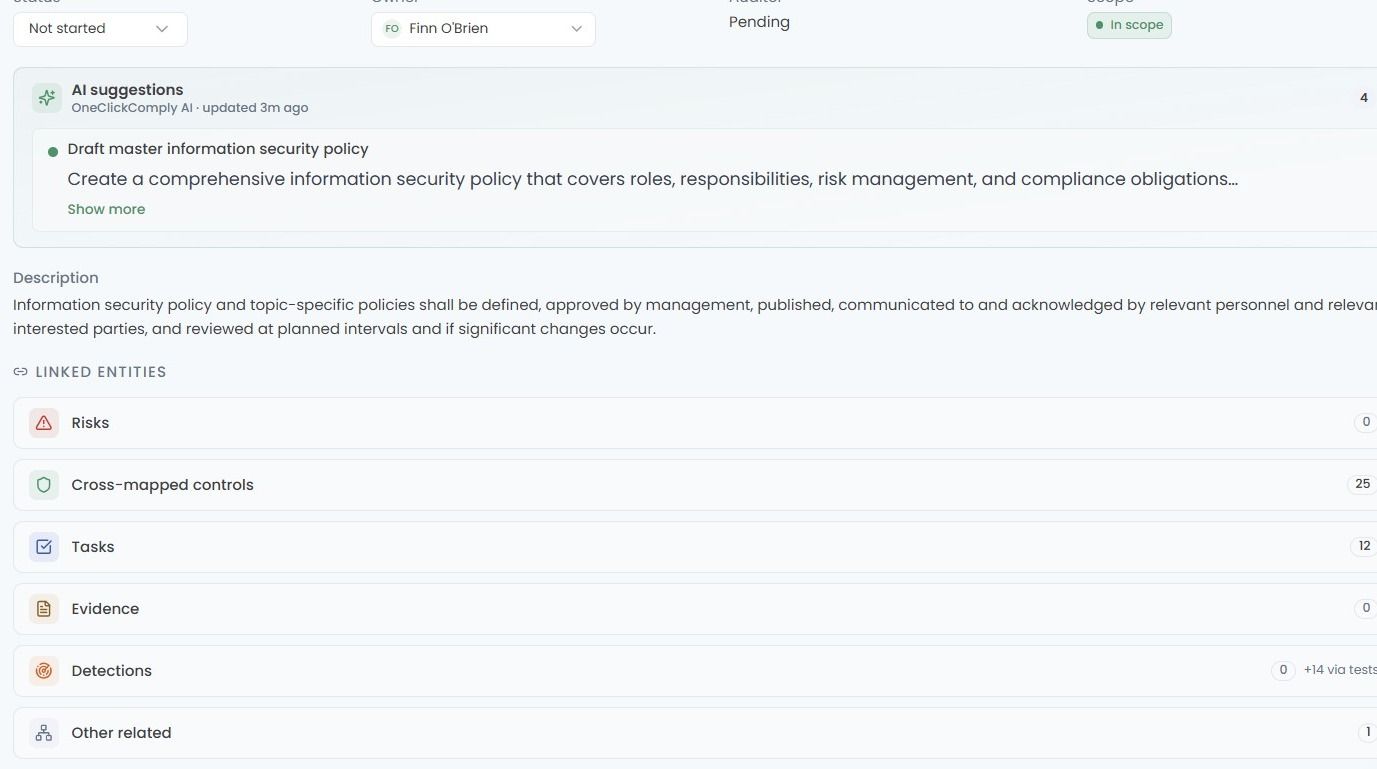
The starting point for any control is its Tasks. Tasks represent the individual requirements needed to comply with the control, and provide a clear breakdown of the actions needed, such as:
Creating and publishing a required policy (e.g., an Information Security Policy or Acceptable Use Policy).
Applying specific settings or configurations within a connected environment, such as enforcing multi-factor authentication in Google Workspace or Microsoft 365.
Resolving Detections (security misconfigurations or gaps found by the platform's scanning) that have automatically generated a task.
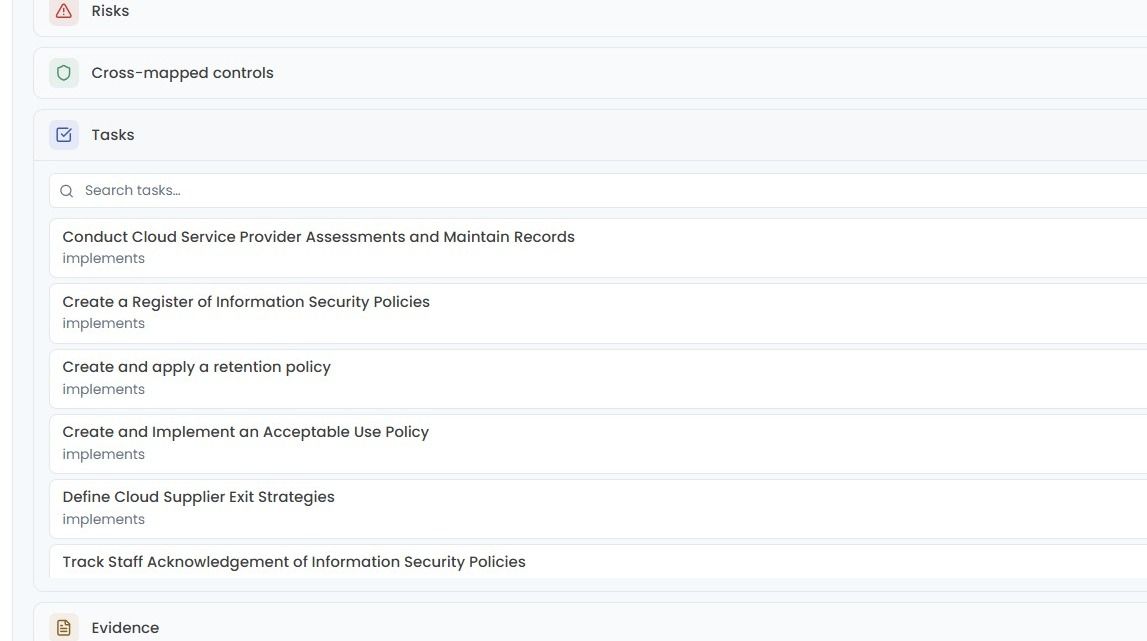
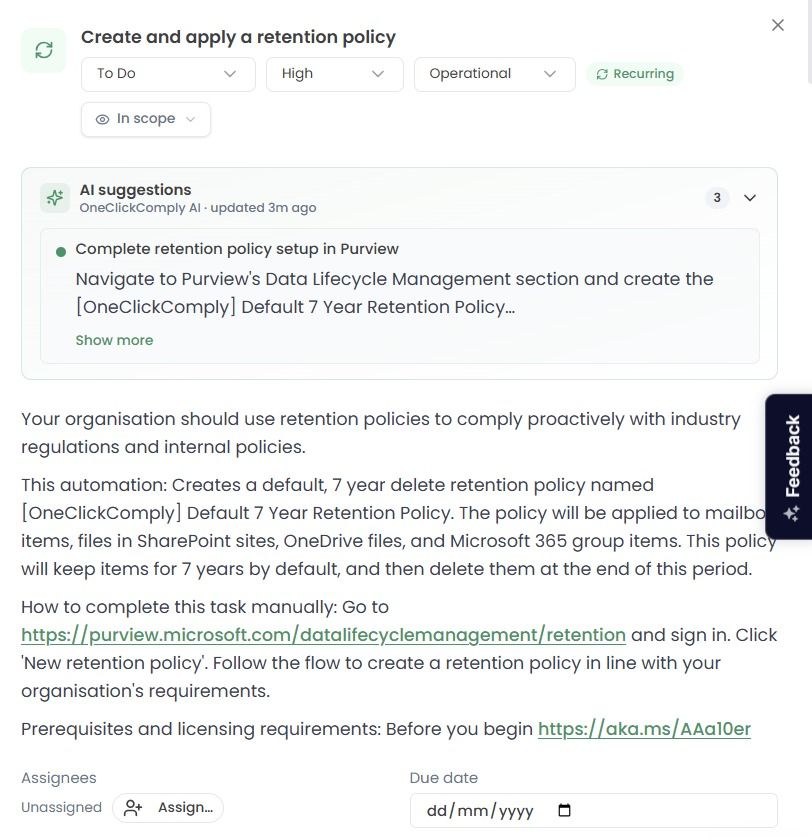
Selecting a task from this list will open a side window containing crucial details about the task, and the necessary actions or evidence required, as shown in the example below.
Once the tasks have been reviewed, the next step is to start working through them. This involves three key activities:
Completing the required work
Each task describes a specific action. Some tasks may involve configuring a setting in a connected platform, others may require creating or uploading a document, and others may point to a Detection that needs to be resolved through one of the platform's remediation options, such as a OneClickFix or CLI Command.
Assigning tasks to the right people
Not every task will fall to the same person. Tasks should be assigned to the team members most suited to completing them. For example, an IT administrator for environment configuration changes, or a compliance lead for policy management.
Updating task statuses
As a task is actioned, each task's status should be updated to reflect its current state. Keeping statuses accurate ensures that the control's overall progress is visible to the assigned owner and to anyone else reviewing compliance readiness.
As Tasks are completed, the control should be supported with appropriate Risk and Evidence information.
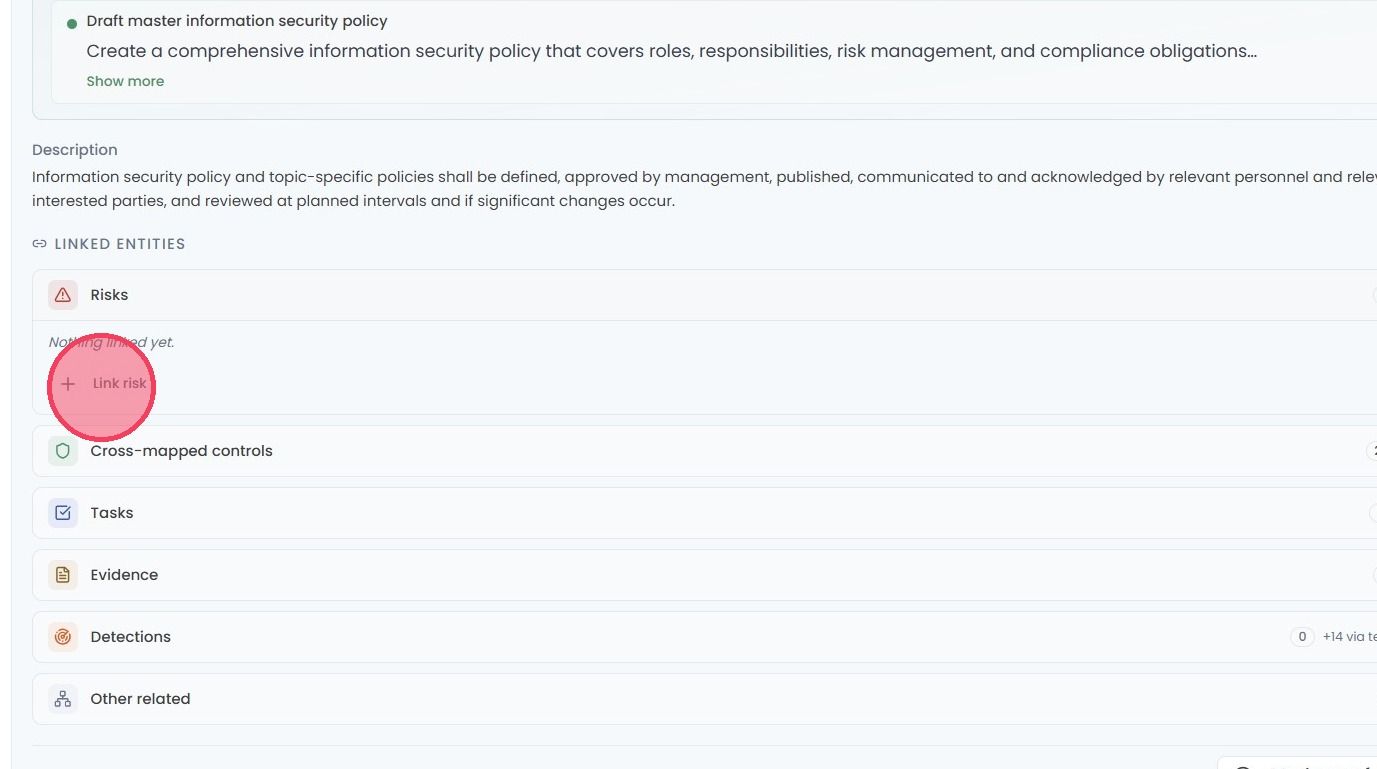
Linking Risks
If the organisation's risk register contains risks that relate to the control, those risks should be linked to it. For example, a control concerning access management may relate to a documented risk around unauthorised access.
Linking relevant risks to the control demonstrates to auditors that the organisation has identified and is managing the associated risk.
Linking Evidence
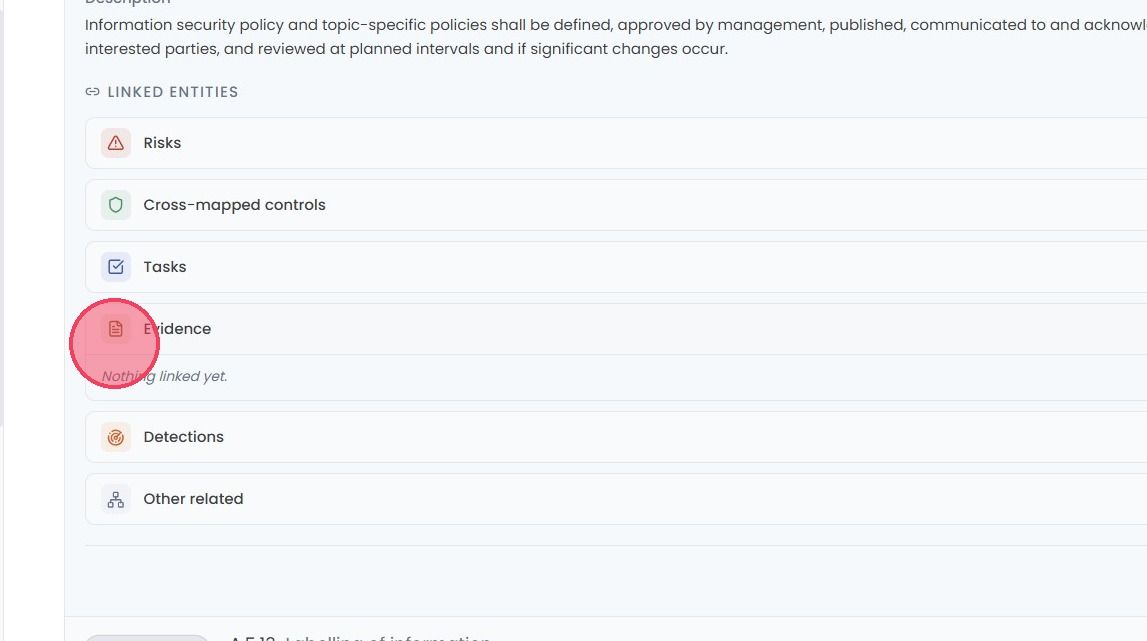
Evidence is the proof that a control has been satisfied. This may include policy documents, configuration screenshots, logs, training records, or automated evidence captured by the platform.
Evidence items can be linked to the control they support from within the Evidence area. Each piece of evidence is version-controlled and can carry an expiry date, so it is important to ensure that linked evidence remains current.
Some evidence is captured automatically. For example, when a Detection is resolved, the platform may record the before-and-after state. Other evidence, such as a policy or a completed risk assessment, will need to be uploaded manually or linked from an external source such as Google Drive or SharePoint.
Important: Completing a control is not a one-time event. The platform continuously monitors connected environments, running scans on a regular cycle, with on-demand scanning available at any time. If a previously resolved issue reappears, the associated Detection will be re-opened and the control's status may change to Failing.
Controls should also be reviewed regularly to ensure that any associated evidence or risks are kept up-to-date.