Adding Framework & New Document
This guide walk you through the process of adding a new framework and new documents to your Trust Centre.
Adding a New Framework
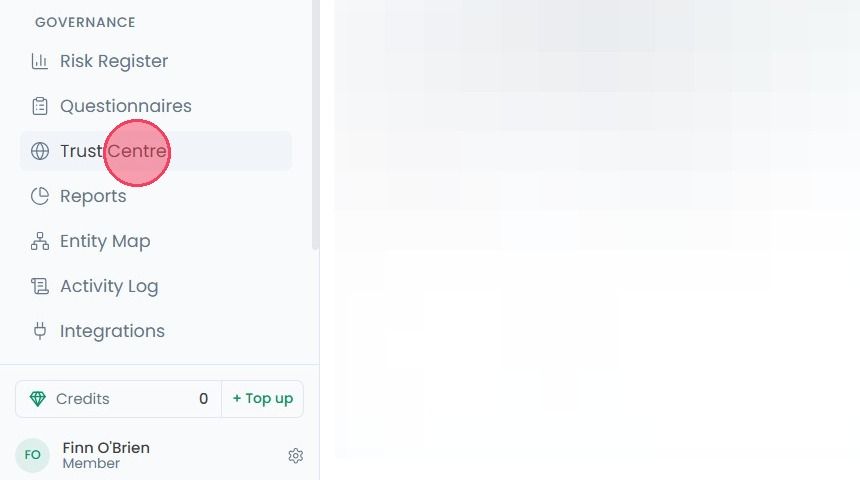
To add a new framework on your Trust Centre, select Trust Centre from the main navigation bar.
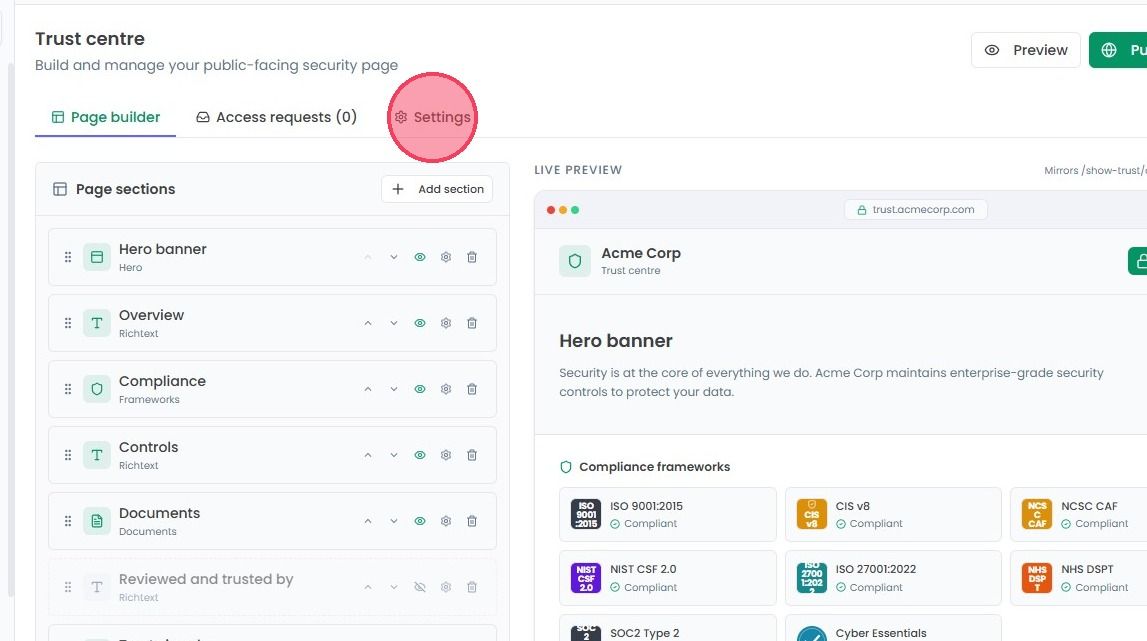
On this page, select Settings tab.
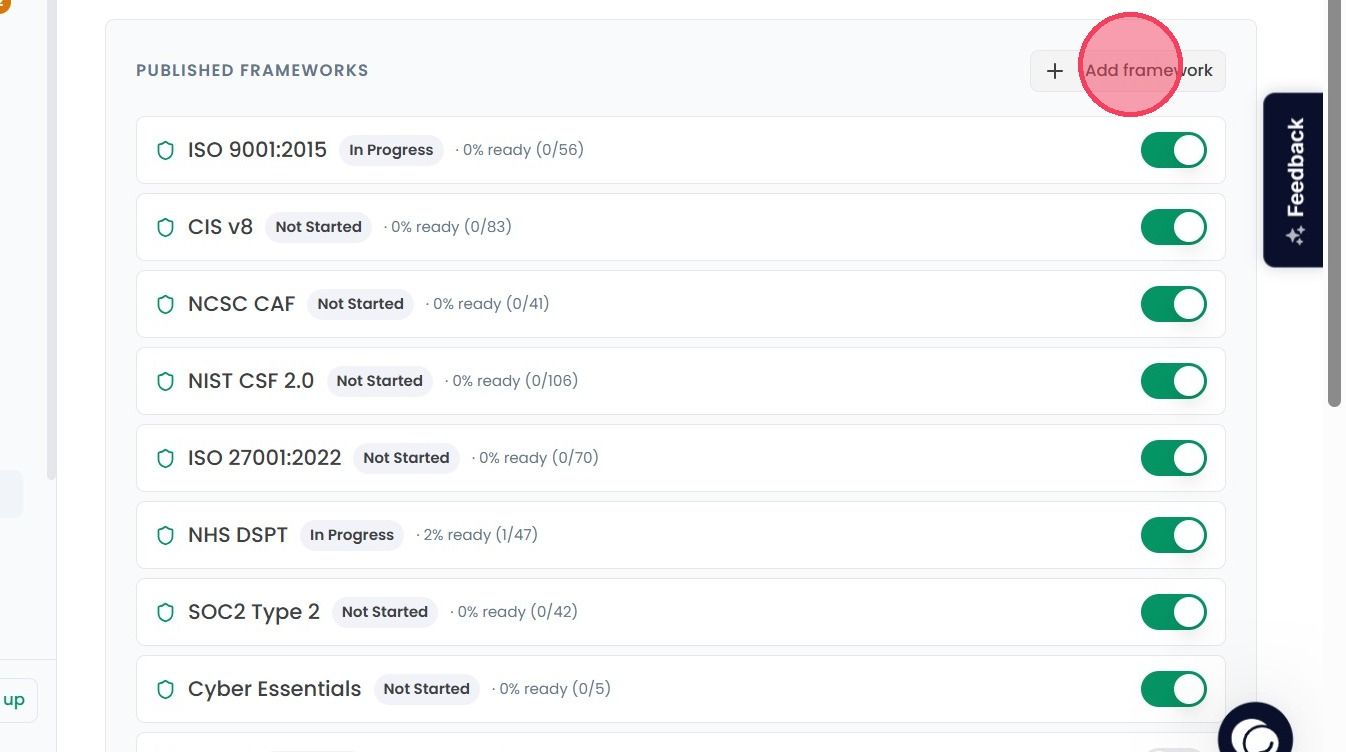
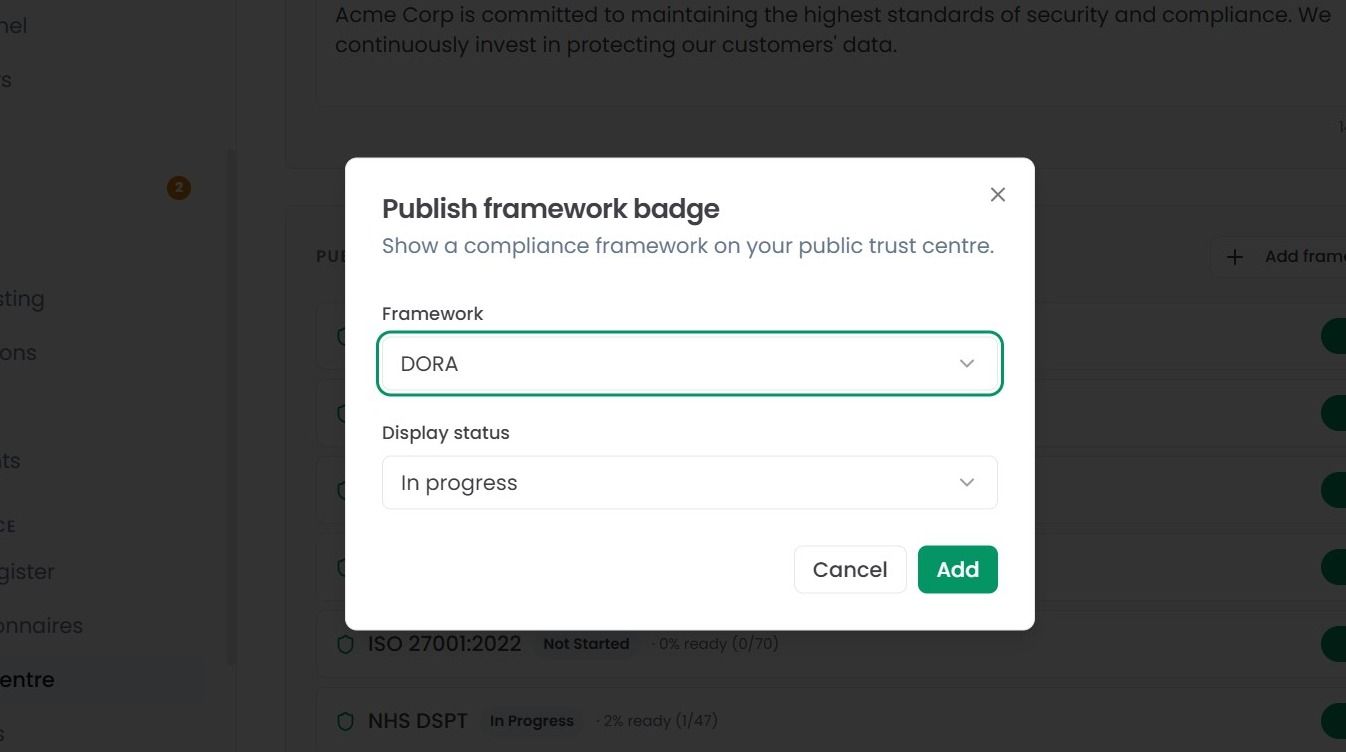
Click Add Framework button and small pop-up window will appear.
Select the Framework from the dropdown and select the Status (Compliant, Certified, Audited, or In Progress). Click Add button and the selected framework will be shown on your trust Centre.
Adding a New Document
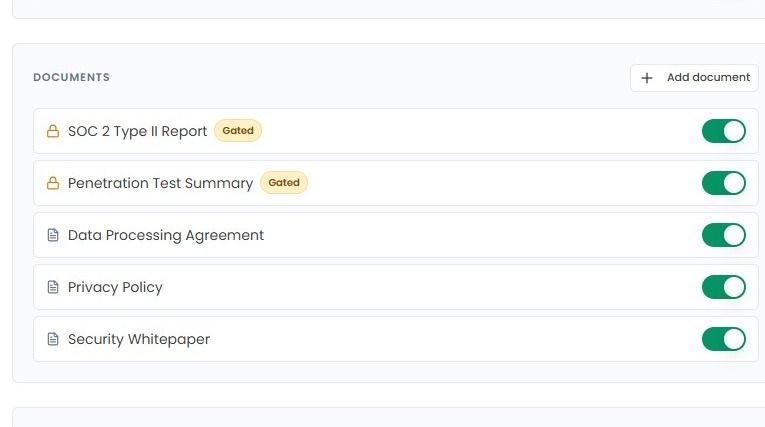
Scroll down a bit, and you will see the Documents area under the Frameworks area.
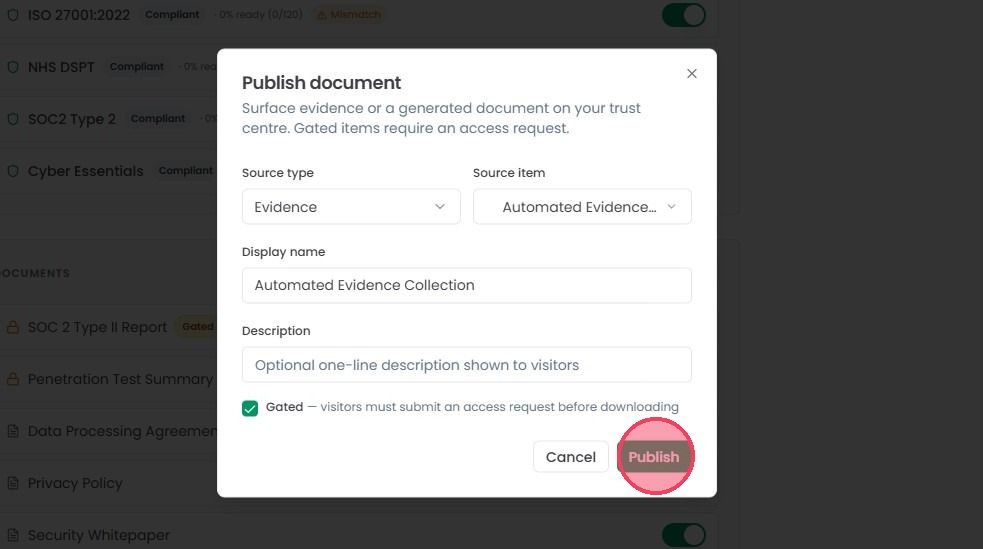
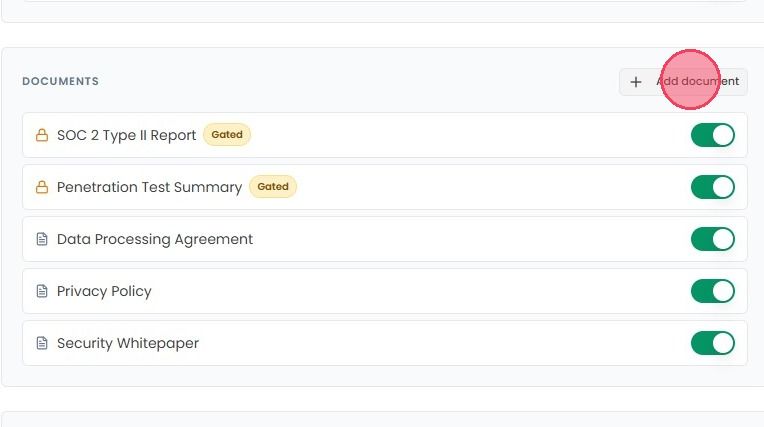
If you want to show a new certification, policy, or report, click the Add Document button in the top-right corner of the ‘Documents’ section. A window will appear with the following options:
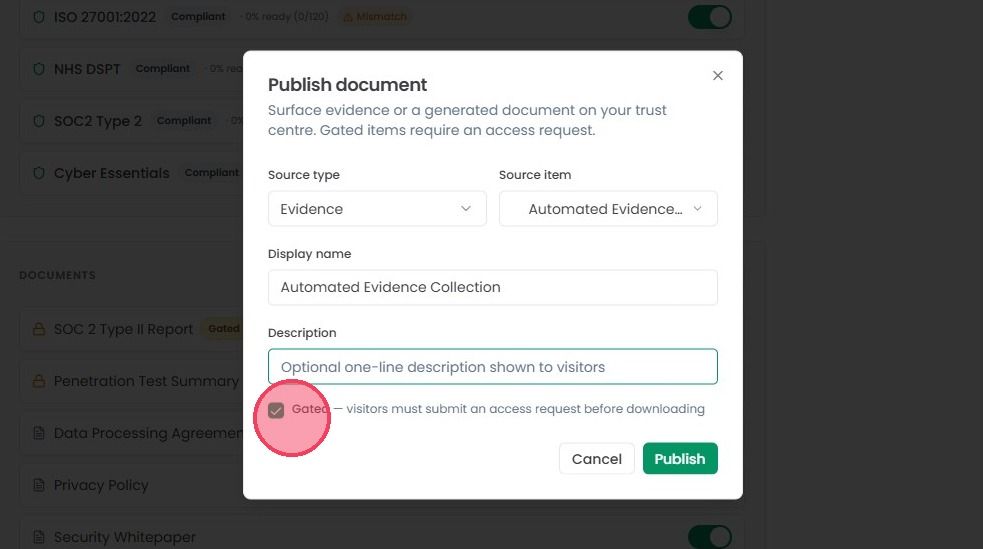
Source Type: Choose whether you are uploading Evidence or a document.
Source Item: Select the specific file or evidence you want to upload.
Display Name: Give the document clear name that will public or third-parties will see.
Description: Add a brief one-liner to let visitors know exactly what the document covers.
Gated Access: Check this box if you want visitors to submit a request for approval before they can see and download the file.
Note: Documents that are marked as Gated are only accessible to third-parties by submitting an Access Request.
Click Publish button, and your document will be added to the list and depending on your toggle settings, it will appear on your Trust Centre immediately.
Note: Please refer to our dedicated Managing Trust Centre Settings article.