Viewing and Exporting Individual Test Results
This guide helps you oversee asset-level testing cadences, review scan results, and schedule future penetration tests to keep your applications secure.
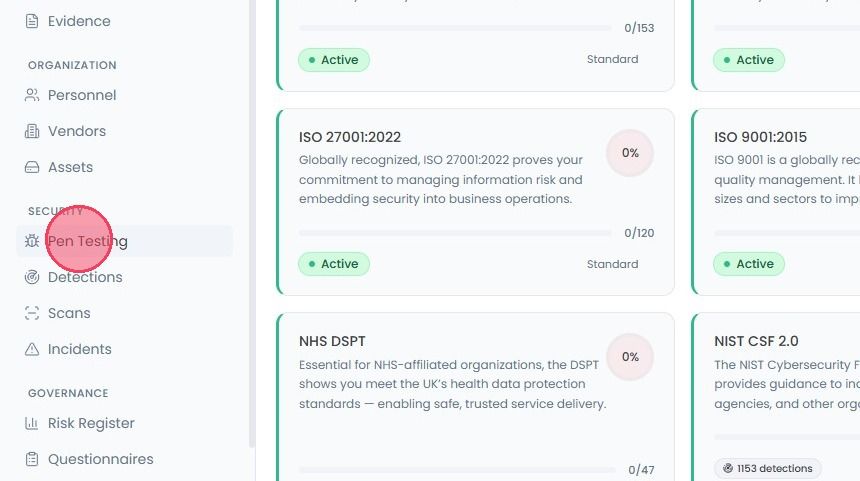
To view and export individual results, Select Pen Testing from the main navigation bar.
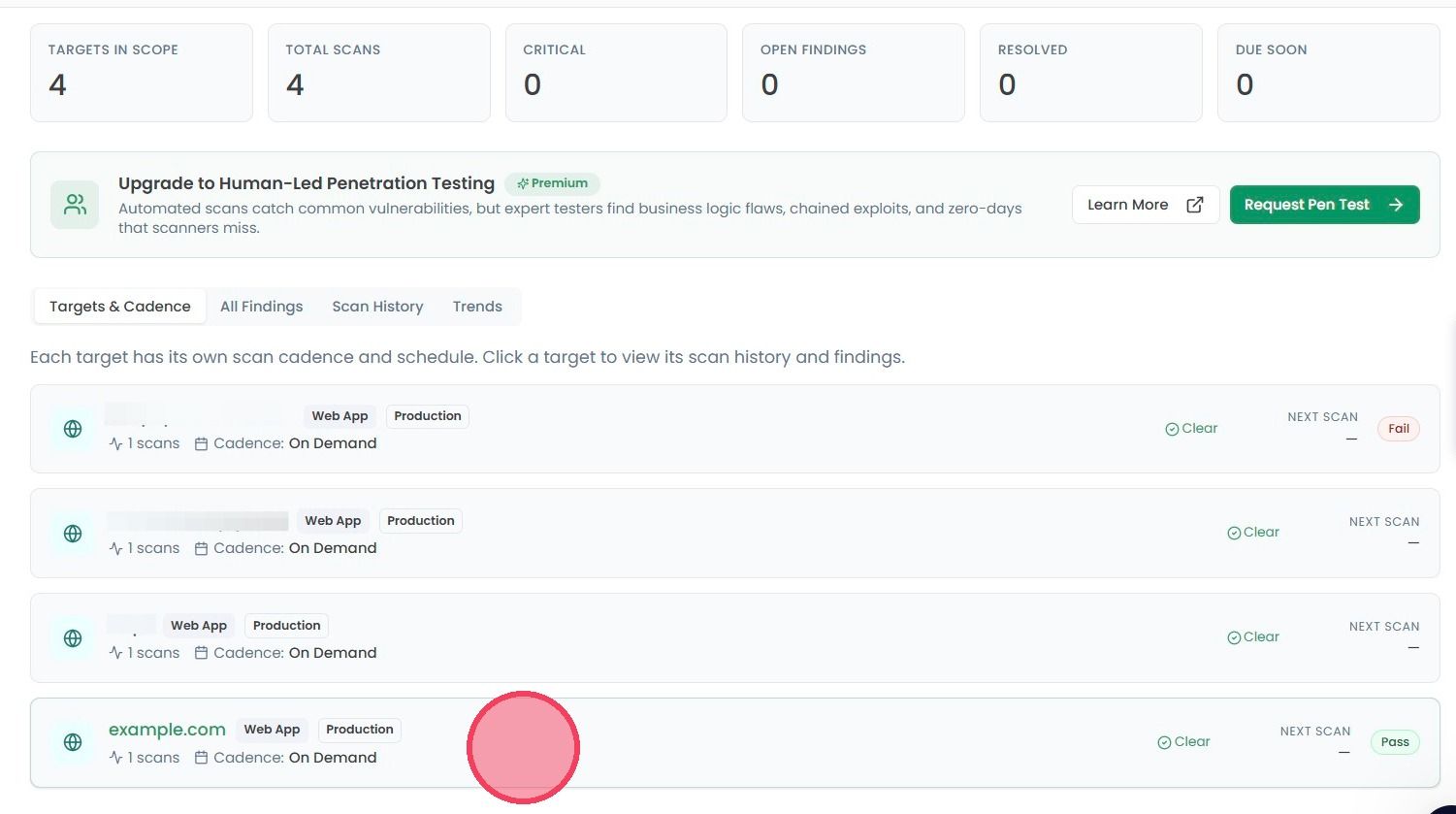
If a penetration test on an asset has been completed, the results will be visible on this new page. At the top of the page, a summary of all penetration test results will be shown:
Targets in Scope: The total number of assets currently being tested.
Total Scans: A count of every scan conducted across your environment.
Critical: How many high-priority vulnerabilities currently needs to be resolved immediately.
Open Findings: Active security issues that haven’t been resolved yet.
Resolved: Total number of the security gaps that is closed.
Due Soon: A reminder of upcoming scheduled scan.
The platform provides four unique views to aid in reviewing penetration test results:
Targets & Cadence: View which assets are being tested and how often they are scanned.
All Findings: A comprehensive list of every vulnerability found across all targets.
Scan History: Log of every past scan for audit trail.
Trends: Visual data to help you see if your security posture is improving over time.
To view the results of a specific test in detail, click on the asset you wish to review from the Targets & Cadence area.
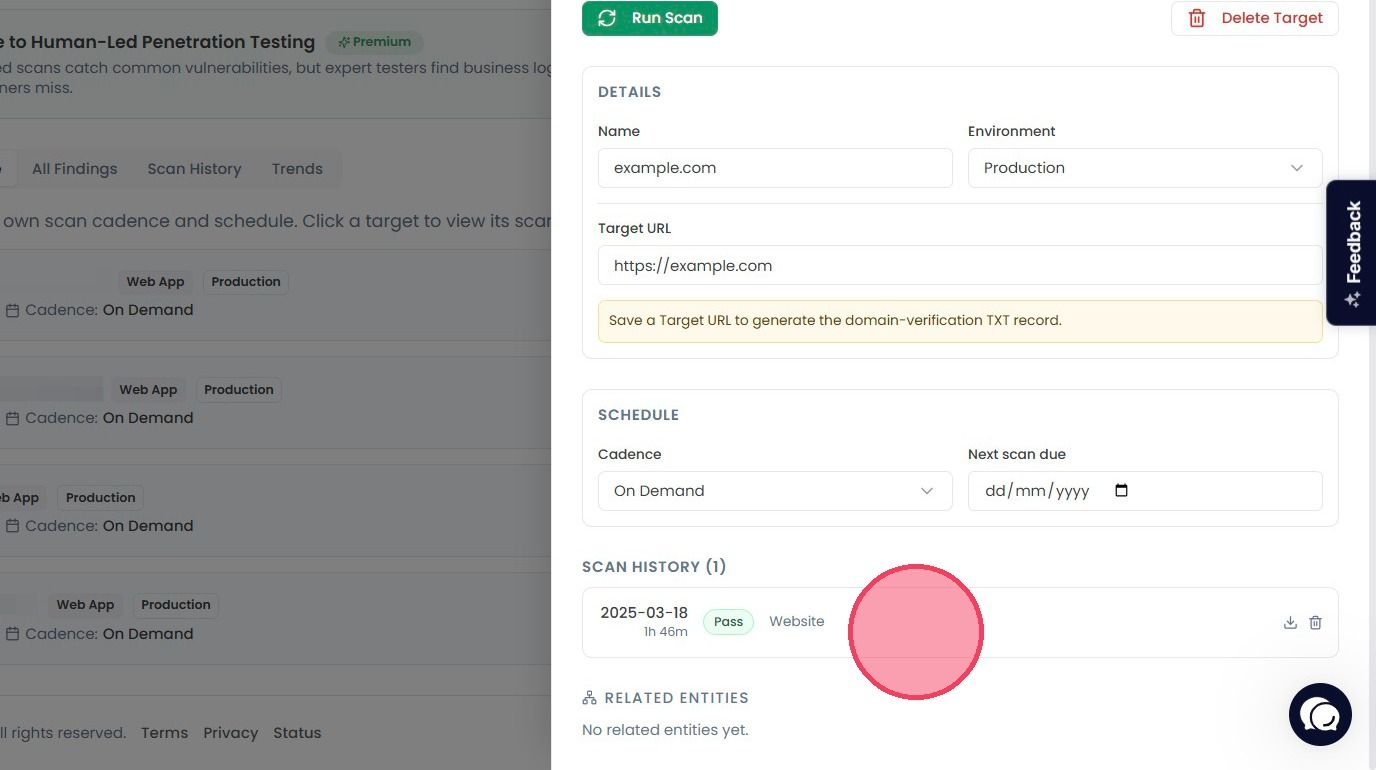
This will open a side panel containing various information about the asset, including:
Scheduling Info: View the scan cadence and the date for the next scheduled scan.
Owner: The person who is responsible for managing the asset and its findings.
Inside of the Scan History area, a record of every past penetration test on the asset can be found. Click on a past scan to view more details, or click on the Download icon on the right of the record to download the scan report.
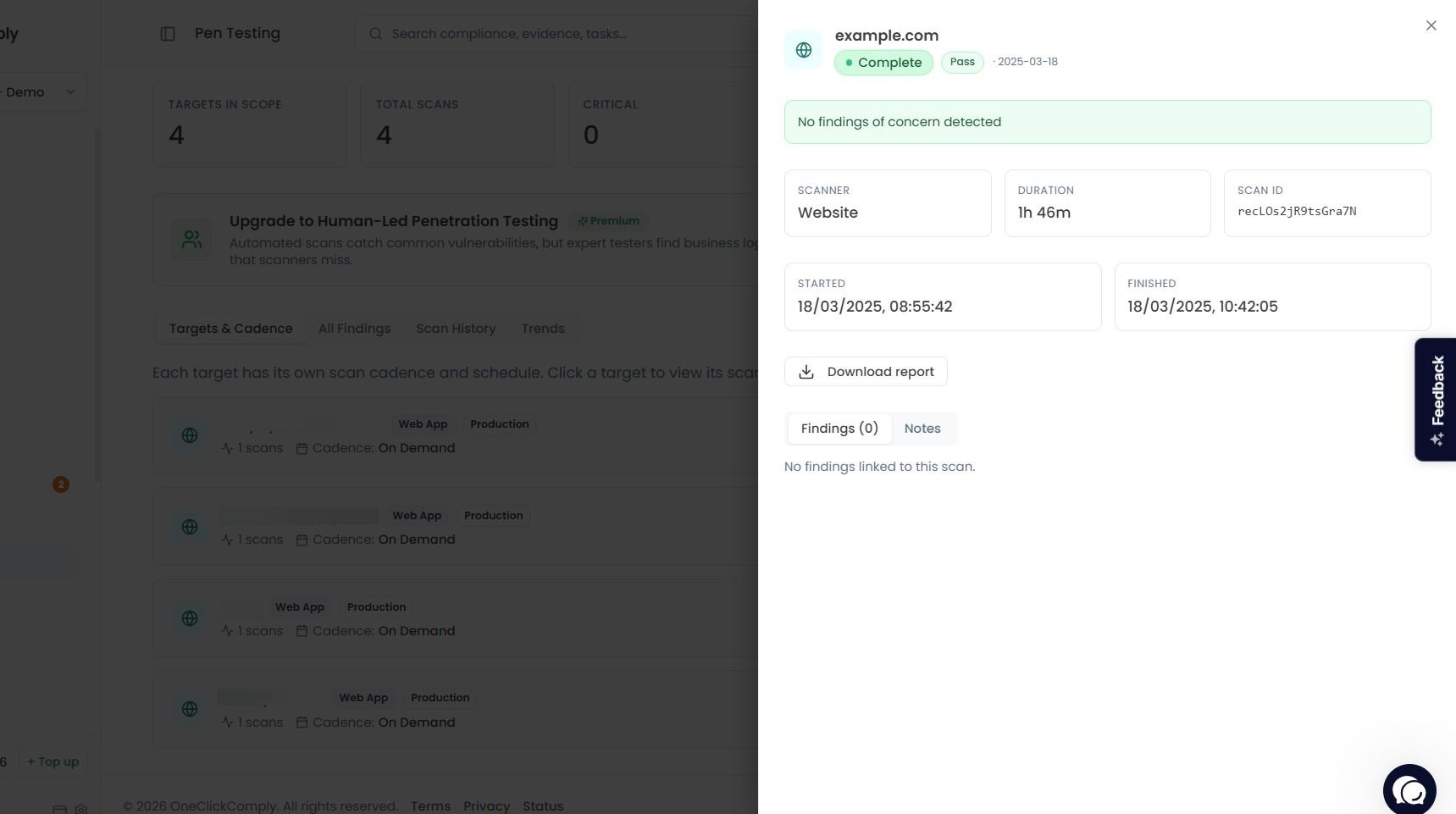
The full details of the past scan will be found on this new side window, including:
Completion status
Timestamps
Scanner Type
Duration
Scan ID
any Findings & Notes identified during the test.
And an option to download the complete report via the Download Report option.