Recording Incidents
This guide walks you through the mandatory fields to ensure your incident reports are captured accurately and promptly.
Adding a New Incident
Reporting Incident helps you catch small issues before they become major disasters. By logging incidents, you can spot the pattern, identify root causes, prevent repeat mistakes and proves to auditors and customers that you take security seriously. It also ensures the right experts are notified quickly, which helps your business recover faster and protects your reputation.
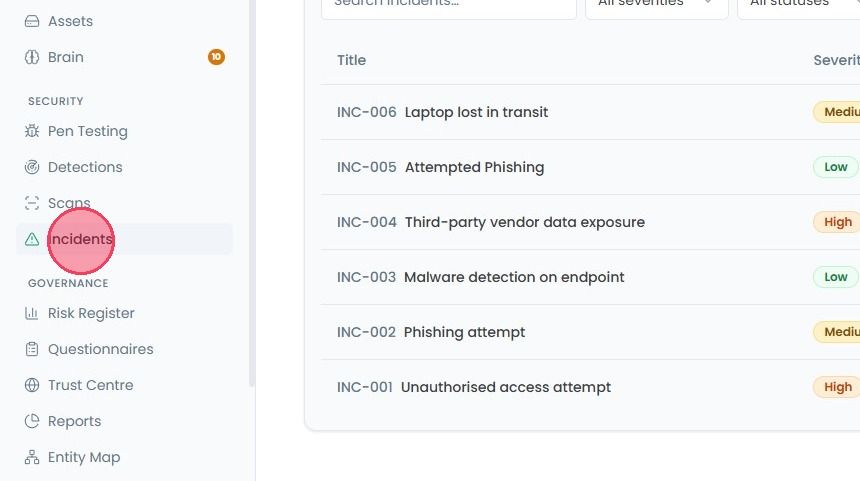
To report a new incident, select Incidents from the main navigation bar.
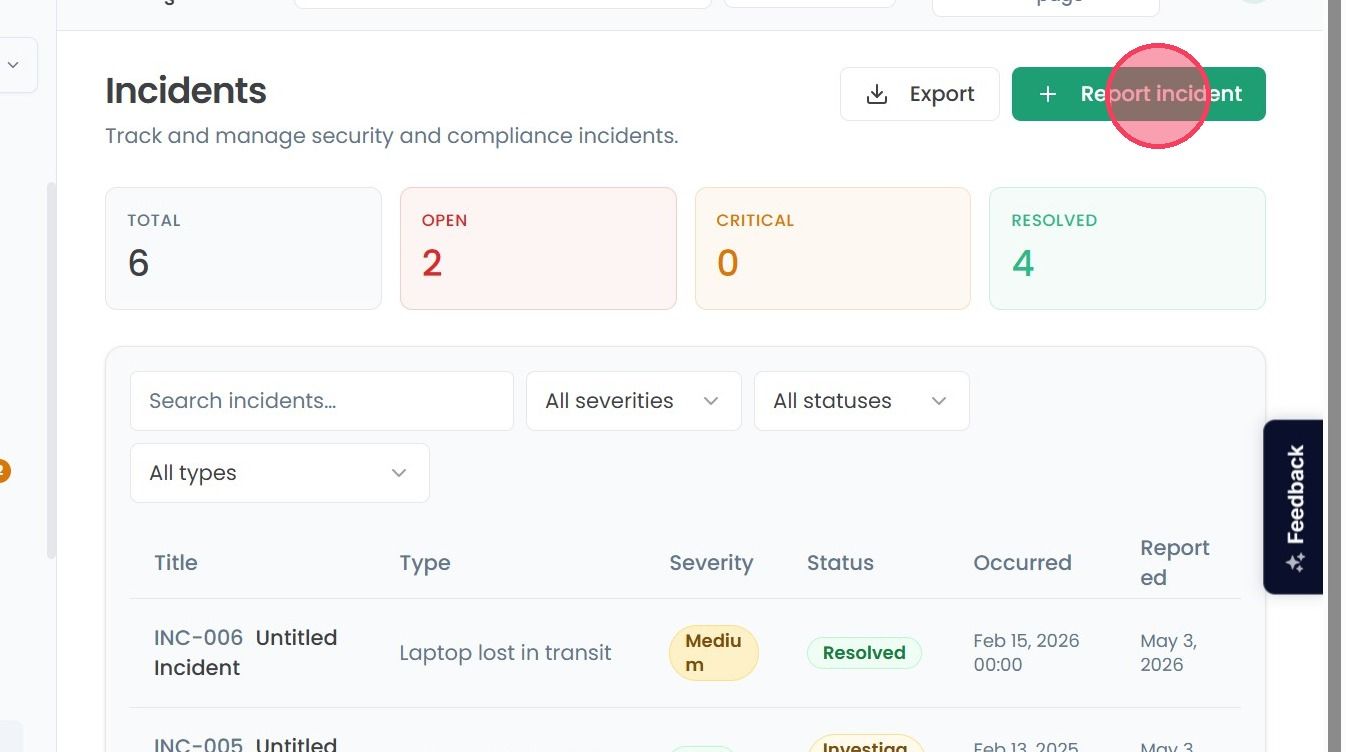
Once on the page, click Report Incident button in the top-right corner of the page, it will open a small pop-up window.
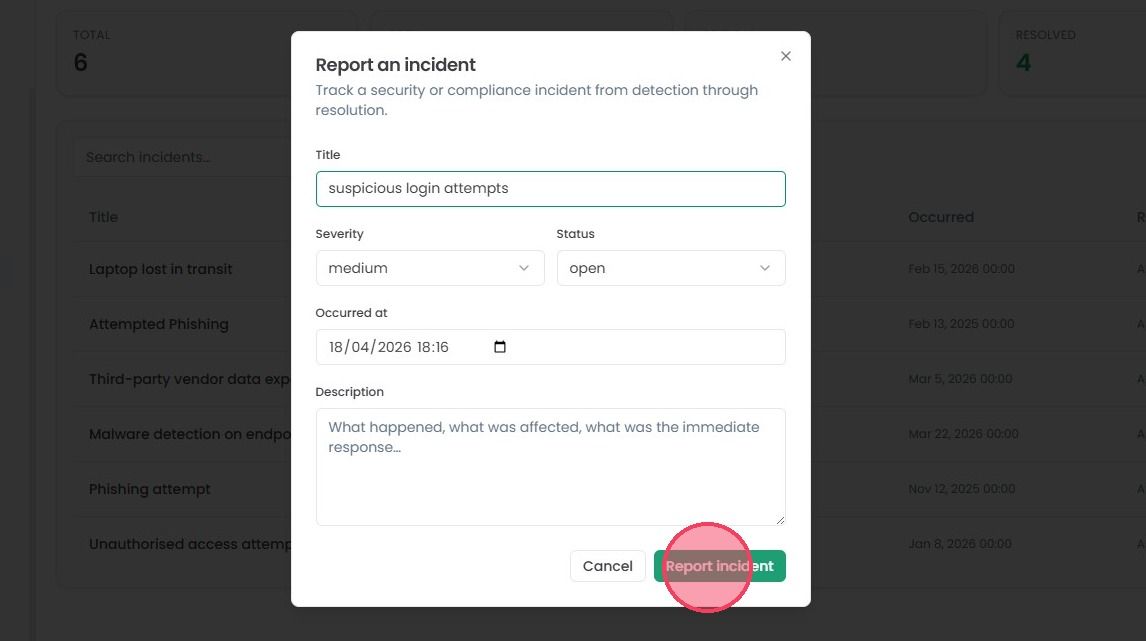
It will ask you to provide few details, such as:
Title: A brief, clear name for what happened (e.g., “Main Server Outage” or “Unauthorised Login Attempt”).
Incident Type: Specify the nature of the incident, such as Phishing attack, scam, or malware, by selecting the appropriate category from the dropdown menu.
Severity: Assign severity based on how serious the incident was between Critical, High, Medium, or Low.
Status: What stage you are at between Open, Investigating, Resolved, or Closed.
Occurred at: Select the exact date and time the incident took place.
Description: This is where you add the context of the incident. Briefly explain: What exactly happened? What systems or departments were affected? What was your immediate response to the incident?
Once you’ve entered all the necessary details, click Report Incident button. The incident will now be logged in your list of the incidents.