Adding and Verifying a Penetration Test Target
This guide will walk you through the process of adding a new target for the penetration testing feature to scan.
The OneClickComply platform allows you to check your organisation’s assets for potential vulnerabilities via Penetration Tests. In order to carry out a penetration test on an asset, it must first be added as a Target.
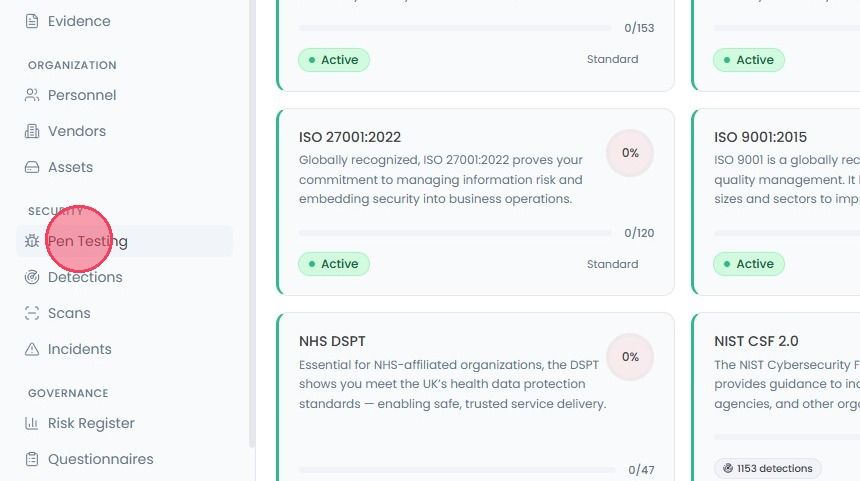
To add and verify a test target for your penetration test, select Pen Testing from the main navigation bar.
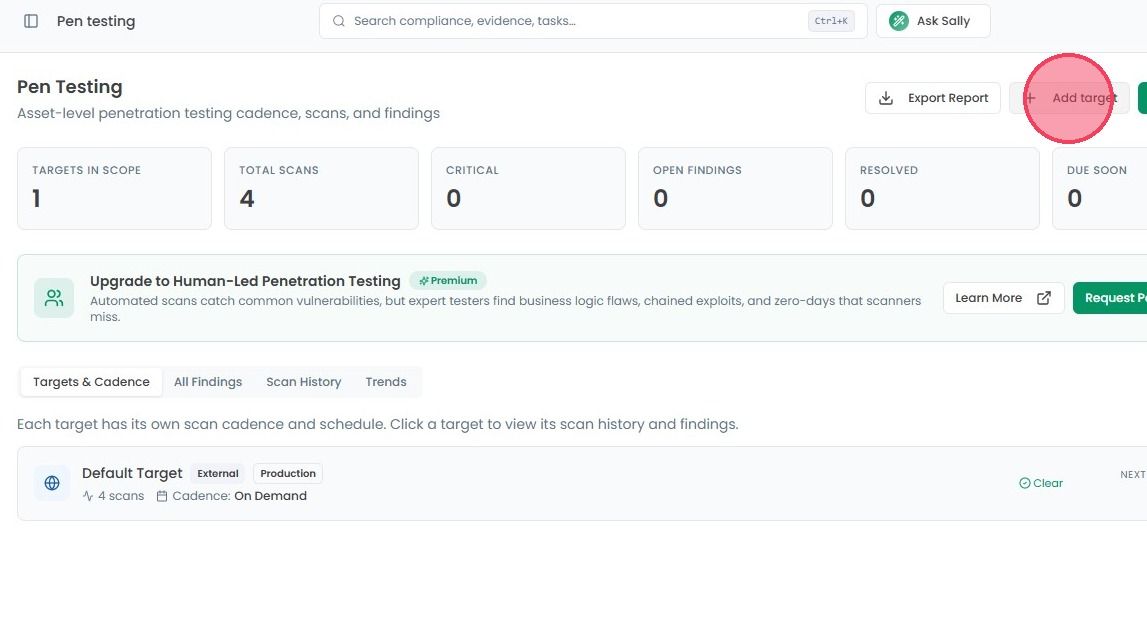
Inside of the Pen Testing area, select the Add target button in the top-right corner of the page.
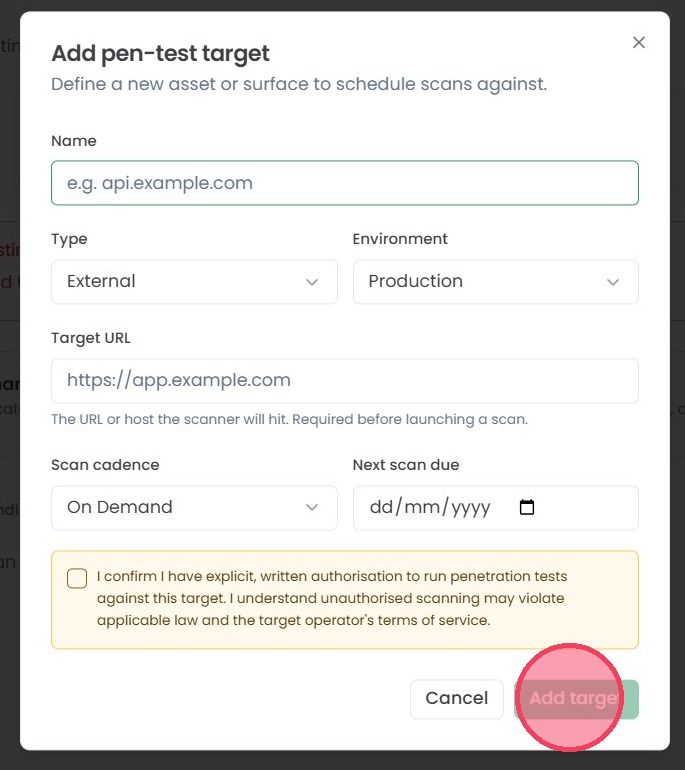
This will open a pop-up window where you can add details about your target. These details are:
Name: Give a name for the target, so other users on the platform knows what is being tested (e.g., “Customer Portal” or “Main API”).
Type: Select the category that fits best. Choose from External, Internal, API, Web App, Network, WordPress, Joomla, or Drupal.
Environment: Declare whether the target is a Production, Staging or Development environment.
Target URL: Enter the web address or endpoint to be scanned.
Scan Cadence: Choose how often the system should automatically run a scan. You can select Daily, Weekly, Monthly, Quarterly. Alternatively, you can select On Demand if you prefer to run a scan manually. Once the cadence has been set, assign a Next scan due date.
Lastly, before a target can be added, you must tick the confirmation box to declare that you have permission to run penetration tests against the specified target.
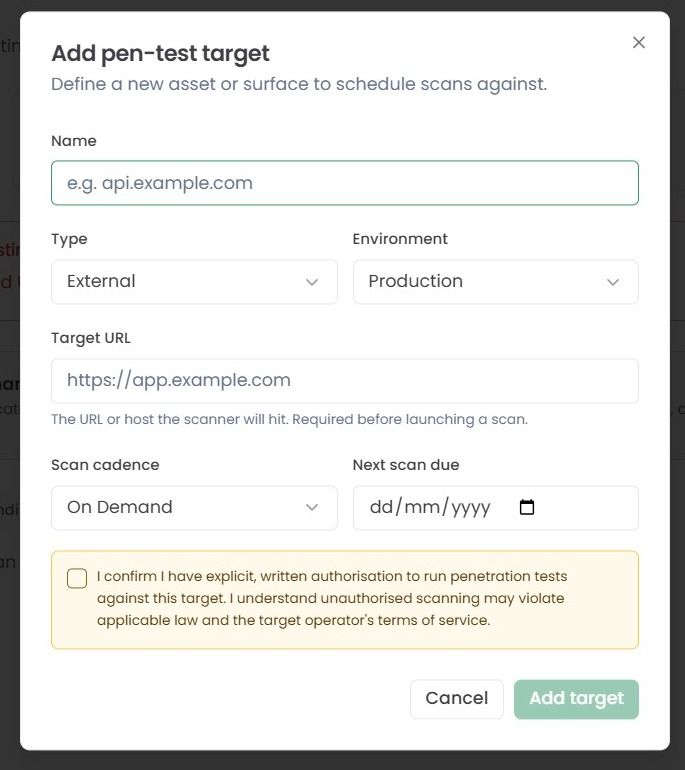
Once you have provided all the necessary information, select the Add Target button. Your new target will then appear in the Penetration Testing area. However, before a scan can be conducted, you will be required to verify ownership of the target.
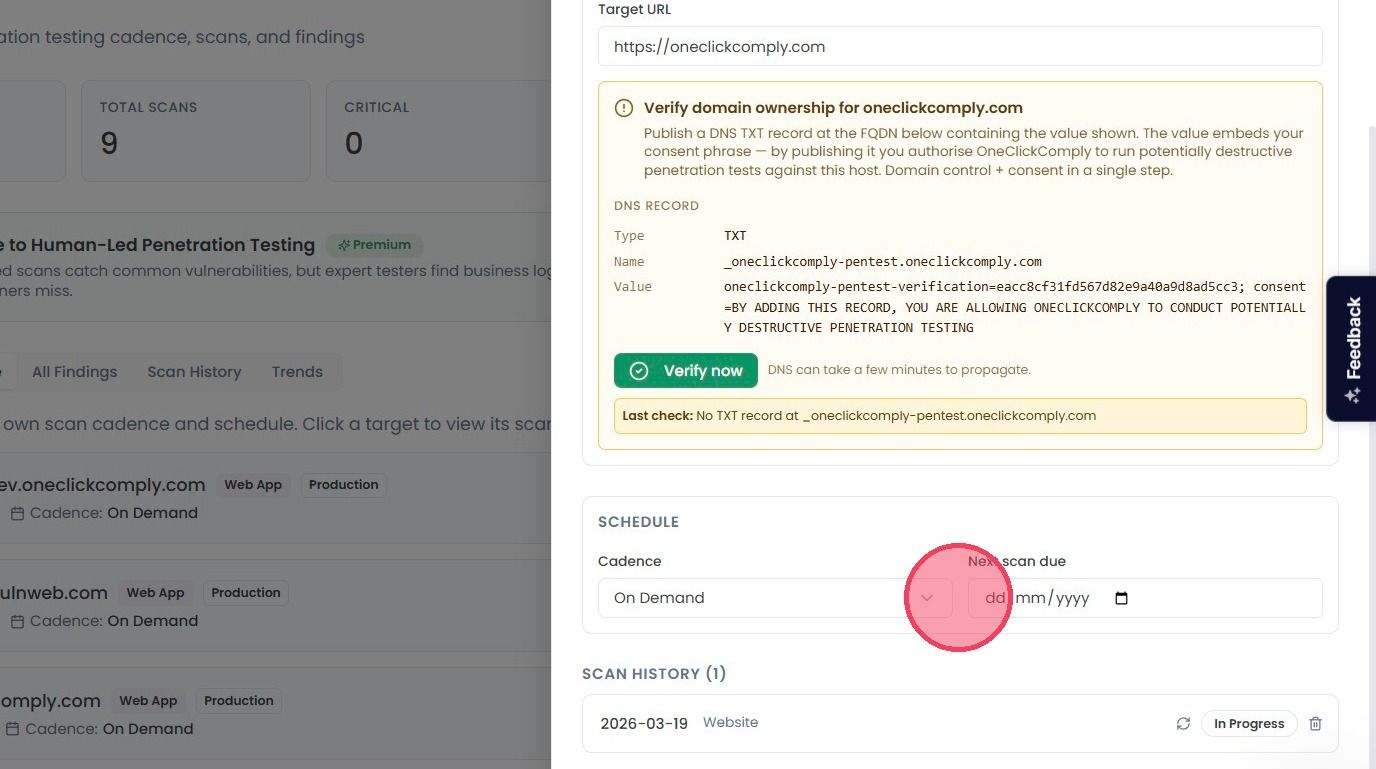
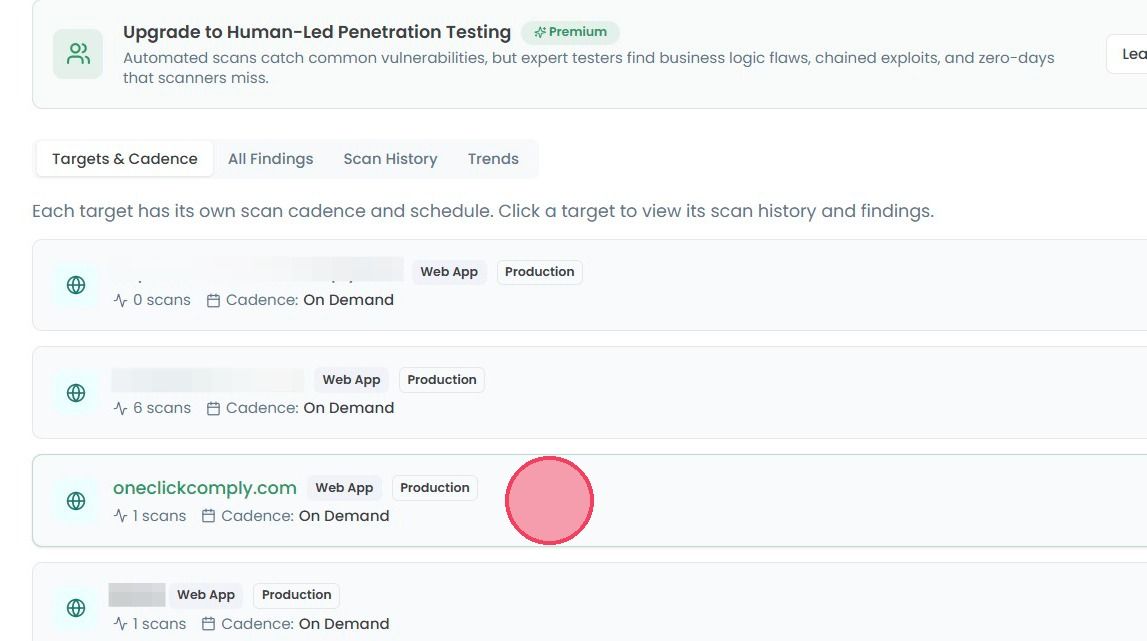
To verify ownership, select the relevant target from the Target & Cadence list on the Pen Testing home page. This will open a new side panel.
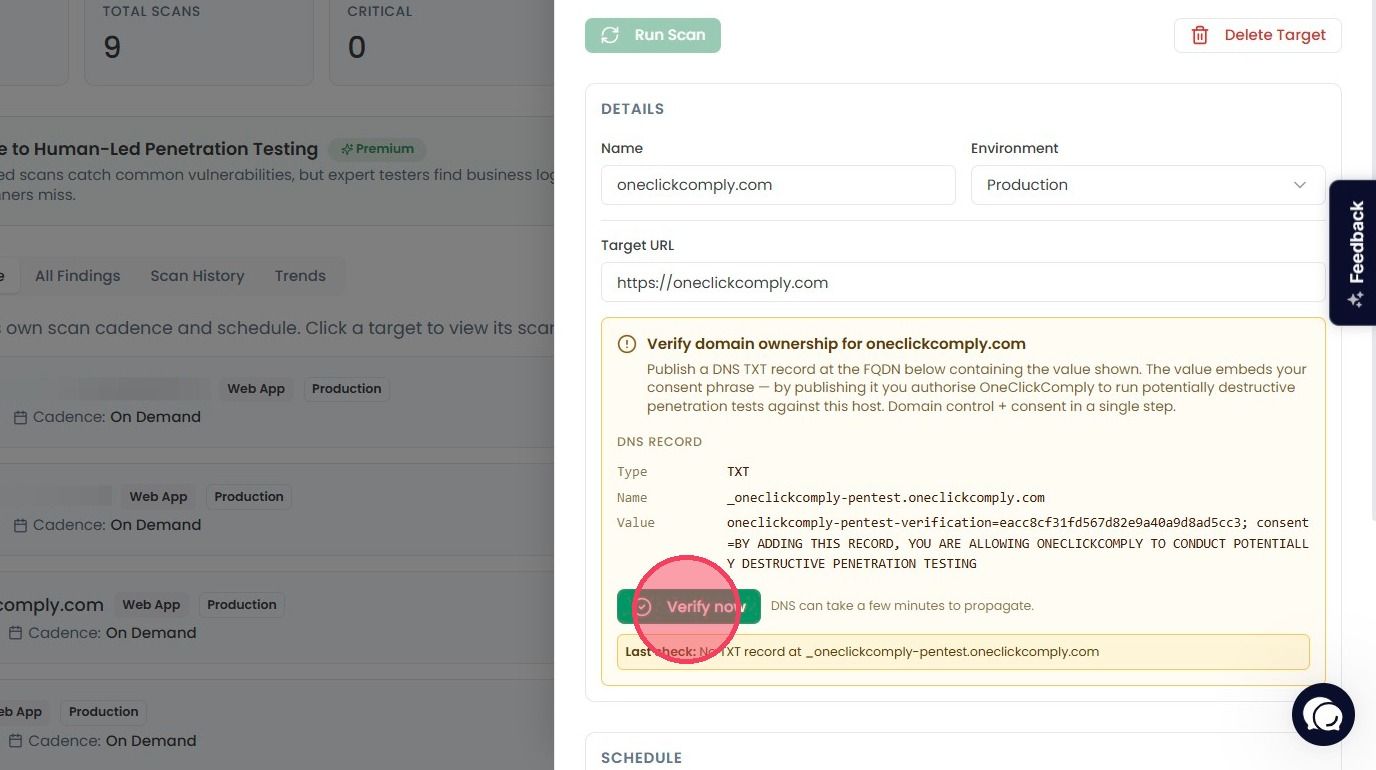
To demonstrate ownership of a target, you will be required to publish a DNS TXT record containing specific values to the target, as shown in the example below. Once added, click the Verify now button to prompt the platform to check for the record.
If the record is located within the target, you have successfully verified ownership of the target, and allowed the OneClickComply platform to conduct automated penetration tests.
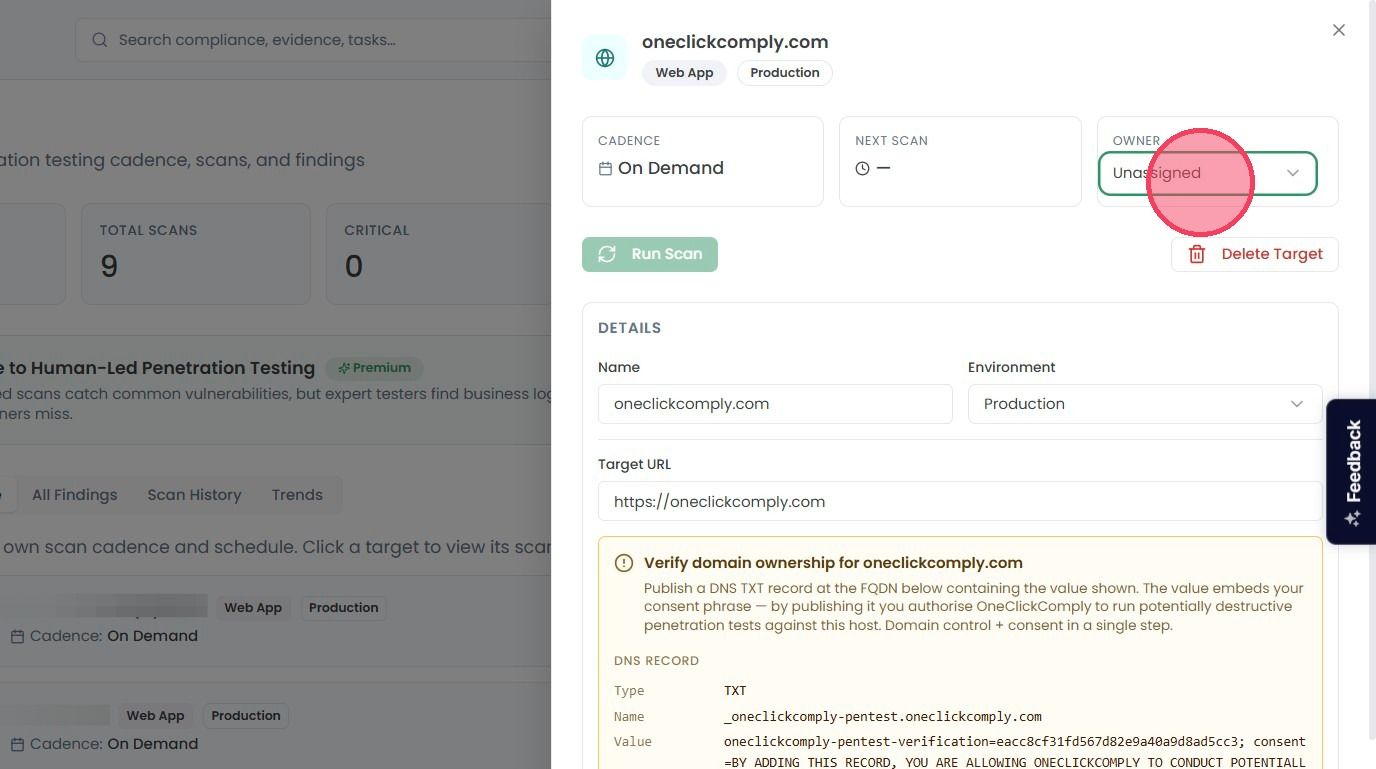
You can also assign ownership of a penetration testing target from this side panel by clicking the Owner drop down at the top of the page, and selecting the desired user from the list.
To edit the frequency of a target's tests, change the Cadence and Next scan due values from within the Schedule section.
Changes will update automatically, and be reflected on the main penetration testing page.