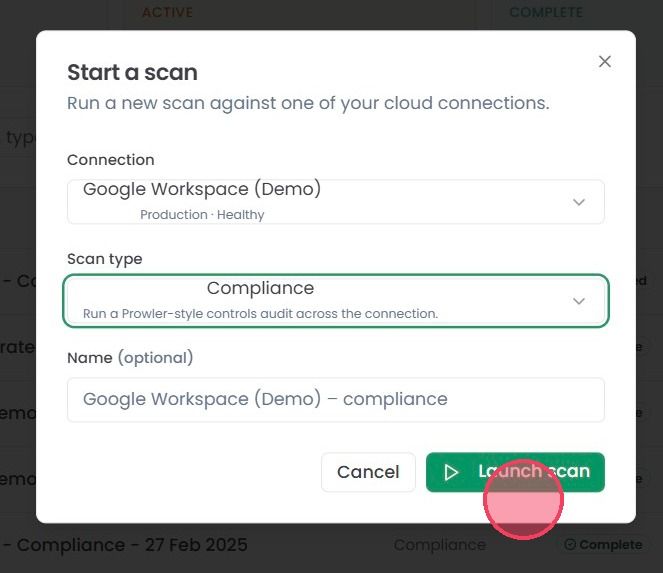
Starting an On-Demand Scan
This guide provides a simple walkthrough for setting up and running compliance scans against your connected environments.
Scans against your connected cloud infrastructure allows the OneClickComply platform to identify non-compliance, vulnerabilities, misconfigurations, and other issues, and flag them as Detections.
Scans take place automatically, with their frequency based on your subscription package, but you can also trigger On-Demand scans to instantly check a connection. This is useful if you want to verify that a detection has resolved successfully, check for outstanding issues before an assessment
To start running On-Demand scan, select Scans from the main navigation bar.
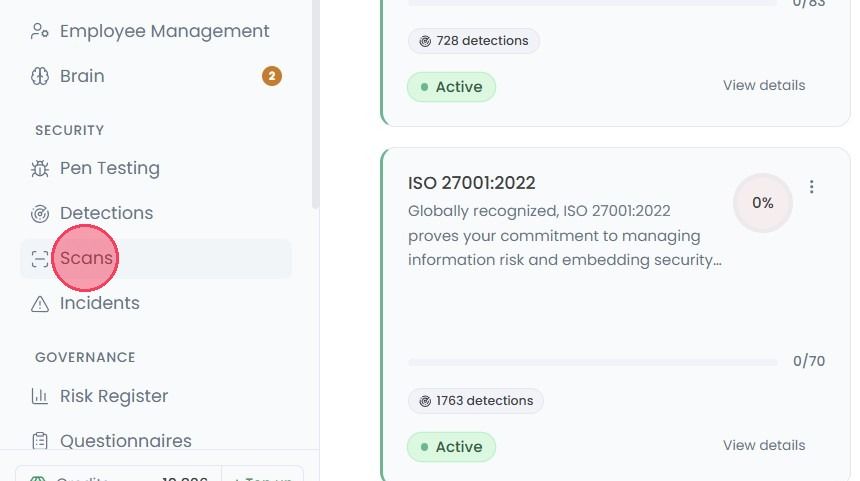
On the Scans page you will find a record of every compliance scan that has taken place.
At the top of the page are 4 overview card, showing:
Total Scans: The total number of scans carried out.
Active: The number of scans currently ongoing.
Complete: The number of scans that have successfully completed.
Failed: The number of scans that have failed to complete.
To start a new scan, click the Start a scan button located at the top-right of the page.
Note: The counter to the left of Start a scan button shows your On-Demand scan allowance, which resets annually.

Once selected, a pop-up window will appear, where you can configure the scan before it begins.
First, select the Connection you wish to can.
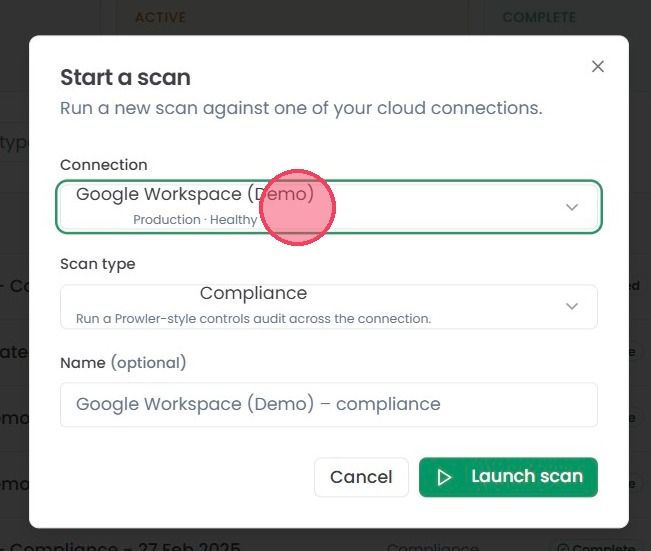
Then select the specific Scan Type. Available scan types include:
Compliance: Review of your current configurations against the requirements of compliance standards.
Security: Check for misconfigurations, exposed assets, and poorly enforced controls.
Identity: Assess user permissions and IAM settings.

Lastly, you can assign a name to the scan to make it easier to identify. Consider using descriptive names for your scans, such as [Connector Name] - [Scan Type] - [Date]
Once this information has been provided, click the Launch scan button to start the On-Demand scan. This will deduct a scan from your total allowance.