Activating Device Vulnerability Management
This guide will walk you through the process of connecting the OCC Device Vulnerability Management integration, and installing the agent on your devices.
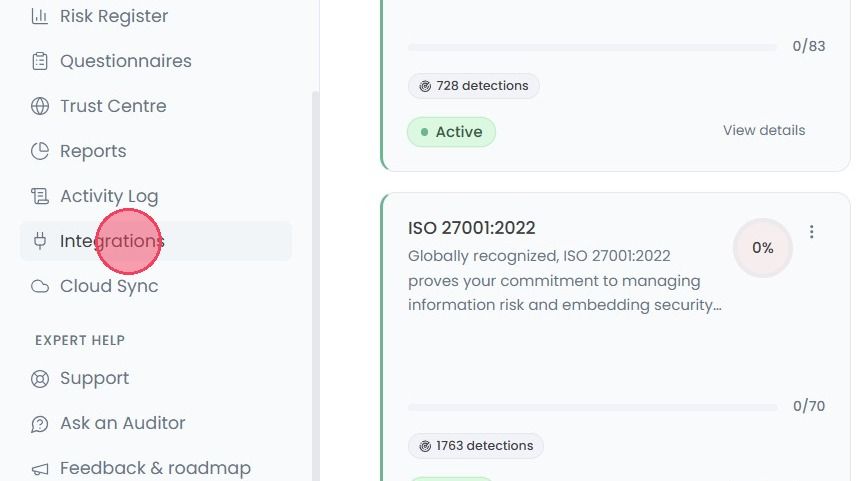
To enable Device Vulnerability Management, select Integrations from the main navigation bar.
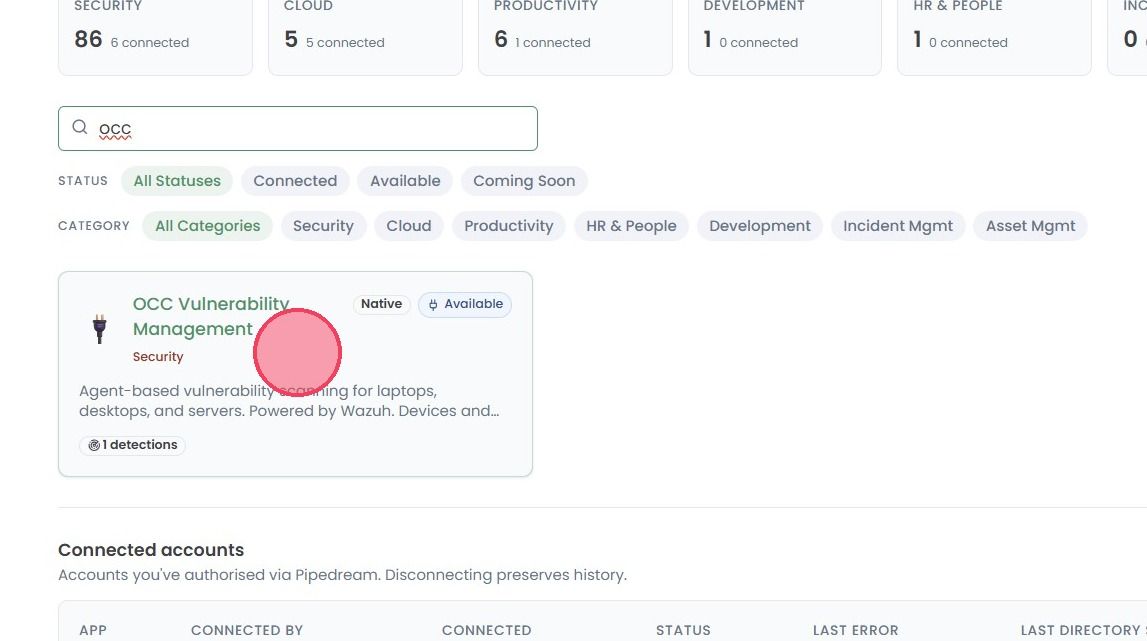
Use the search box to find the OCC Vulnerability Management and click on the integration card to open a side panel.
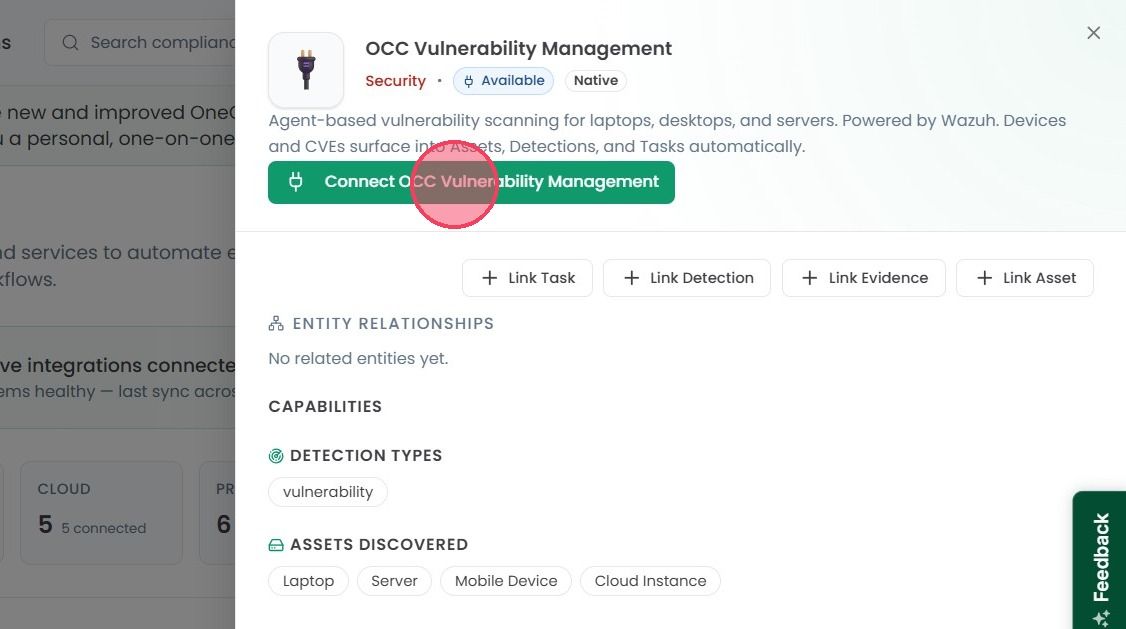
Within this side panel, click the Connect OCC Vulnerability Management button to start the connection process.
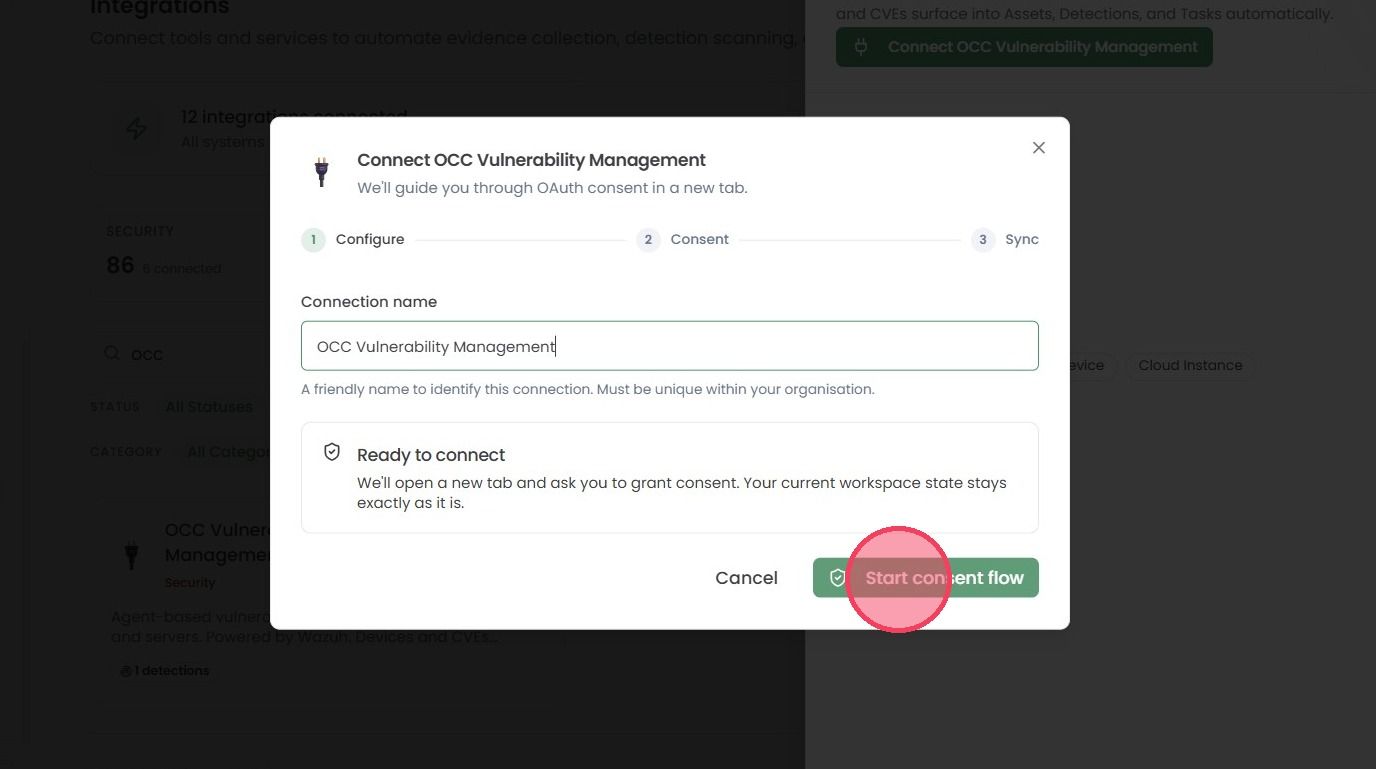
Next, provide a name to the Connection. (OCC Vulnerability Management is provided by default), then click Start consent flow.
Note: If you’ve reached the limit of connectors then it will show you the error on the pop-up window. You can add more integration connections from the Billing area of the platform.
Once you add more integrations connections, then come back to Integrations page, to complete the setup. Once you click on the Start Consent flow, the integration will automatically be created, and an installation window will appear.
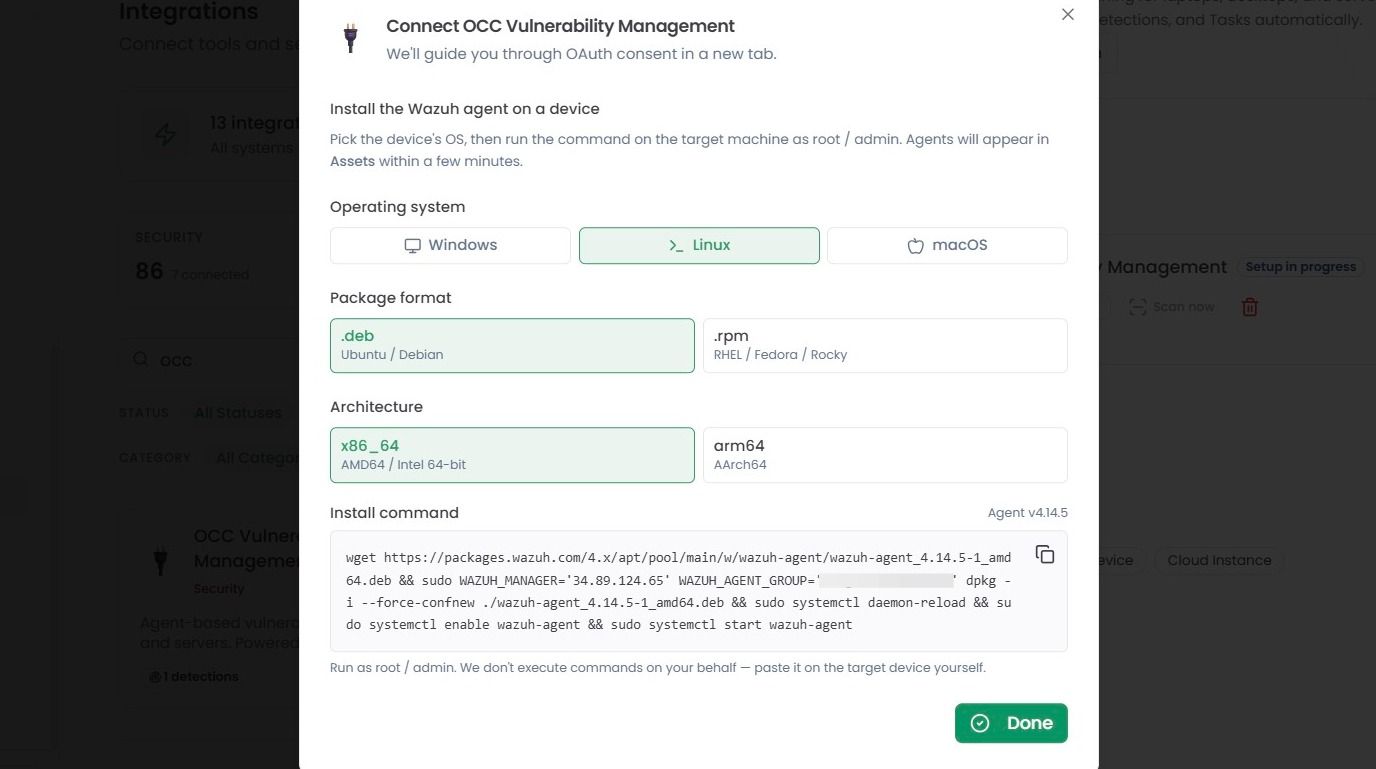
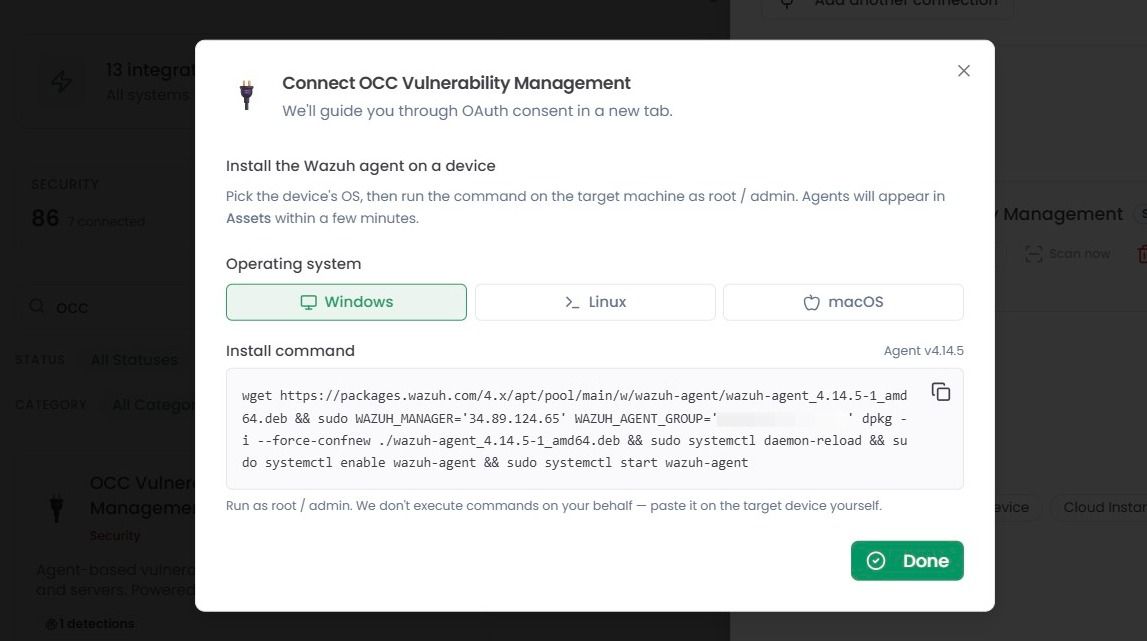
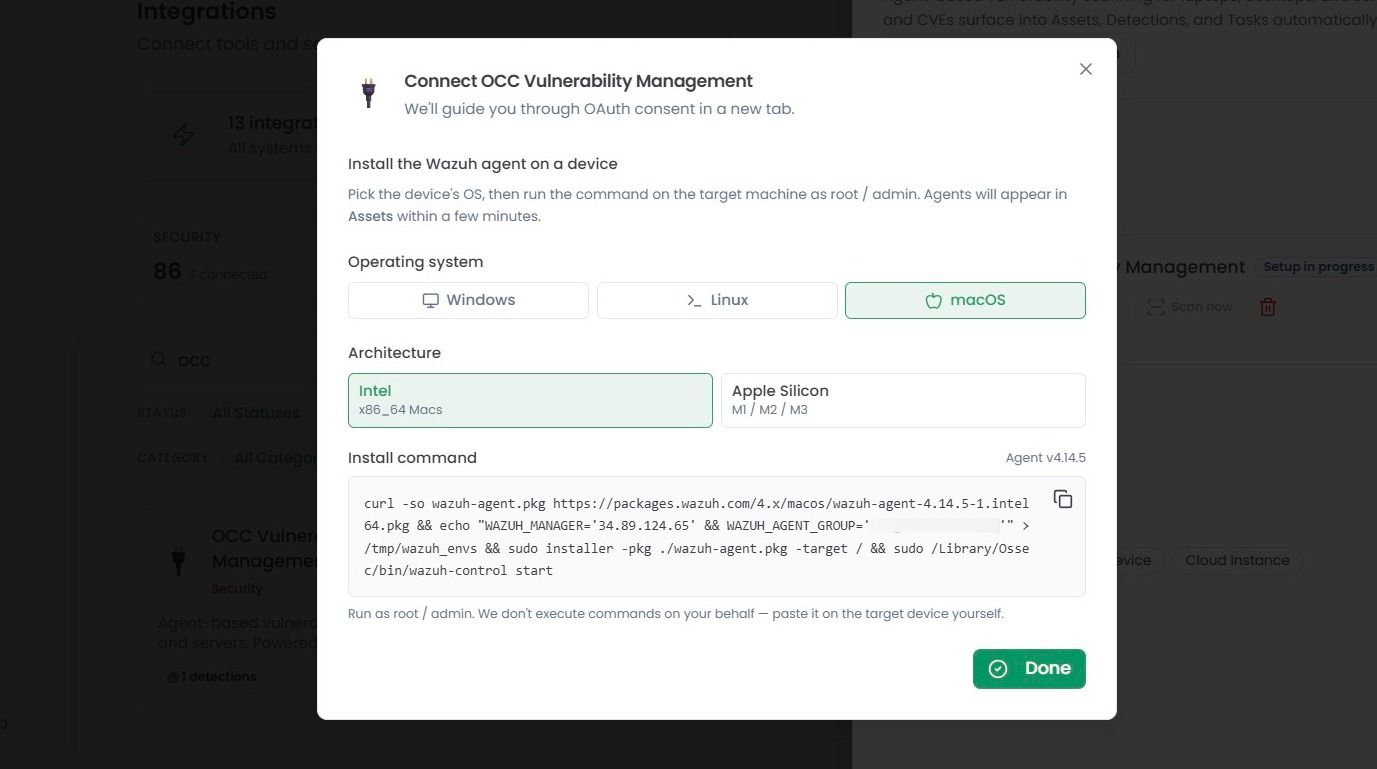
The device vulnerability agents are deployed to devices through an Install Command, which can be created through the Install pop-up modal, similar to the example below. The command should then be ran as root/admin on the device to install the agent.
For Linux devices, you can specify the Package format, and machine Architecture. The Install command will change based on your selections.
For Windows devices, only one install command is available.
For macOS devices, you can specify between Intel and Apple Silicon architecture. The Install command will also change based on the selected architecture.
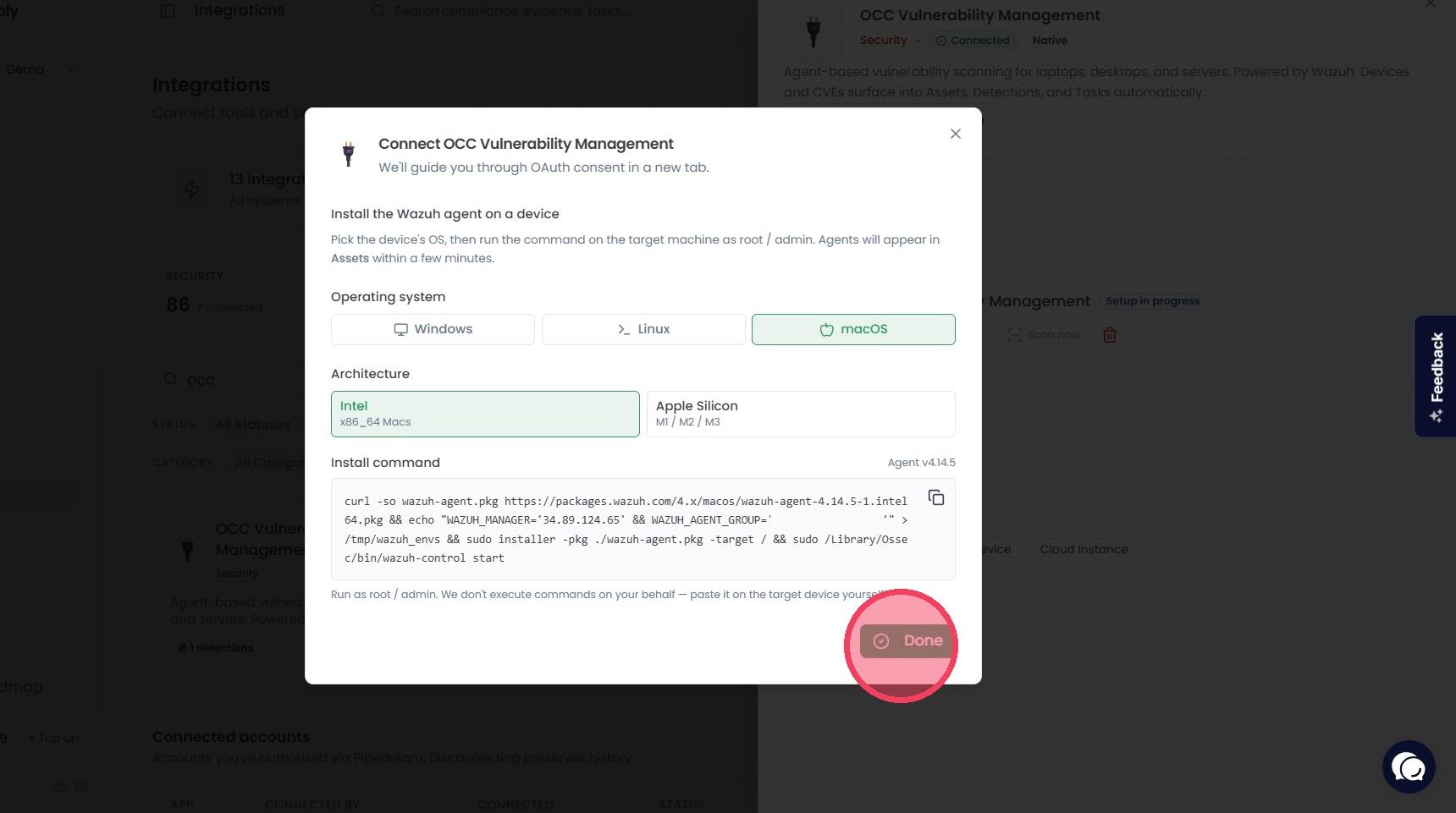
Once you have installed the agent on your devices, click Done to close out of the pop-up modal.
When a device has the agent installed, there will be a short wait while it connects to the platform. Once connected, a vulnerability scan will take place automatically. The device will also will be recorded in the Assets area of the OneClickComply platform.
Additionally, when a scan of connected devices is performed, any vulnerabilities or patching issues will be flagged as Detections and can be remediated.