rutuja.tilekar
Last updated: 27 January 2026
In this article, you will find:
Key information on how to locate, review, and download manually uploaded evidence on the OneClickComply platform.
To access manually uploaded evidence for Technical & Operational tasks, navigate to a control linked to tasks with uploaded evidence attached.
Select Open on the control you want to review to access the Control Details page. Then scroll past the Task Details & Manual Steps section and select the Uploaded Evidence tab, as shown below:

Opening control details page

Accessing evidence tab
All evidence associated with the chosen task will be displayed in this area. As shown in the example above, evidence has been attached to the task named Establish and Maintain a Data Classification Scheme.
To review the evidence associated with a control, select (...) button at the far right of the task row and choose View Evidence from the dropdown. This will open a side panel displaying the uploaded evidence.

Viewing control evidence
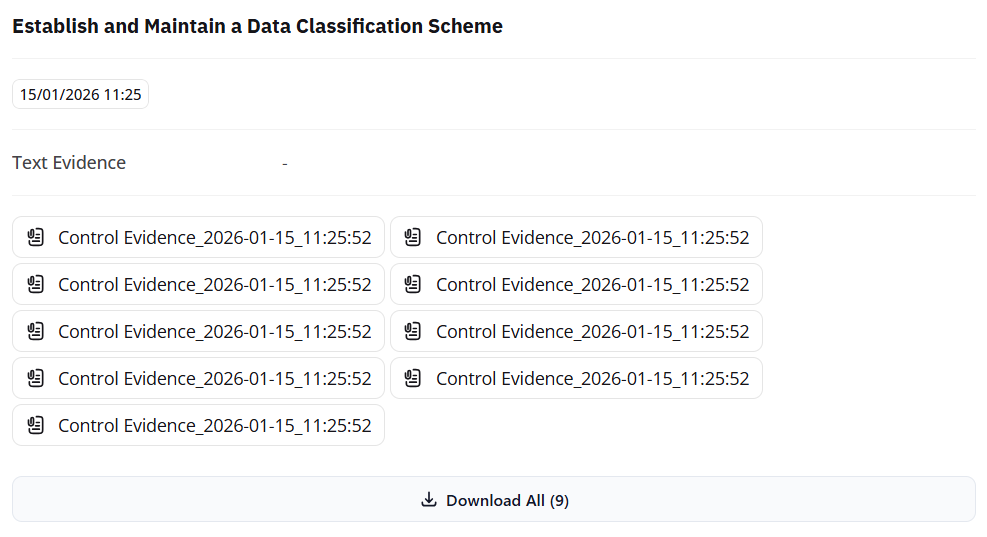
Example of uploaded evidence
Manually uploaded evidence may be displayed as text evidence, file attachment, or a combination of both, depending on how it was submitted.
Uploaded files can be downloaded individually by clicking on the file name, or all at once by clicking the Download All (x) button, where x represents the number of files.
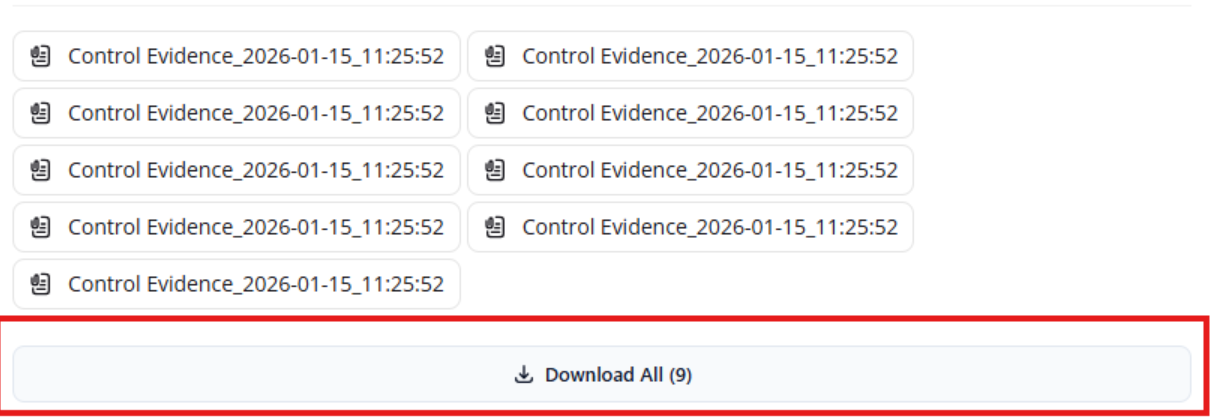
Screenshot of Download All Button
If you have any questions about reviewing manually uploaded evidence, please contact a member of the support team.