Finn O'Brien
Last updated: 27 January 2026
In this article, you will find:
Navigation guidance for attaching evidence to tasks.
Key information about compliance evidence.
Note: This guide will only cover the process of uploading evidence for Operational tasks, or when completing a Technical task manually. To learn about viewing evidence gathered automatically by the OneClickComply platform, please see our dedicated support article.
To upload evidence, navigate to the required tasks through either the All Tasks list, or by viewing the tasks associated with a specific control through the Control Management area.
To access tasks through the All Tasks list, navigate to Compliance > Tasks > Assigned Tasks > All Tasks.
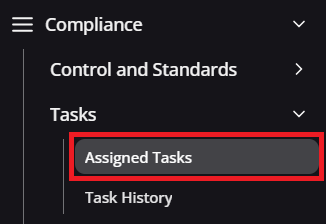

Navigation guidance for all tasks area
If you wish to only view the tasks for a specific standard, simply select your desired standard on the homepage. This will open a new page that only shows the controls of your selected standard. As an example, selecting the ISO 27001 card on the homepage will only show the controls related to ISO 27001.
From there, simply click the Review button next to a control to view the tasks associated with it.
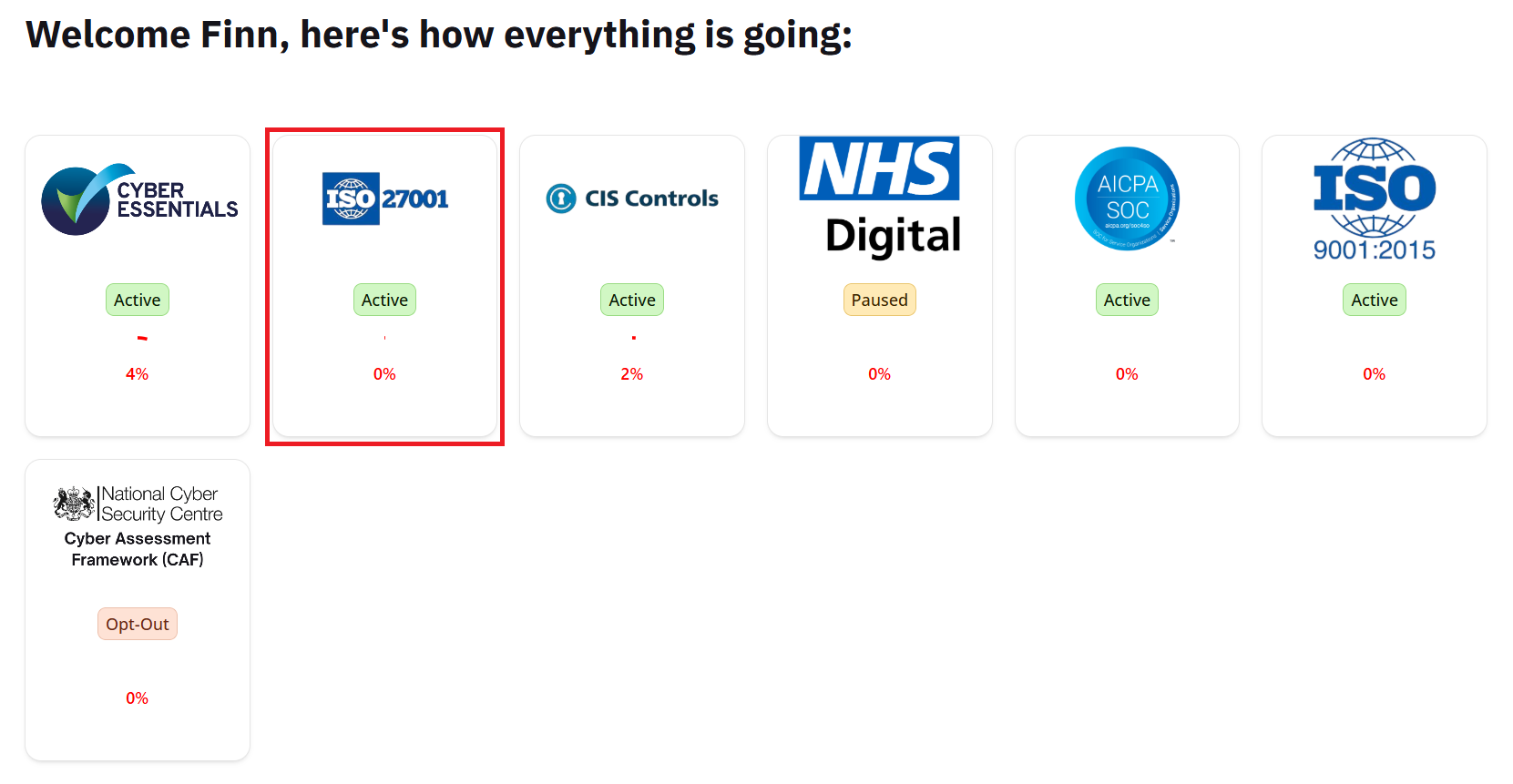
Accessing controls via the homepage
Once you have located the task you want to upload evidence for, click the Review button next to it to open the task modal.
If you choose to complete a Technical task manually, you will need to attach supporting evidence to prove compliance with the control's requirements, such as a screen recording, or other documentation that explicitly proves correct implementation.
For example, when completing a Technical task using the Fix this for me option, the automatically gathered evidence will either be a screen recording, or a JSON response.
To upload evidence to a Technical task, select the Upload Evidence option located next to the Fix this for me button, as shown below:
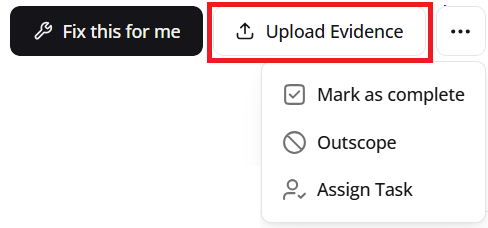
Upload evidence option
Upon selecting this option, a new window will open, as shown below.
In this new window, you will be required to name your submission, and select the type of evidence you wish to upload. File, Text, and both can be selected.
File: Allows you to upload your evidence directly to the task.
Text: Creates a text box where you can provide a written response to the task. (We would recommend only using this option when working towards the Cyber Essentials certification.)
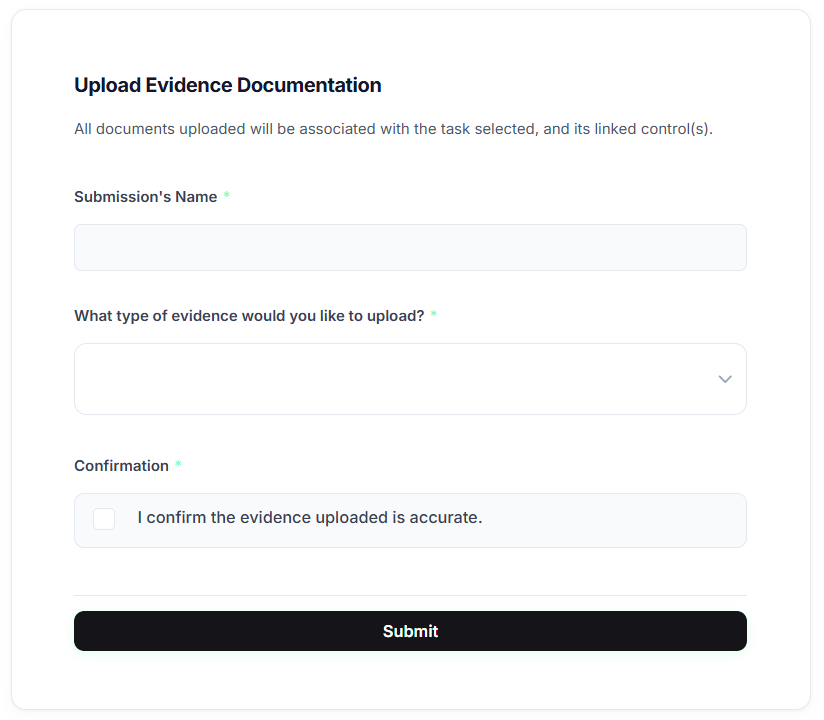
Evidence upload process
Once you’ve named your document and provided your evidence - either by uploading a file, entering text, or both - click Submit. The evidence will be automatically linked to the task and the associated control.
In order to complete any Operational task, the necessary evidence must be uploaded in order to prove compliance with the control's requirements. To do this, simply select the Upload Evidence option, located underneath the Task Details & Manual Steps area, as shown below:
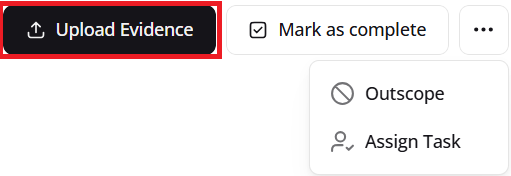
Upload evidence option
Upon selecting this option, a new window will open where you will be required to name your submission, and select the type of evidence you wish to upload. File, Text, and both can be selected.
File: Allows you to upload your evidence directly to the task.
Text: Creates a text box where you can provide a written response to the task. (We would recommend only using this option when working towards the Cyber Essentials certification.)
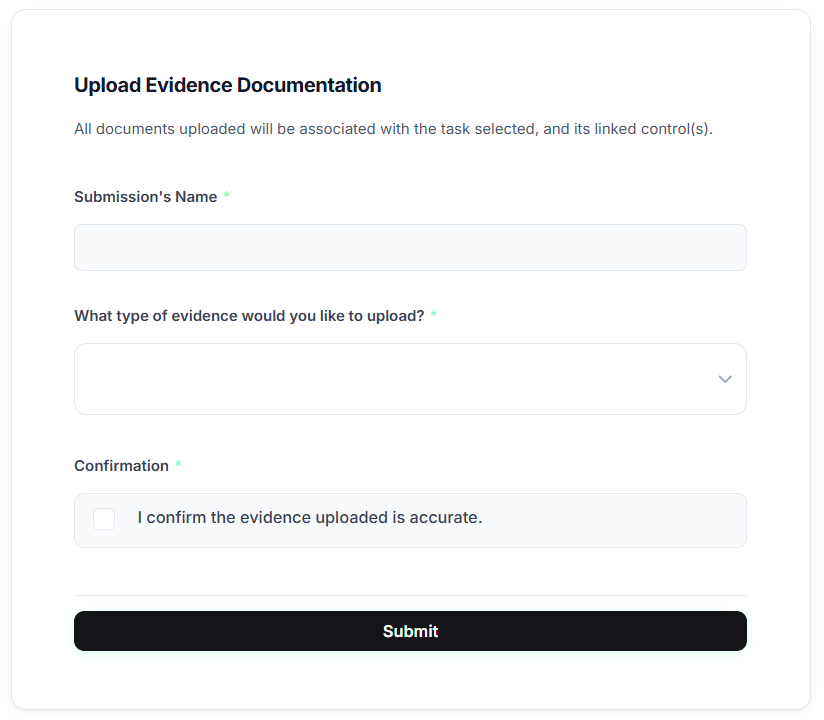
Evidence upload process
Once you have named your document, and either uploaded the necessary file, or written your response, click Submit. The evidence will be automatically attached to both the specific task, and the associated control.
Note: Additional support is provided within the platform to help with task completion and evidence gathering:
The Tasks Details area of a task includes actions to be taken to fix the issue manually.
The Evidence Guidance section of a control will provide suggestions about what information you should gather, and what format to provide it in.