Finn O'Brien
Last updated: 11 December 2025
In this article, you will find:
Navigation guidance for accessing the mass assign function.
Information about mass assigning tasks to users within your organisation.
The OneClickComply platform also supports the ability to instantly assign multiple tasks of a set category to a user, known as Mass Assigning.
To access the Mass Assign feature, navigate to the All Tasks area of the platform, and select the Mass Assign option, as shown below:
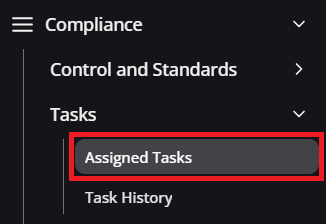
Navigation guidance for accessing the tasks area

Accessing the mass assign feature
Once this option is selected, a new window will open. Similar to assigning individual tasks, you will be prompted to add the Email, Priority, Due Date, and any Task Notes, but there will be an additional field called Task Type.
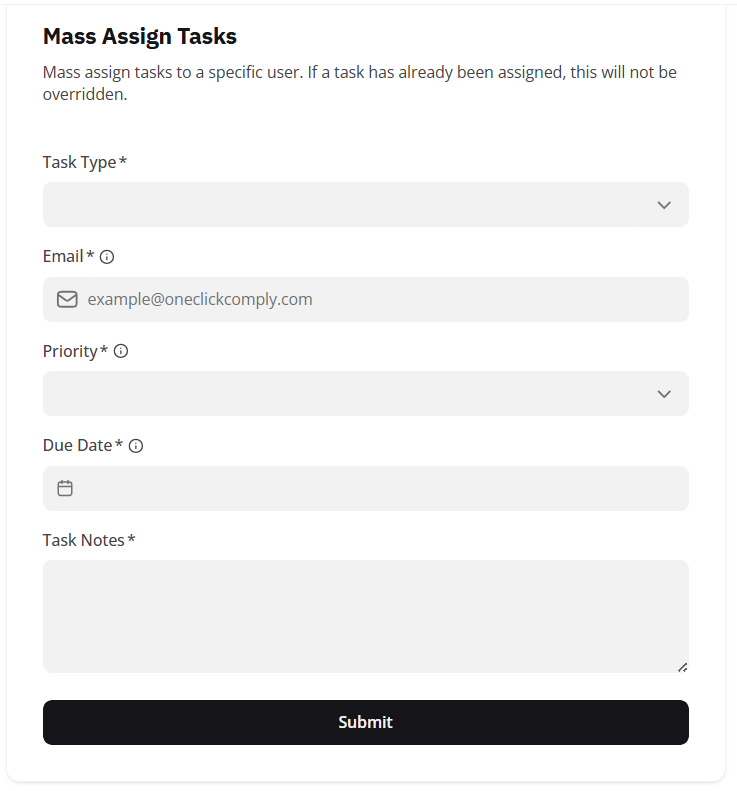
Mass assign tasks feature
The two options in this field determine what category of task is assigned to a specific user. These categories are:
Technical Tasks: These tasks require technical changes to be made within your connected environments, and can be automatically completed using Fix this for me. These tasks are also known as Technical tasks.
Operational Tasks: These tasks are more administrative, and will usually require specific documentation to be gathered/created, and attached to the task to prove compliance.
Selecting either Task Type, and then clicking the Submit option, will automatically assign all tasks of that category to the specified user, and send an automated email informing them that they have tasks to complete.
Note: If a task already has an assigned user, and is included in a mass assignment, the assigned user will not be updated.