Finn O'Brien
Last updated: 29 October 2025
In this article, you will find:
The process of sharing updated policies to employees and tracking their engagement
Once you have added a policy to the Internal Policy Management area, you can send it to employees via email and request that they both read and acknowledge the policy's content.
To notify employees, click the Review button on your desired policy, as shown below:

Screenshot showing how to review an internal policy
This will open a new window that provides more information about this policy, such as the regulatory mapping, associated risks, and the access control. There will also be a button labelled Notify Employees (see below), which will send an email to all the addresses that were specified during the creation of the policy.
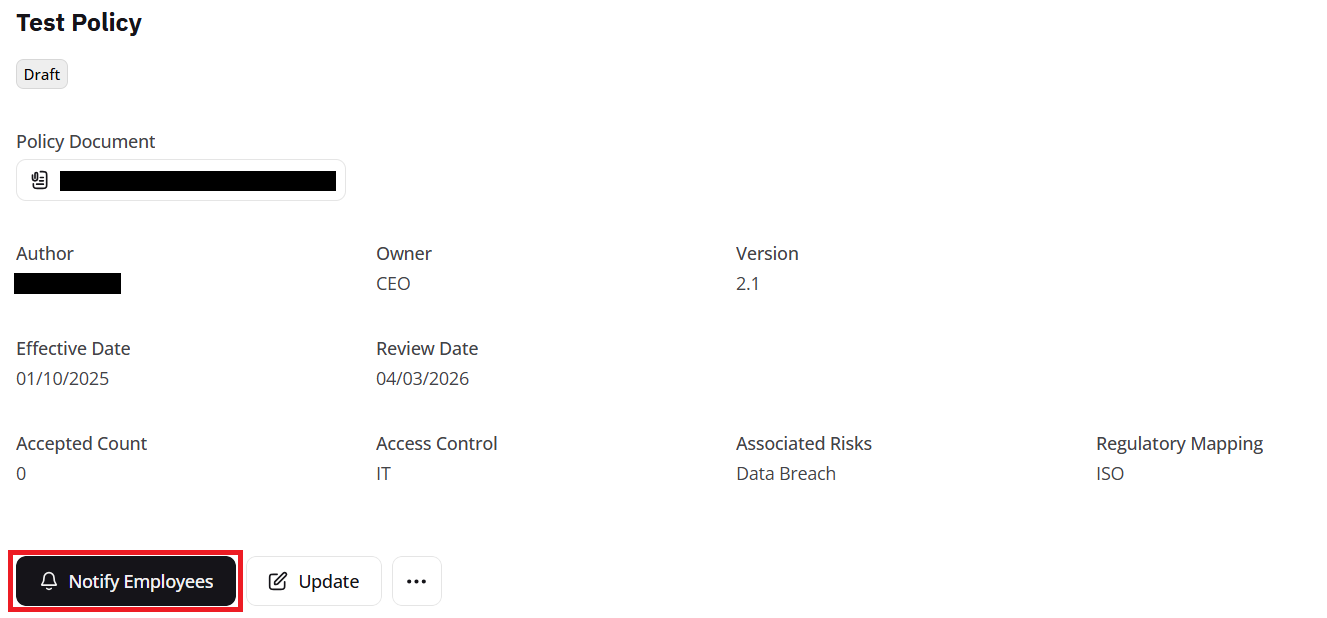
Screenshot showing how to notify employees about a policy
Employees will receive an automated email from OneClickComply informing them that they have been assigned a policy to read. There will also be a link inside of the email that will open the necessary document.
Note: Employees are not required to have an account on the OneClickComply platform to access the policies.
Once they have read the policy, they will be required to enter their email address and confirm that they have fully understood the document.
After an employee accepts a policy, the Review area will automatically update the Accepted Count, and a new button will appear called Review Acceptance. As the name suggests, clicking this will bring up a list of all employees that have been notified about the policy, and who has read and accepted the document.