Finn O'Brien
Last updated: 27 January 2026
In this article, you will find:
Navigation guidance for accessing the Cyber Essentials questionnaire automation feature.
A guide for completing the Cyber Essentials questionnaire within the platform.
Note: This feature has been updated. If you generated a response to the self-assessment using the previous version of this feature, the responses will be stored in the Legacy Questionnaire tab. Please be aware that you will only be able to view legacy responses, and any new questionnaires will be created using the updated version of this feature.
Within the Cyber Essentials Questionnaire area you can easily complete the self-assessment questionnaire required for Cyber Essentials certification.
It can be accessed by selecting Cyber Essentials Questionnaire from within Audit & Assessment > Assessments, as shown below:
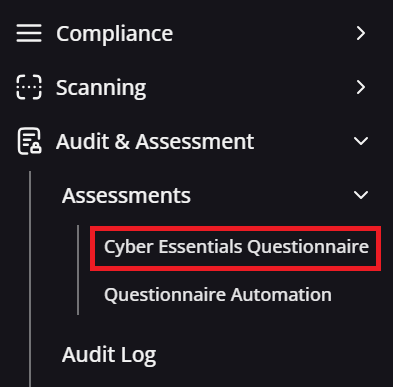
Cyber Essentials Questionnaire navigation guidance
Using the OneClickComply platform, you can easily complete the self-assessed questionnaire needed for Cyber Essentials certification.
Any tasks resolved through automation, or completed manually, will be reflected in the relevant sections of the questionnaire, ensuring your answers align with the security processes you have in place. Additionally, any information that has been added to the in-platform ISMS areas, such as the risk or asset registers, will be taken into account during the response generation.
Let's have a look at the steps needed to complete a questionnaire within the OneClickComply platform.
When you first click on the Cyber Essentials Questionnaire drop-down, you will see the following page:
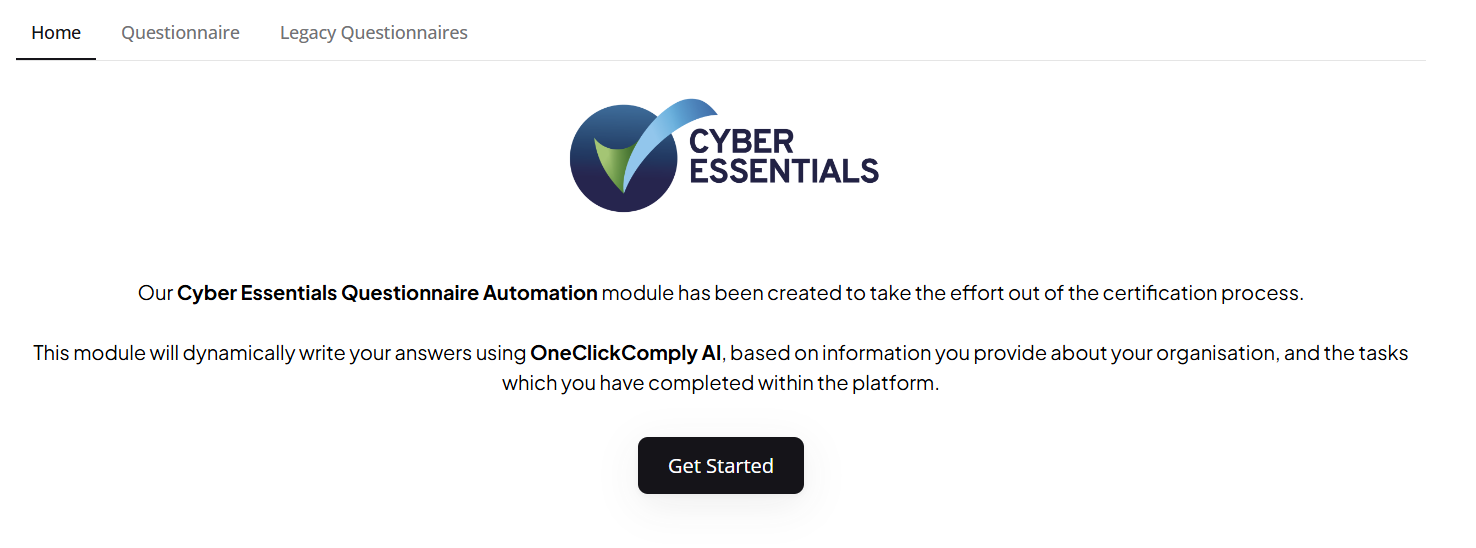
Starting the Cyber Essentials questionnaire
From this point, selecting either Get Started or Questionnaires will take you to the 'Questionnaires' tab, which will contain a list of all previously completed or drafted questionnaires.
To create a brand new questionnaire, select the Create button, as highlighted in the example below.

Creating a new questionnaire
You can then name your document in the newly opened side panel, and click the Submit button to start creating your new questionnaire.
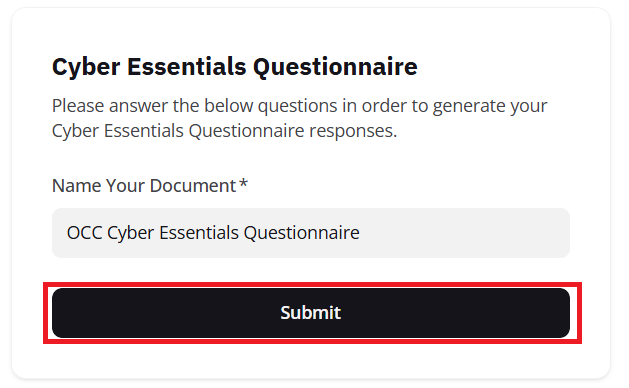
Naming created questionnaire
After a short delay (up to a minute), the page will automatically refresh, and display the list of questions that must be answered manually.
The OneClickComply platform uses your completed tasks and controls to automatically populate the questionnaire where possible. Any questions linked to tasks that are incomplete, lack sufficient evidence, or require additional business context must be answered manually.
Some questions will always require a manual response, as they relate to organisation-specific information, such as:
A1.2: What type of organisation are you?
A1.8: What are the two main reasons for applying for certification?
A1.10: Can IASME and their expert partners contact you if you experience a cyber breach?
These questions cannot be auto-filled, as they depend on information that cannot be derived from technical controls or evidence alone.
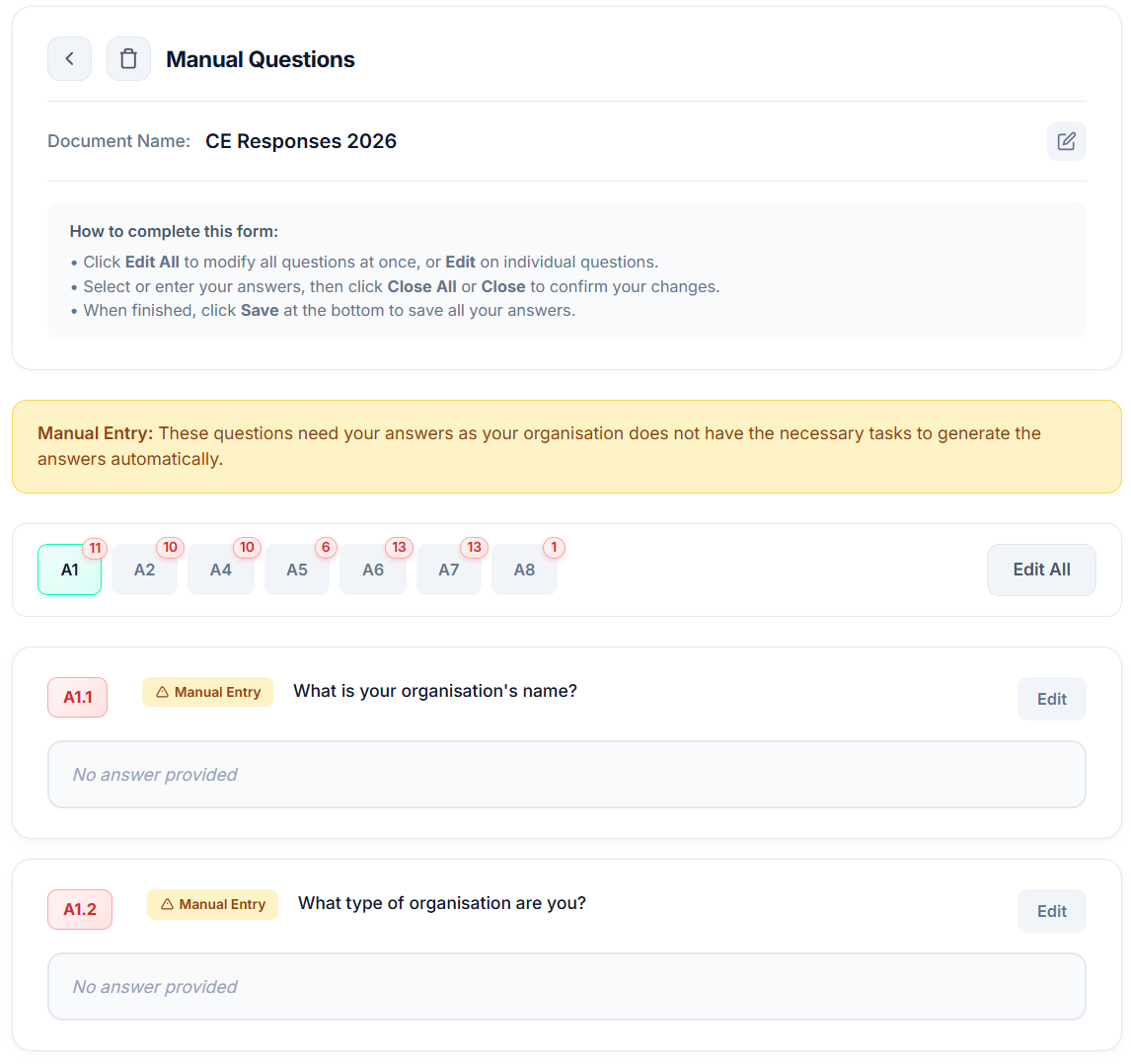
Outstanding manual questions
To answer the remaining questions, select Edit All to enable editing for all manual questions, or use Edit on individual items.
Both options allow you to answer questions using either multiple-choice selections or free-text responses.
When editing a question response, the Edit and Edit All buttons will be replaced by Close and Close All respectively. Once you have finished writing or selecting your answer, selecting Close or Close All will bring you out of the editing mode.
To navigate to any remaining manual questions in other sections of the questionnaire, select the relevant tab from the page selector at the top of the page, as shown in the example below. The red number at the top of each tab indicates how many questions are left to be answered for each section:
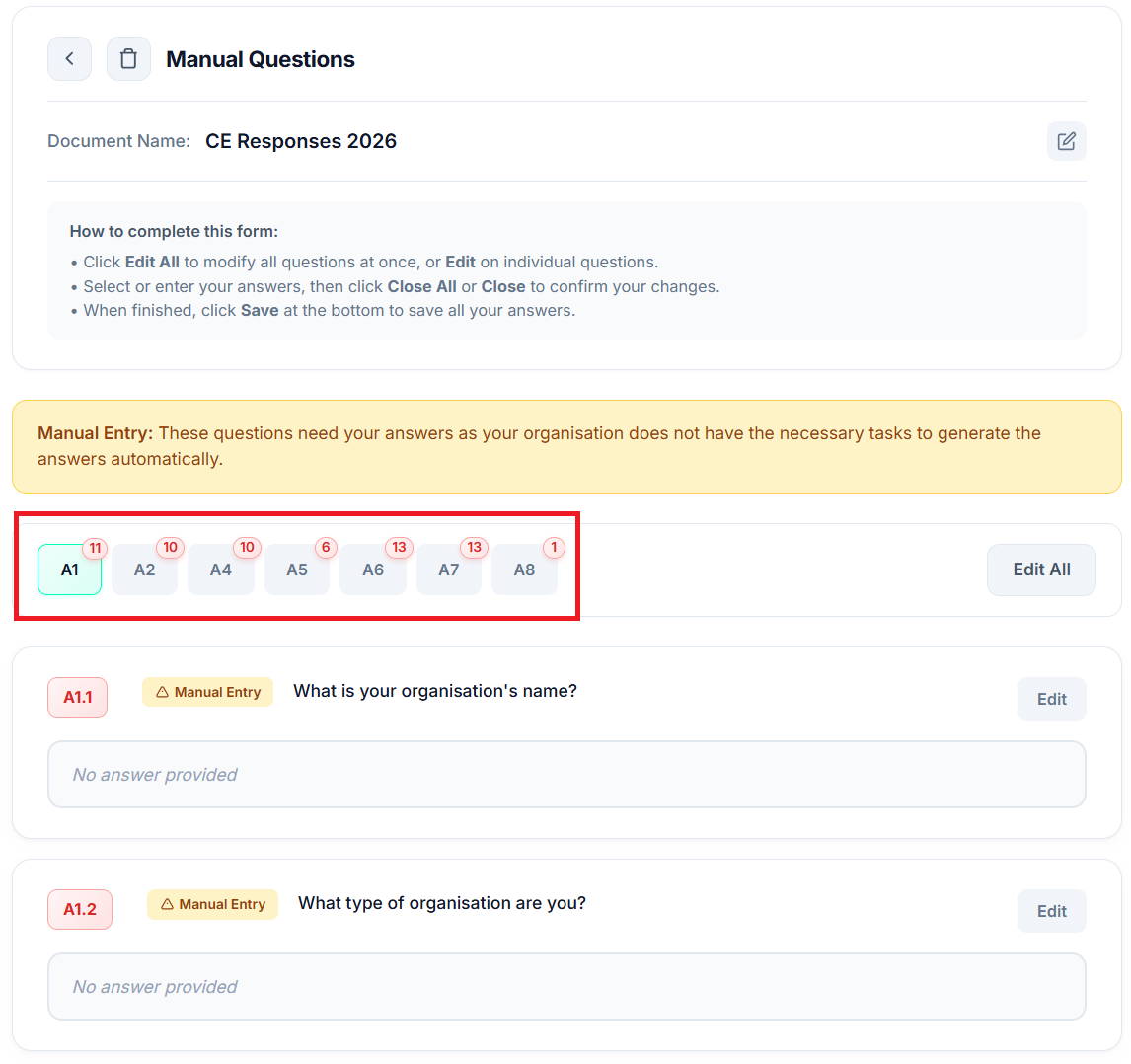
Outstanding manual responses
Once you’ve answered the manual questions, scroll to the bottom of the page and select Save to store your responses. You will see the following success message:
.png?Expires=253402300799&Key-Pair-Id=K3I1KRL096EJY2&Signature=YI7~5OFIdgxB5X0Po9oPqud4c9dixYkuAIQ6SQ0TpY0N1gChVSMciF3p7x5xTrnUfMCvqDaG1wxWZ3IqfiyfmFKKh6zfyz1yWNKdvS9jdYw1AeF97kuEIru8QSX~WyTPzjxOUXUG4QouCz7nyDdshSR2Yc1MTIPzNg5EwYhS2WKwaiNpOamEs0bRG-~12r3BOQYzd61apw9JHdWxGTU3Avp~t1Nw6dQuOtffS~9ynggGiHGkGPB4vGfPpQvbDzxxy6cNdCgNoJsel4O1V89ejRg~1aJVn-3~6wOGReY7KlEIxJScnHjGA08CC3NUazDDqR3XyhOxaxKnxva-o0dWOQ__)
Successful save message
Important: The Save button is disabled while you are still in editing mode. To enable saving, make sure you exit editing by selecting Close on individual questions, or Close All.
If some manual questions are still unanswered, your responses will be saved, but you’ll be prompted to complete the remaining required fields.
Once all manual questions have been answered, press the Save option at the bottom of the page. This will prompt a new option to appear beside the Save button called Generate.

Generate questionnaire option
Selecting this button will kick off the generation of your completed Cyber Essentials questionnaire, and a progress bar will appear on the page, with an estimated completion time for the document.
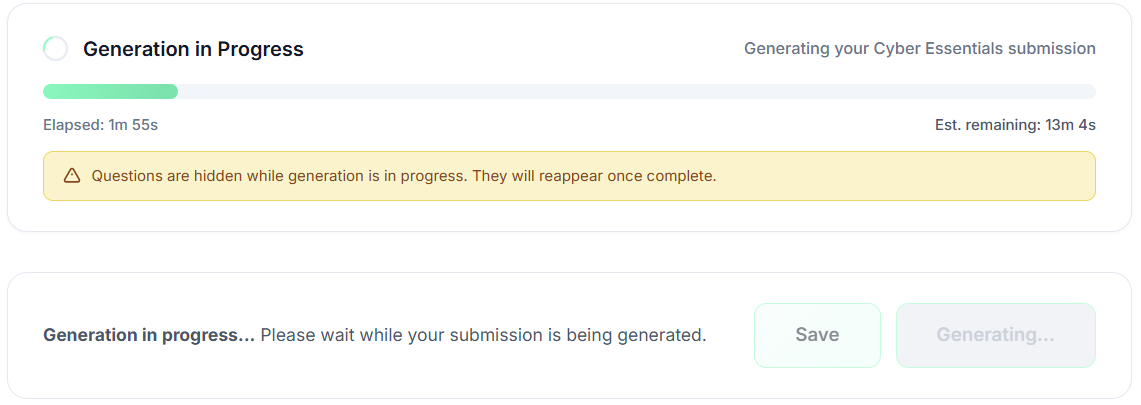
Questionnaire generation progress bar
After the generation process has completed, a page similar to the Manual Questions area will appear. If the OneClickComply platform was unable to generate a sufficient response for a question, it will be automatically flagged for manual completion using the previously described red numbering system. See the image below for an example:
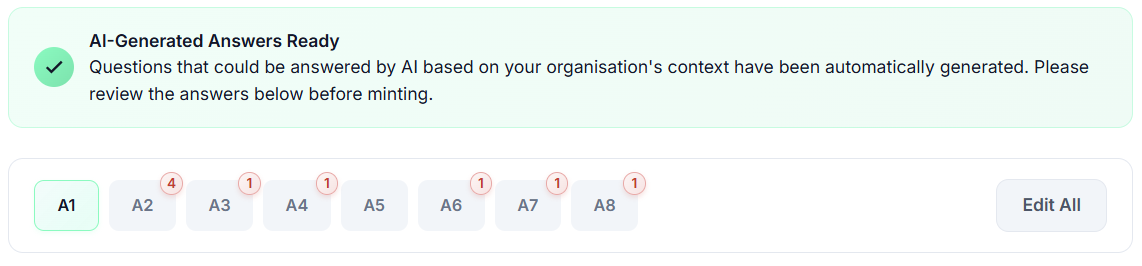
Response review page
Once all remaining questions have been resolved, we strongly recommend reviewing each answer - whether it was completed manually or generated by the platform - to ensure the information is accurate and up to date. If you are not satisfied with any response, you can edit it before continuing.
When you’re happy with all answers, you can proceed to Mint the document by selecting the Mint option at the bottom of the page, as shown below.
Please note: You won’t be able to mint the document if any questions remain unanswered.

Minting completed document option
Once the Mint option has been selected, you will be shown the final confirmation page, where you must do the following:
Confirm you have checked all answers
Confirm that all answers are true and accurate
Confirm that you have the authority to sign the document on behalf of your organisation
Enter your full legal name
Enter your full job title
Provide a signature, either drawn or typed.
After each of these areas has been completed, you can click the Submit option to create your completed Cyber Essentials questionnaire.
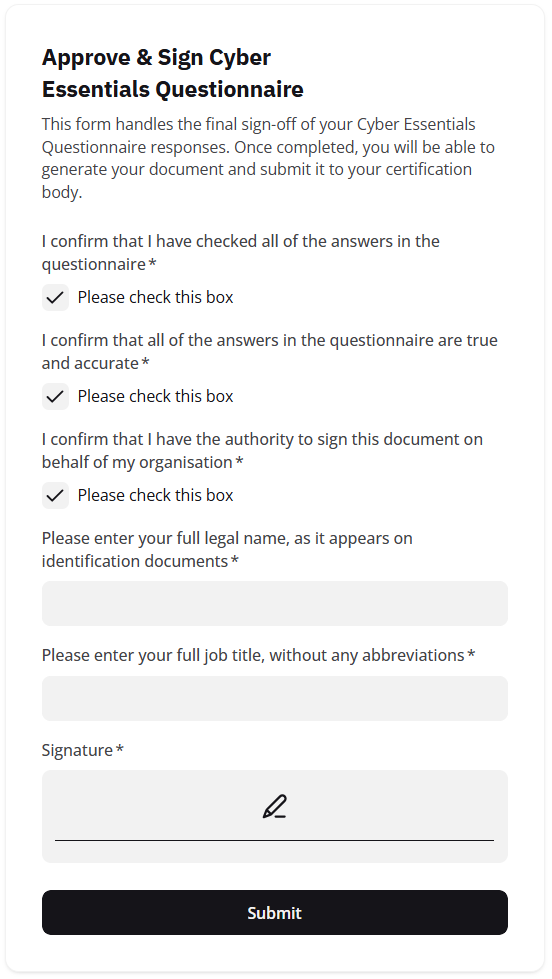
Final confirmation & signature page
Once you’ve successfully signed the document, you’ll be able to download it as an .xls file, which can be submitted directly to your chosen assessor.
To download the file, click Download Document at the top of the questionnaire page, as shown below:
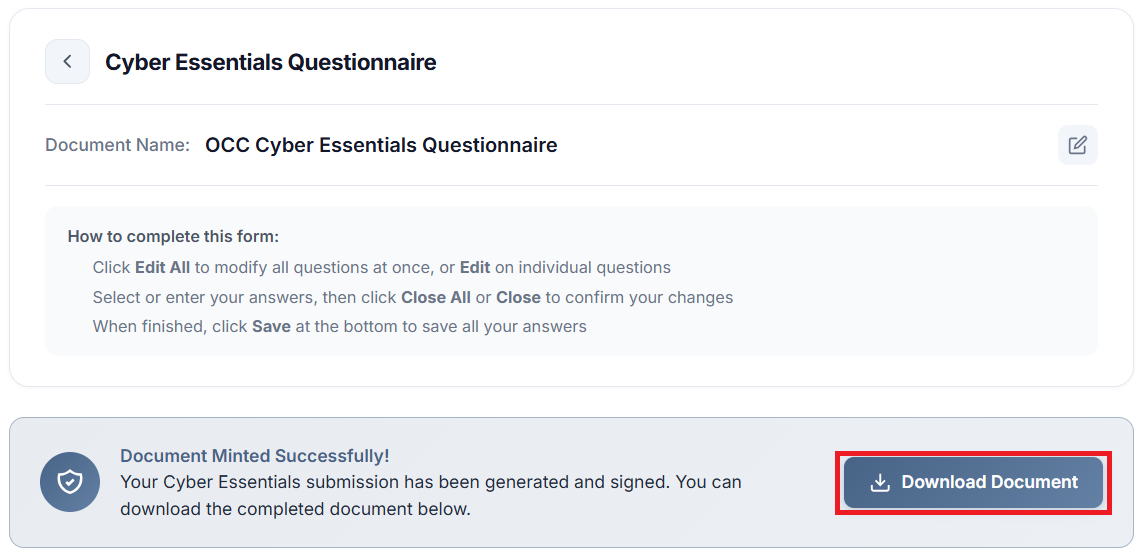
Download document option
Once you download the document, you MUST NOT edit, alter, or update any of the information within it, as the generated file contains a timestamp that certifies when the document was last modified. If you need to change your answers to the self-assessment, please create a new questionnaire within the platform, and ensure that any relevant tasks (both Technical and/or Operational) are similarly updated with the correct information.