Creating and Editing Custom User Roles
This guide will walk you through creating and managing custom user roles, and assigning specific permissions based on level of access required.
Alongside the default user roles (Admin, Auditor, Editor, Owner, Viewer), the OneClickComply platform also allows for the creation of Custom Roles. These are bespoke roles with permissions that can be changed at any time, and are useful when you wish to provide access to a user, but only to certain areas or features.
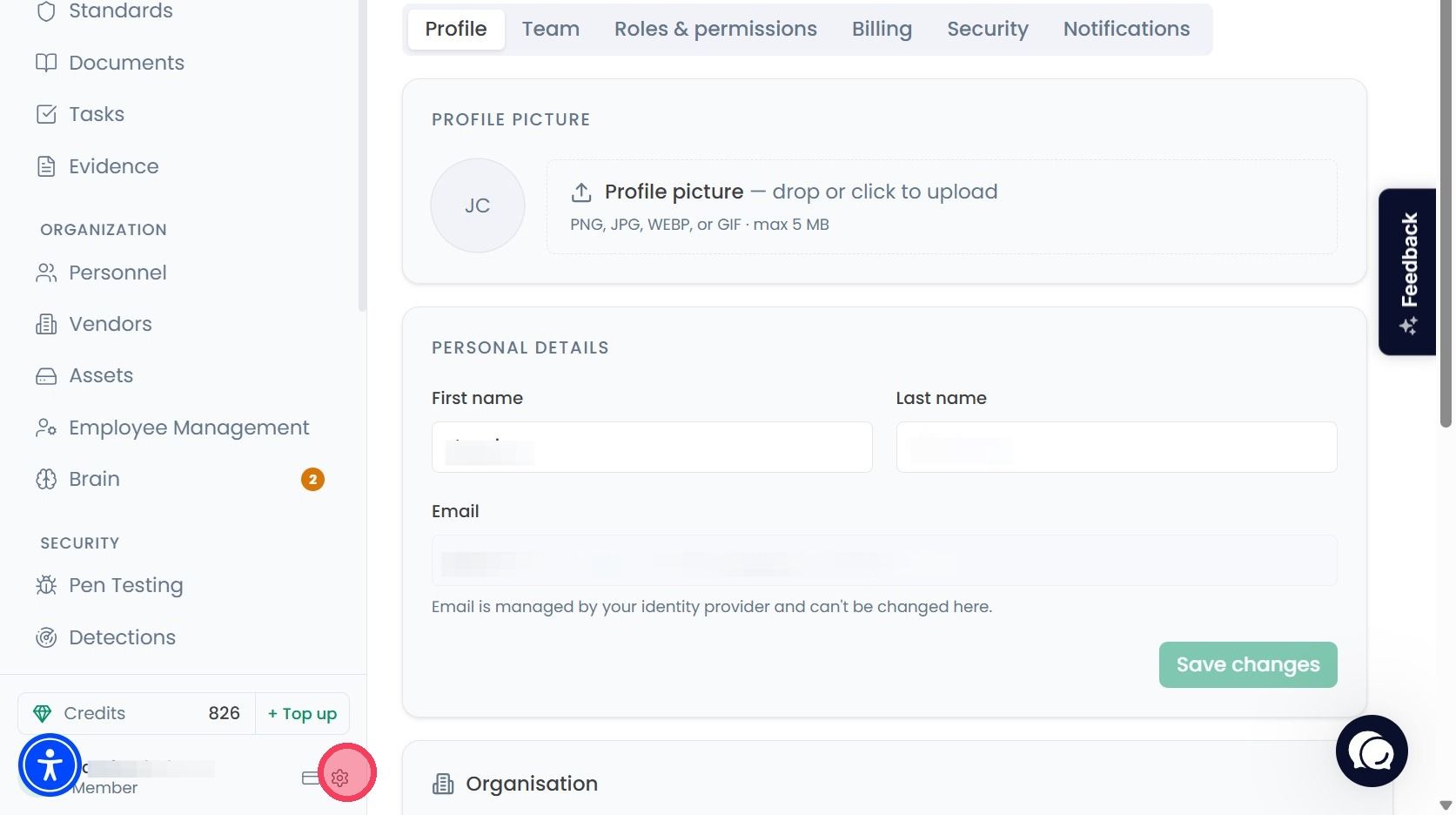
Select Account and Organisation Settings by clicking the cog wheel, located next to your name at the bottom of the navigation bar.
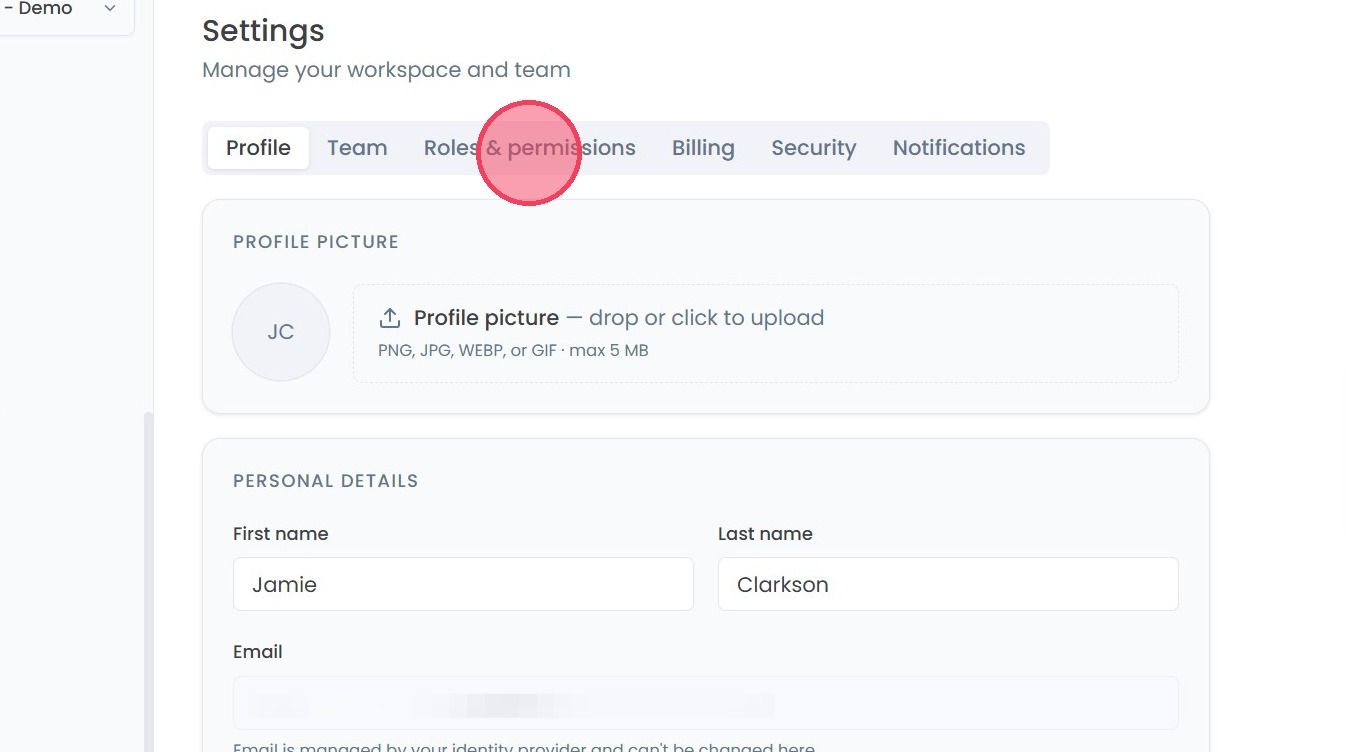
On the Settings page, select the Roles & Permissions tab from the various options on the top row.
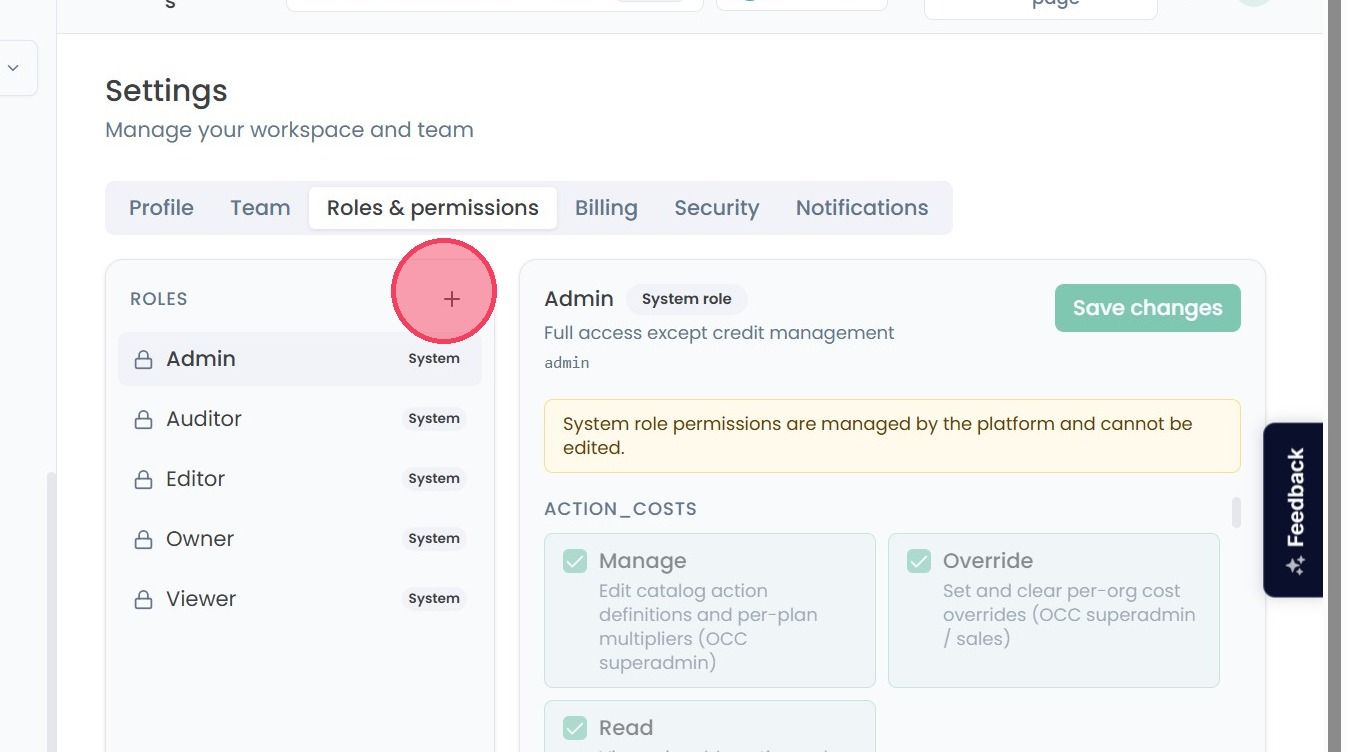
On the Roles & Permissions page you can view the permissions given to each Role type, and create custom roles to meet your specific requirements.
Note: The default roles provided in the OneClickComply platform cannot have their permissions changed.
To create a custom role, select the + button.
Note: To create a custom role, you will first need to upgrade your plan. When you click the + (plus) icon, a pop-up notification will appear; selecting Open Billing from that will redirect you to the billing page to manage your subscription.
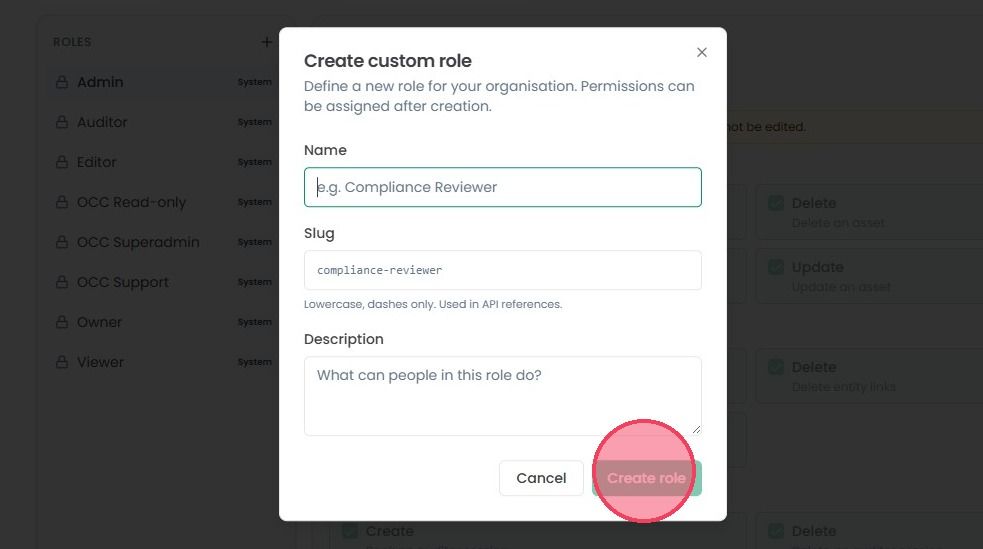
Once you upgrade your subscription, then this will open a pop-up modal where you can begin creating your custom role.
Start by providing a name for the role (we will use 'Device Manager' as an example).
The Slug field will populate automatically based on the name you provide. If you wish to change this, please ensure that the name is only in lowercase, and any spaces are replaces with dashes.
Note: The role Slug is only used in API references, and has no other impacts within the OneClickComply platform.
Provide a brief description of what the role allows user to do. This does not impact the actual permissions for your custom role, as these are manually configured in a later step.
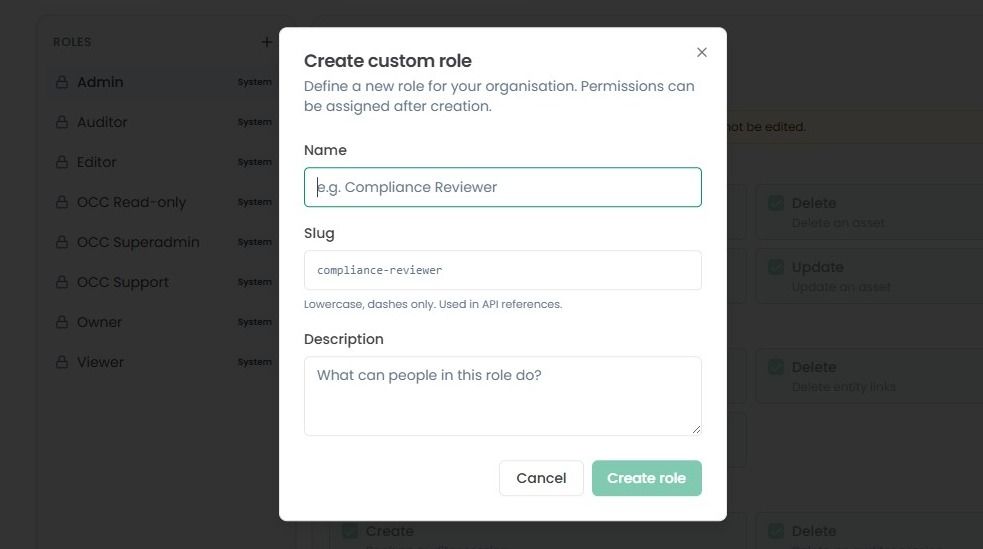
Once you have completed each field, select the Create role option.
By default, a custom role starts with no permissions. Permissions can be provided by selecting them from the multiple options provided.
Each area and feature in the OneClickComply platform has configurable permissions for custom roles. Each permission comes with a brief description of what it allows the user to do, as shown in the example below:
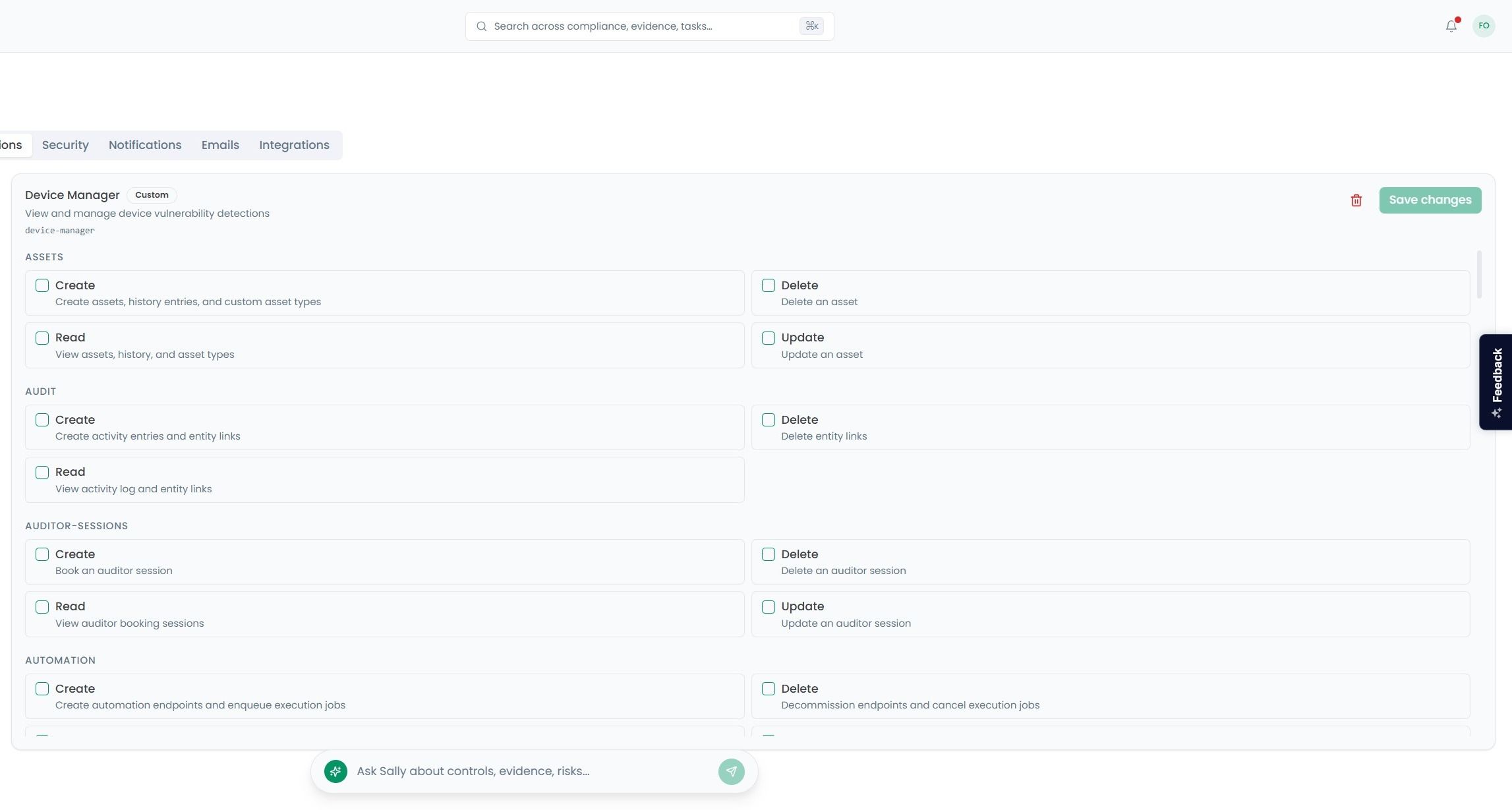
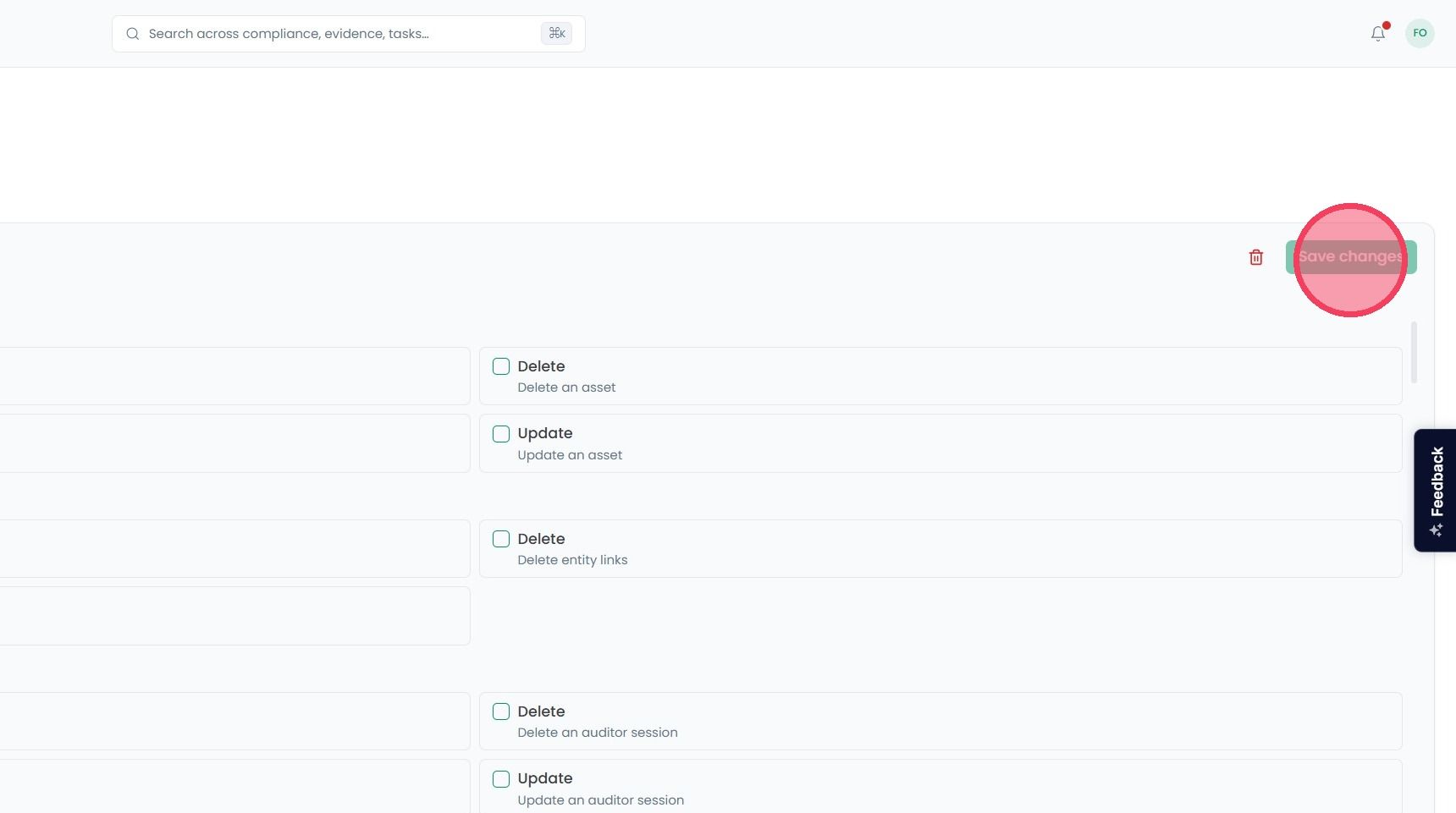
Once you have selected the desired permissions for your custom role, click the Save Changes button to finish creation of the new role.
Once a custom role has been created, the permissions of the role can be updated at any time by clicking on the role and selecting or deselecting the relevant permissions.
Deleting a custom role
To delete a custom role, select the role from the role list, then click the Bin icon next to Save Changes option, as shown below:
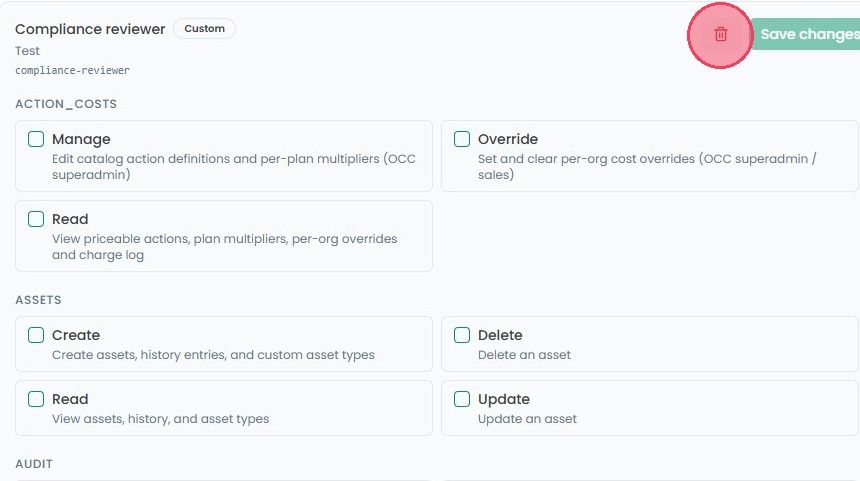
This will open a separate window where you can confirm deletion of your custom role.
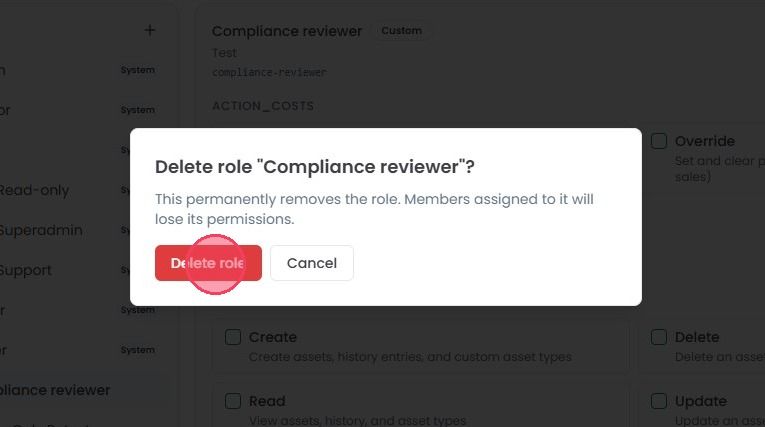
Important: This action is irreversible, and any users with this role type assigned will lose its associated permissions.