Viewing and Completing Tasks
This guide walks you through the process of viewing and completing your compliance tasks within the OneClickComply platform.
Viewing Tasks
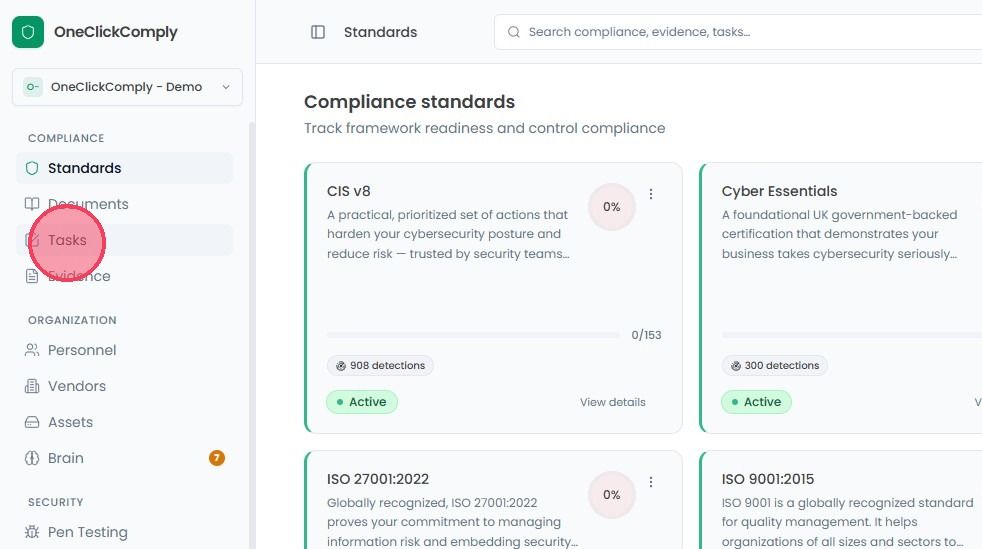
To view Tasks within the OneClickComply platform, select Tasks from the main navigation bar.
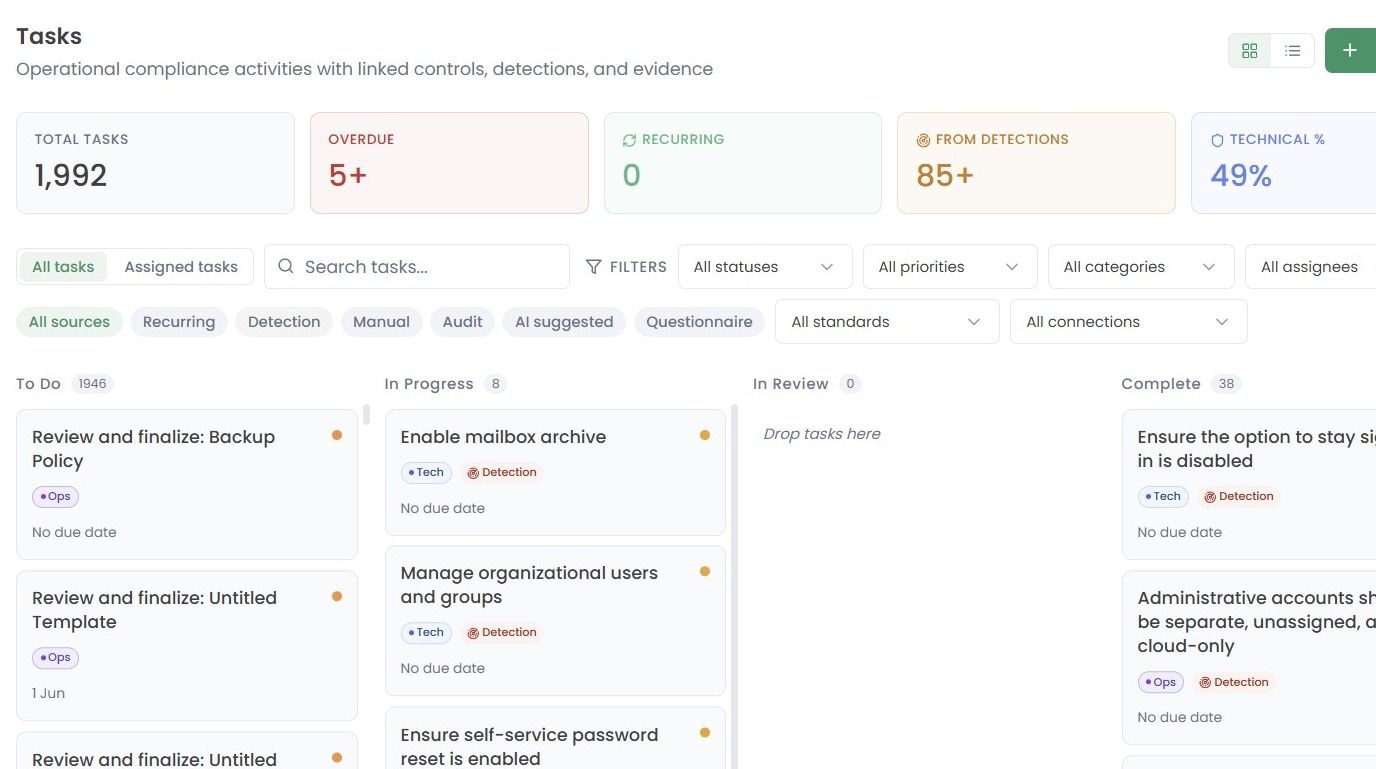
On this new page you will see a kanban board of all tasks within the OneClickComply platform, as shown in the example below.
Tasks will fall into one of the following categories depending on their current completion state (To Do, In Progress, In Review, or Complete).
Note: The task view can be changed from a kanban board to a standard list by selecting the list button, found next to the Add task option at the top right.
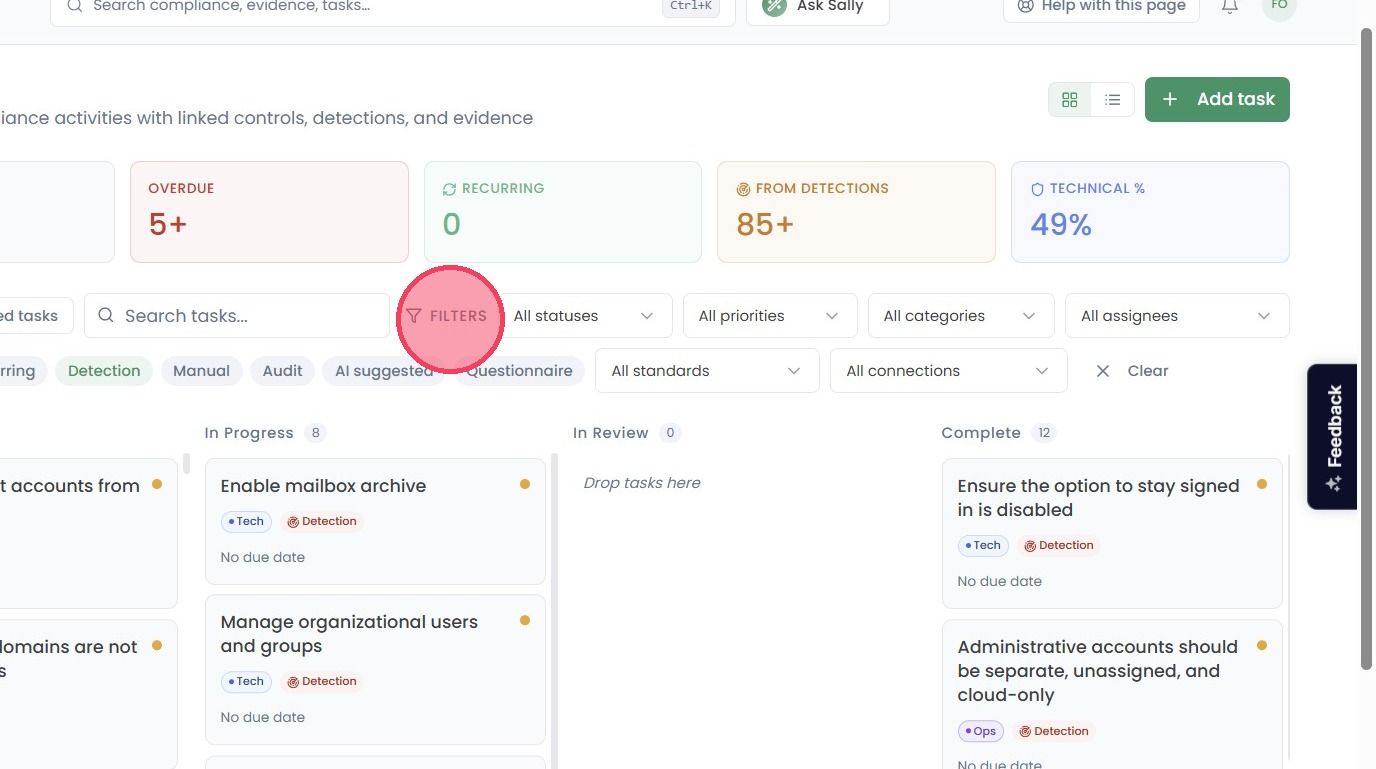
There are also multiple filters that can be applied to the Tasks page to narrow the visible results. These available filters are:
Status: To-do, In Progress, In Review, or Complete.
Priority: P1-Critical, P2-High, P3-Medium, or P4-Low.
Category: Technical or Operational.
Assignee: The person assigned to complete the task.
Standard: The compliance standard linked to the task.
Connection: The integration the task originated from.
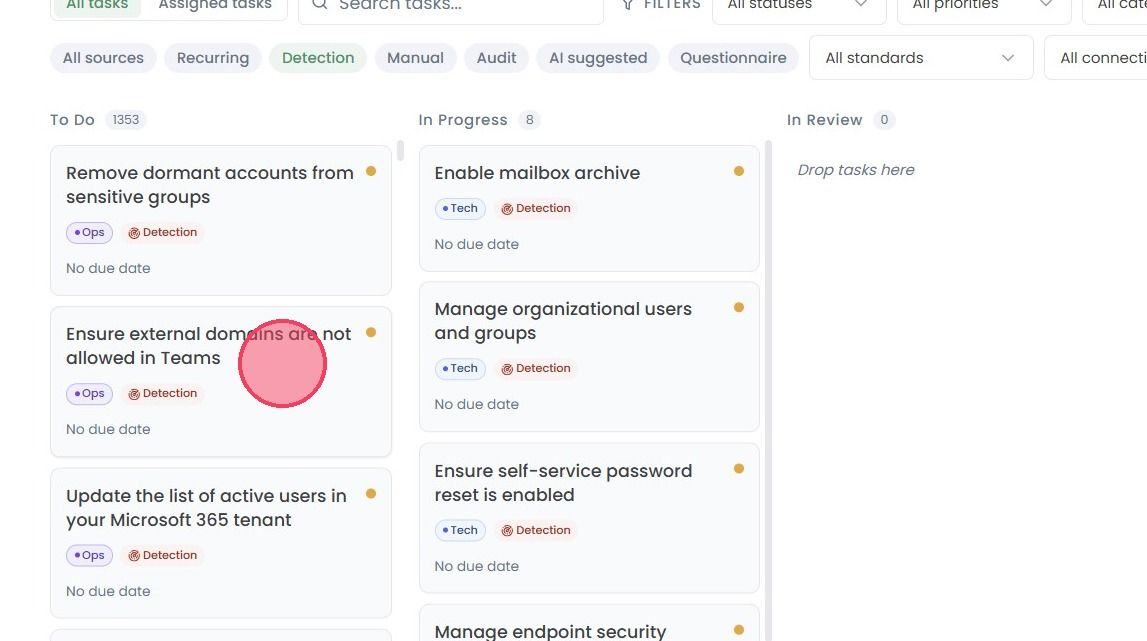
To view more details about a task, including any required actions, by clicking on the relevant box (or row if you are in list view.)
This will open a side window similar to the example below:
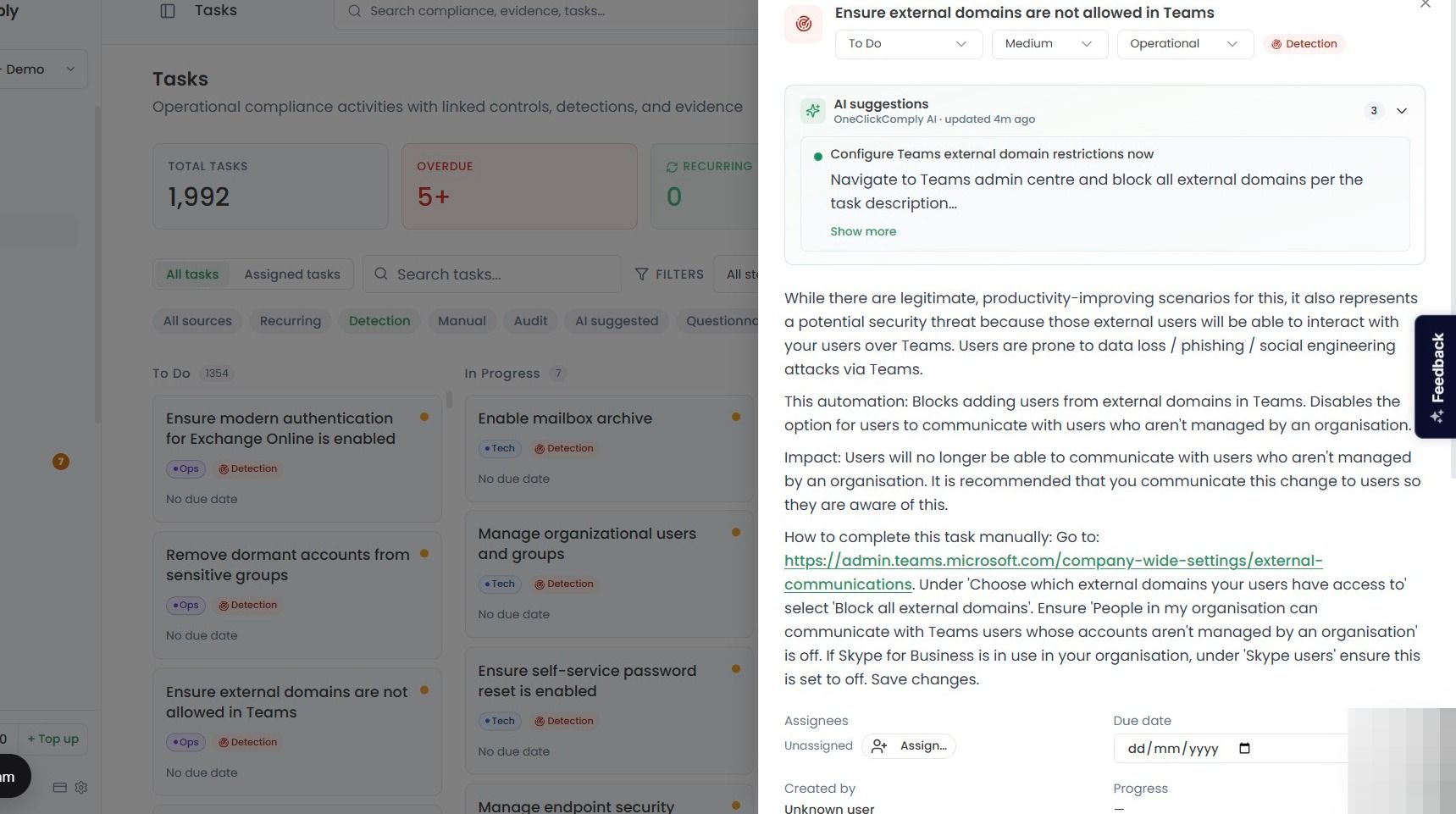
Each task will contain the following areas and information:
Title: A brief description of the task’s requirements.
Status: The current state of the Task within its workflow. (e.g. Operational).
Priority: Ranked P1 through P4, where P1 is the most urgent.
Type: Whether it is an Operational or Technical task.
AI suggestions: Additional information and guidance on how to complete the task, created by the OneClickComply AI.
Task Description: A detailed guide on how to complete the task, including what evidence or records to maintain.
Assignee: An area to assign the task to a specific user.
Due date: The deadline by which the Task should be resolved.
Created by: The user who created the task.
Progress: How much progress has been done on the task.
Completing Tasks
The actions available to complete a task depend on how it was created:
Tasks created from Detections
These Tasks are linked to a security finding in a connected environment, can be completed through various remediation options, such as a OneClickFix, a pre-generated CLI command, or a guided walk through, that resolve the issue directly through the platform. Users also have the option to upload or link evidence manually as an alternative to using an automated fix.
Non-Detection Tasks
Tasks created from other sources (e.g. manually or by a control) such as uploading an Information Security Policy, are not linked to a Detection. These tasks are completed by uploading or linking the required evidence, such as a policy document, a signed procedure, or a completed assessment.
Task Completion Flow
While the specific steps required to complete a Task vary depending on the action required, here is a standard workflow for completing Tasks within the OneClickComply platform:
Review the task: Read the description to understand what is required. If the task is linked to a Detection, it will provide additional context about the issue and the available remediation options.
Assign the task: Ensure it is assigned to the appropriate person. For example, an IT administrator for a configuration change, or a compliance lead for policy creation.
Carry out the required action. Depending on the task's source, this may involve executing a remediation, uploading evidence, or confirming that an action has been taken.
Update the task status. Keep the status accurate as work progresses so that control owners and other team members have clear visibility into what has been completed and what remains outstanding.