Uploading & Answering Questionnaire Automatically
This guide explains how to upload the questionnaire to the platform and leverage AI to automatically pre-answer your security questionnaire using your existing compliance evidence.
To upload the questionnaire you received from your third-party, select Questionnaires from the main navigation bar.

Then click the Upload Questionnaire button in the top-right corner of the page.

A pop-up window will appear where you should provide the following details:
File Upload: Attach the questionnaire document sent by your third-party.
Name: Give it a clear name (e.g., Acme Corp - Vendor Security Assessment).
Sender Information: Enter the name, company, and email of the person who sent it.
Due Date: Set the deadline for when its needs to be returned.
Once you click Upload button, the document get added to the queue.

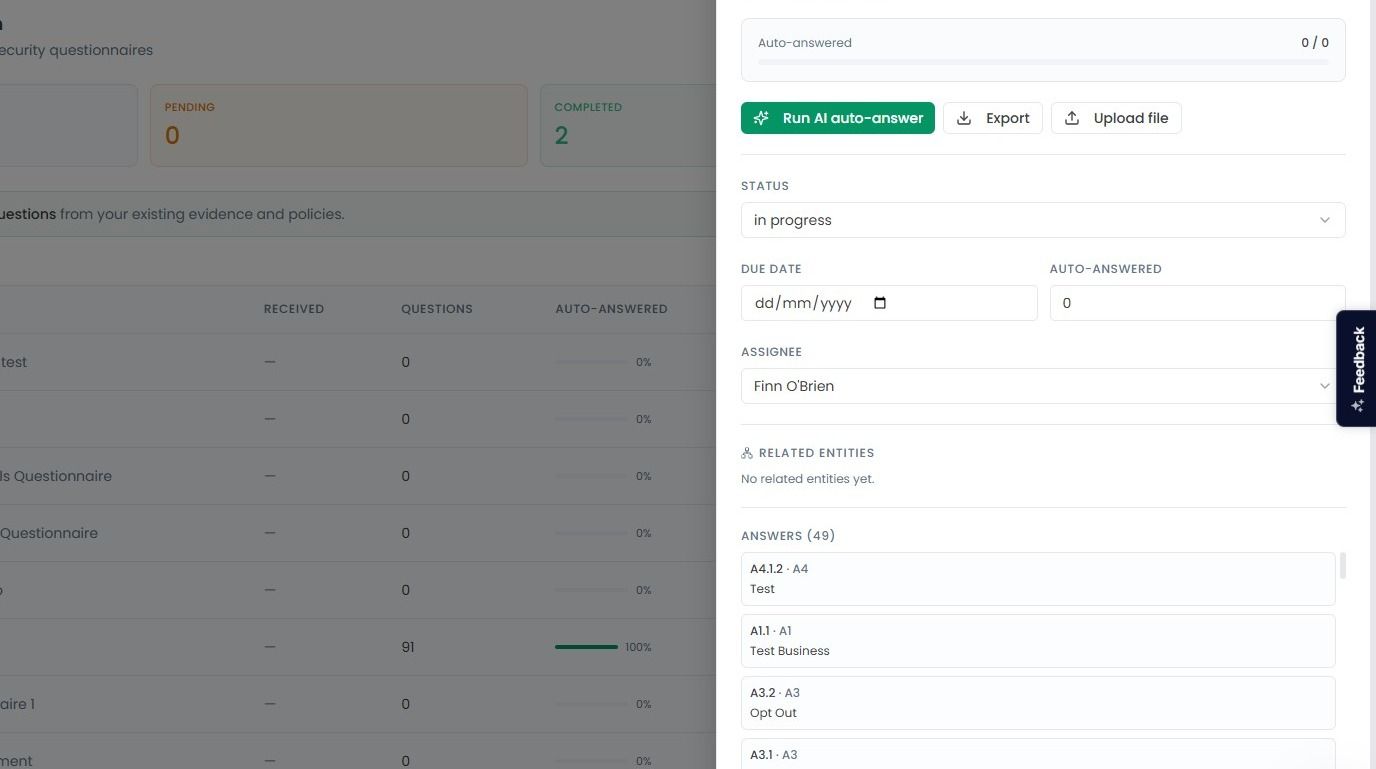
Click on the newly uploaded questionnaire to open the side panel. Within the side panel, you will find following details:
Tracker: You can see the bar under the questionnaire name to see how many questions have been successfully completed.
Run AI Auto-Answer: Click this button to start the automation. The AI will scan your evidence library and Brain knowledge to fill out the questionnaire.
Details & Assignment: You can change the status (In Progress, Complete, Sent), update the due date, or Assign a team member to review the AI filled questionnaire.
Auto-Answered: You can see how many questions have been answered automatically.
Export: Once the questionnaire is answered then you can Export the completed questionnaire as an Excel or Word document.
Upload file: To improve the platform’s ability to answer the questionnaire, you can click Upload file button to upload any supporting documents or informational files. These uploads provide the necessary context to help the AI generate more accurate and detailed responses for your security assessments.
Link Task: Click Link Task, select the desired task from the dropdown menu, and click Link button to link it to the questionnaire.
Link Evidence: Click Link Evidence, select the relevant evidence file or record, and click Link button.
Link Control: Click Link Control and select the specific compliance control from the list to map it to the questionnaire.
