Tracking Your Usage and Entitlements
This guide walks you through the steps to manage your add-on limits and view source scanning details effectively.
The Usage tab is your command center for tracking exactly what is included in your OneClickComply plan. It helps you monitor your limits and see what you’ve used.
To view your account’s usage, select the Billing icon next to the settings (cog wheel).
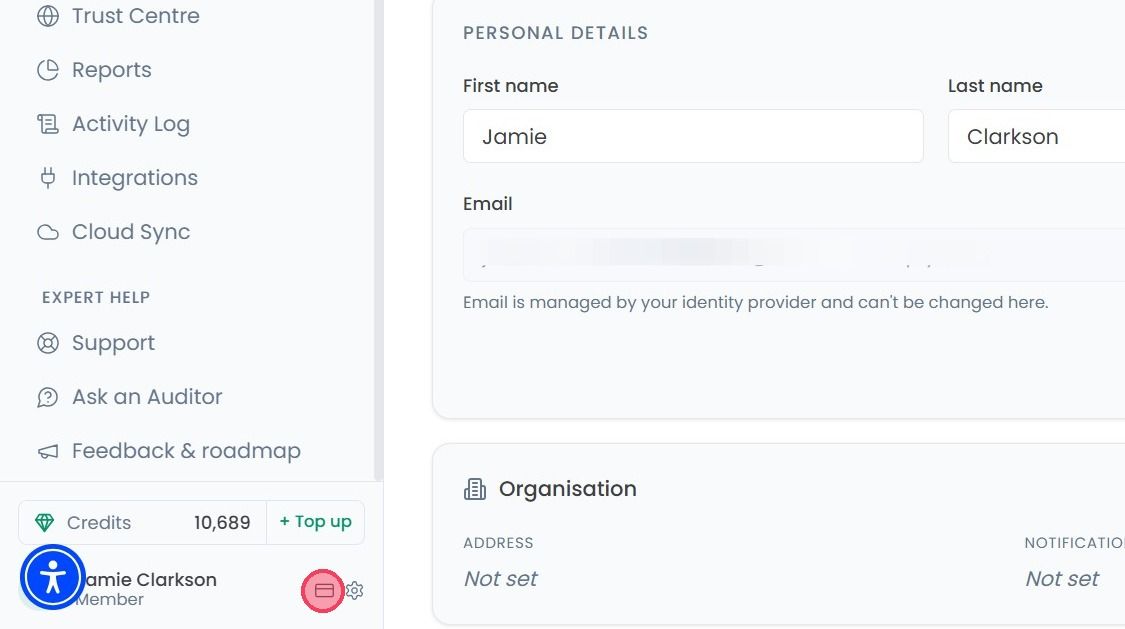
Once the Billing page open then click on the Usage tab.
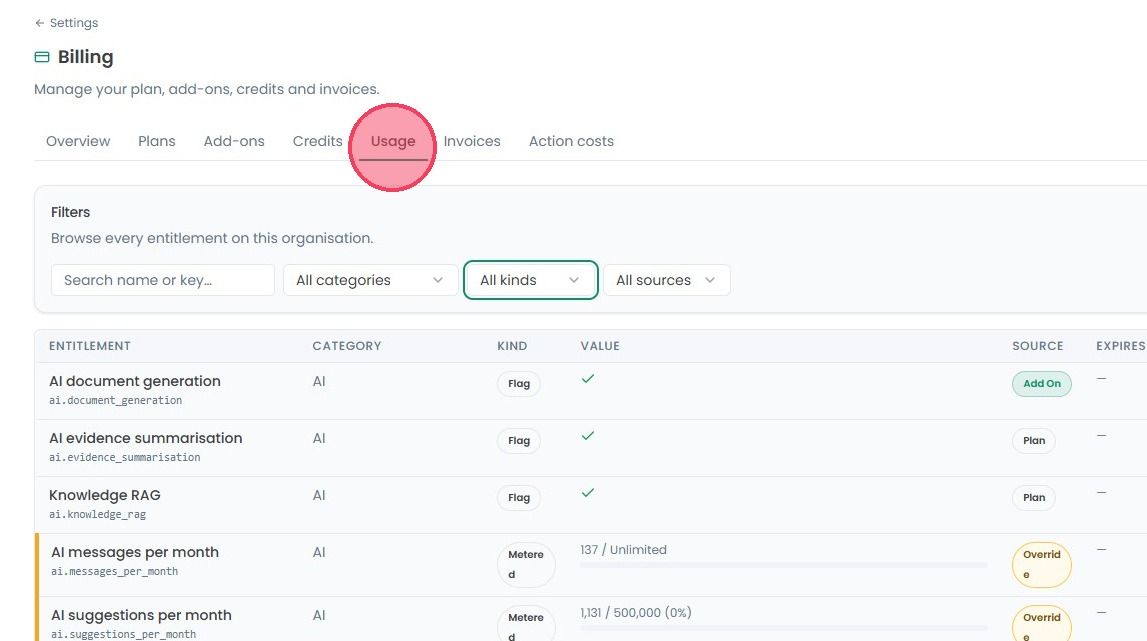
The table provides a detailed breakdown of every resource available to your organisation.
Entitlement: The name of the specific feature or resource (e.g., AI messages per month, Auditor Sessions, etc.)
Category: Groups the feature together, such as AI, Auditor, Compliance, or Security.
Kind: This explains how the limit is measured:
Limit: A hard cap on a resource, like a maximum of 500 files.
Metered: Usage that is counted as you go, like AI messages.
Flag: A simple ’Yes’ or ‘No’. Either you have the feature or you don’t.
Tier Set: Limits based specifically on your current subscription level.Value: This shows the current quantity or status allowed for that specific item.
Source: Tells you where the entitlement came from - whether it is part of your Base Plan or an Add-on you purchased separately.
Expires: Shows the date when that specific entitlement will renew or end.

If you want to look for some specific categories then use the dropdown filters at the top of the table. You can filter by Category, Kind, or Source to quickly find out.