Automatically Answering the Cyber Essentials Questionnaire
This article will guide you through accessing the Cyber Essential Questionnaire and using our AI to automatically generate responses for your security assessments.
To automatically generate responses for Cyber Essential questionnaire, select Standards from the main navigation bar.

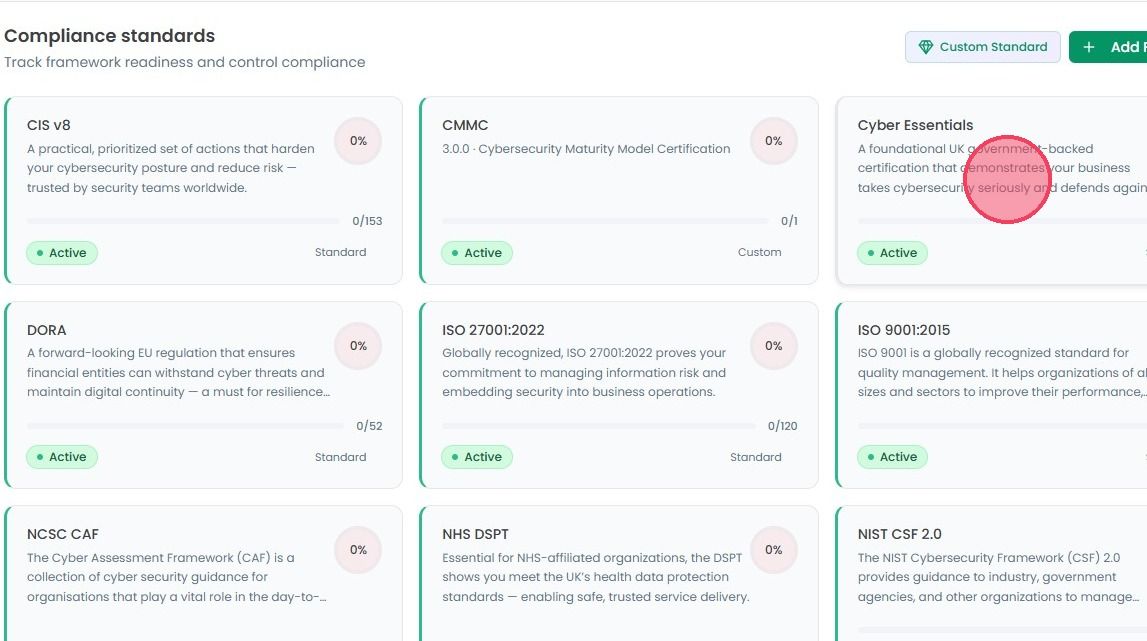
Select Cyber Essentials from the list of available compliance standards.
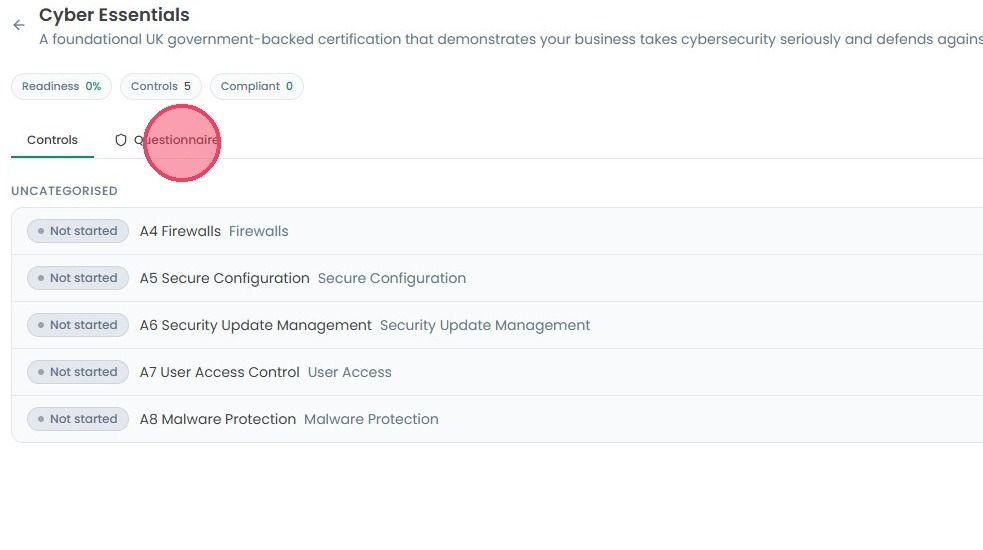
Click the Questionnaire tab, located next to the Controls option at the top of the page.
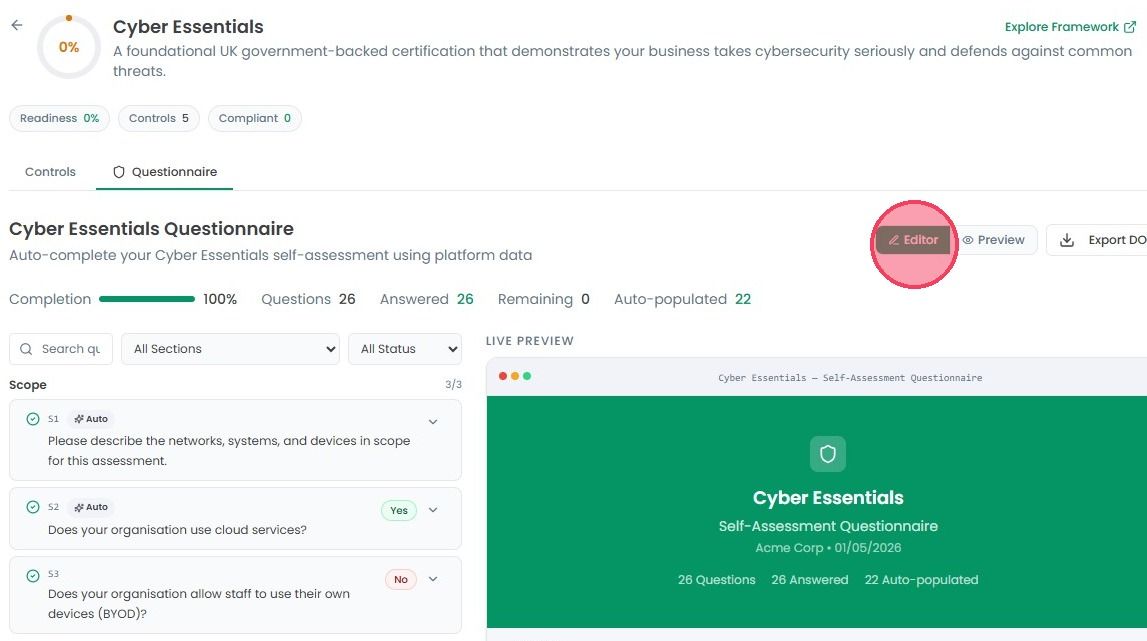
Click the Editor button in the top-right corner of the page for writing and automating the responses. At the top of this page you can also see total number of questions in the Cyber Essentials questionnaire, how many of them answered, remaining, and auto-populated.
All Sections: Filter the questionnaire by section if you’d like to work on any specific section of the questionnaire, for example, Firewalls, Scope, Malware Protection, etc.
All Status: You can filter it by Answered, Partial, or Unanswered.
If you’d like to see exactly how your questionnaire looks, click the Preview button.
Note: This is the read-only view. You cannot edit text or upload files in this mode.

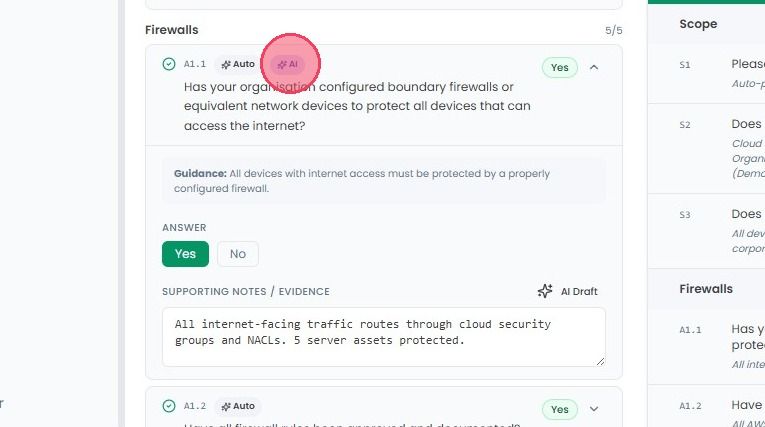
Once you click Editor button, on this new page you will see a list of every question that is asked during the Cyber Essentials self-assessment. The OneClickComply platform will automatically answer questions based on your implemented controls and associated evidence.

Answers generated by the OCC platform will be marked with an ‘Auto’ tag. If you wish to create a new automated response, simple click the ‘AI Draft’ button above the text box.

Once selected, a new response will be generated, and an ‘AI’ tag will appear above the question title.