Uploading Files to the Brain
This guide provides a simple walkthrough to help you organize your business context and manage your data efficiently.
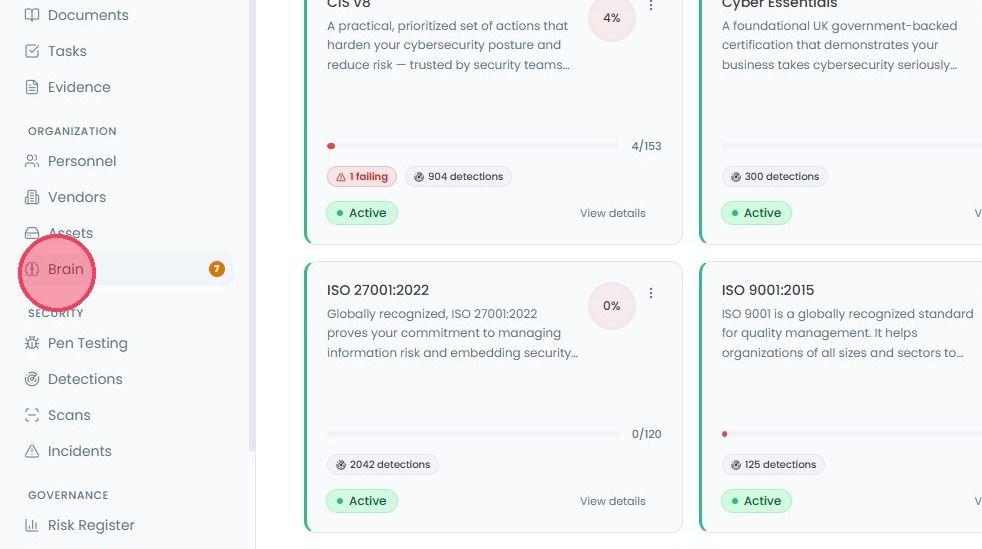
To start uploading files, select Brain from the main navigation bar.
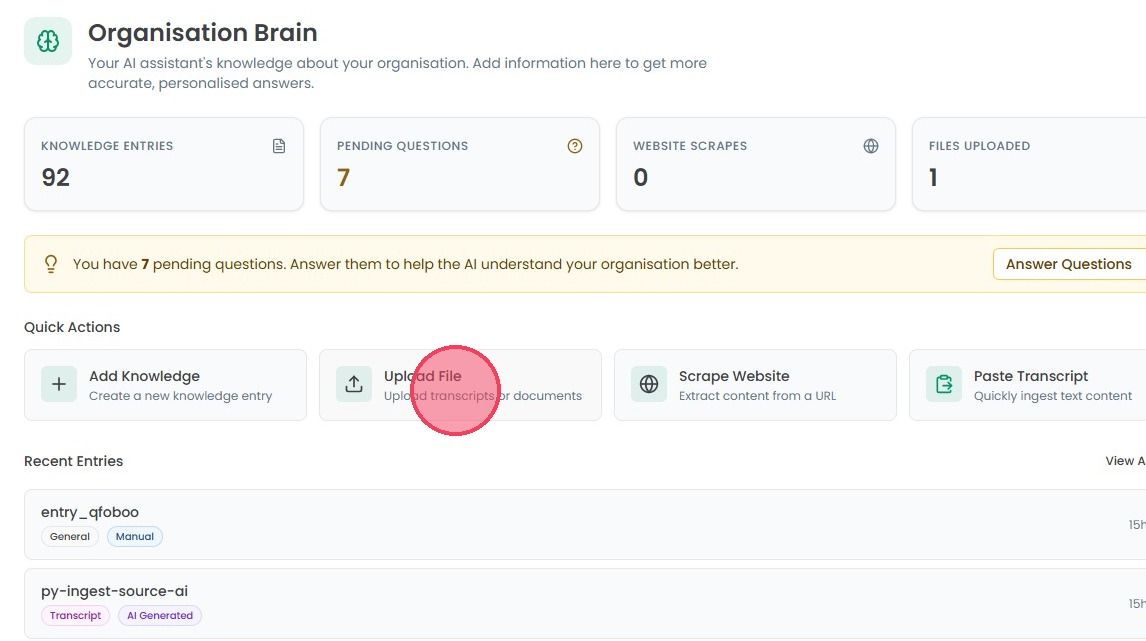
On this page, select the Upload Files option, within the Quick Actions section. This will open the Upload to Brain page.
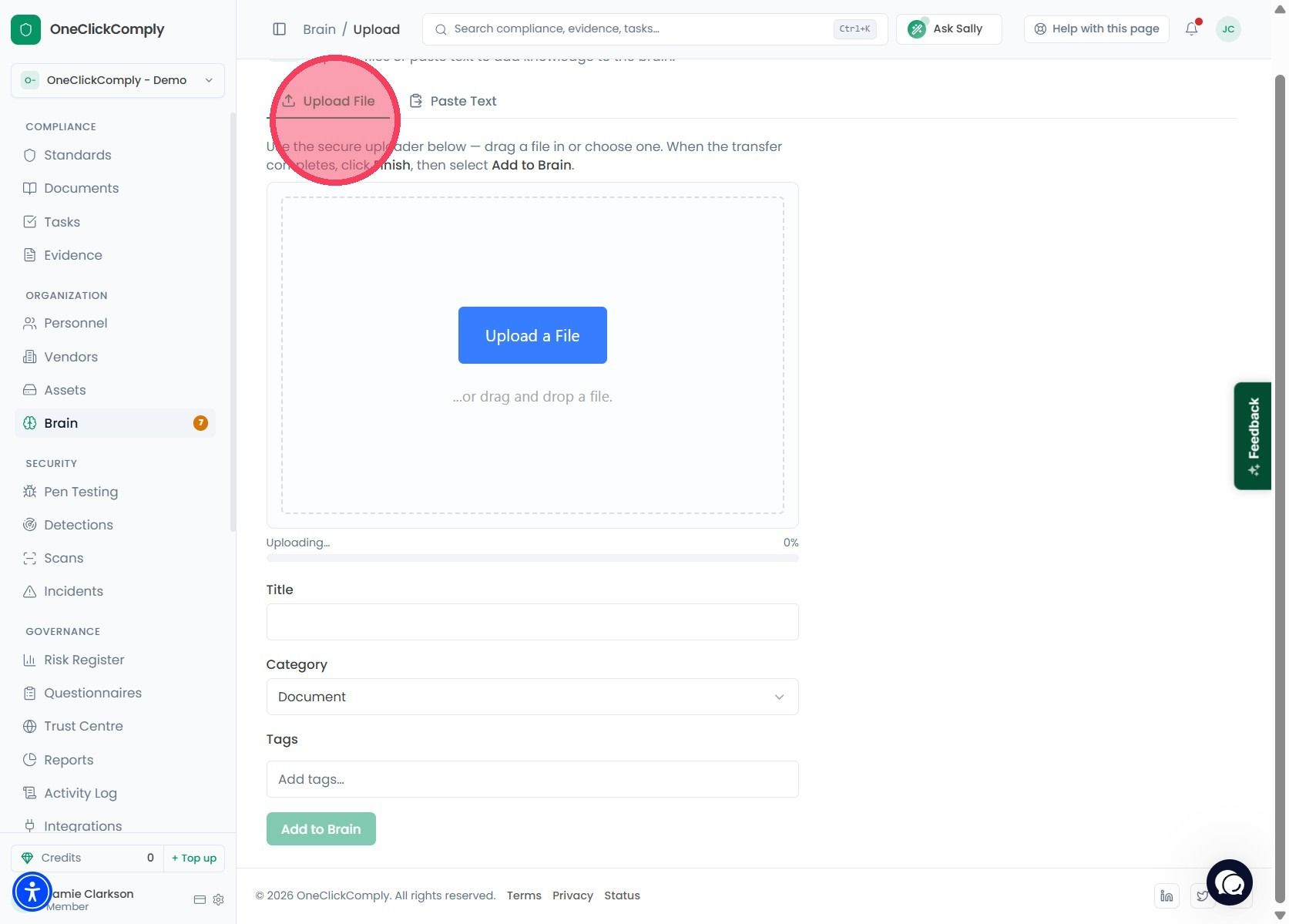
There are two option to upload your data here: Option A: Under the first Upload File tab, you can upload documents directly from your device.
Title: Give a clear title to the file.
Category: Select the relevant category from the dropdown menu (e.g., Document, Transcript, etc.)
Tags: Set custom tags to easily locate the content later.
Once you select and upload the file, the AI will begin processing the contents to integrate them into its knowledge base.
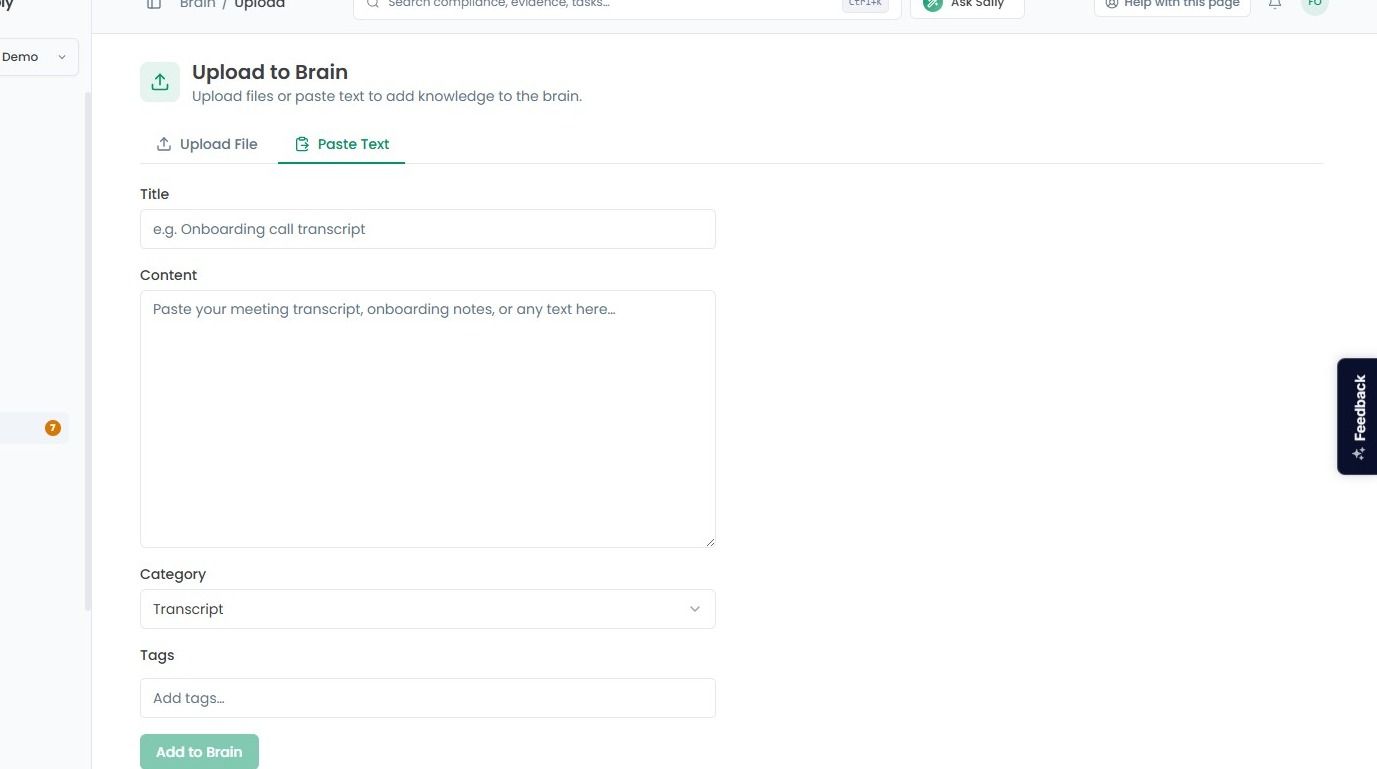
Option B: If you have a information that isn’t saved as a formal document, such as meeting transcript or a quick set of notes, select the Paste Text tab.
In the Paste Text tab, you will be required to provide the following information:
Title: A title/short description of the provided text
Content: The actual text content.
Category: The type of text being provide, such as Transcript, Key Contacts, Security Measures, Business Context etc.
Tags: Set custom tags to easily locate the content later.
Once you have finished entering the details, click the Add to Brain button at the bottom of the page. The information will be logged immediately, expanding the AI’s understanding of your organisation and allowing it to provide more tailored support for your compliance journey.